

Put the chat widget on your website
Who can do this: Owners and Office Managers. The chat is an add-on that NixDent switches on for your practice.
The chat widget is a small bubble on your website. Visitors can ask questions, book an appointment or leave a message, and your AI receptionist answers them in text.
Ask for it
Section titled “Ask for it”If the add-on isn’t on yet, Settings → Practice → Offices shows “Website chat widget — an add-on NixDent turns on for your practice” with a Request button. Click it.
Set it up
Section titled “Set it up”Once it’s on, each office has a Chat Widget block under Settings → Practice → Offices.
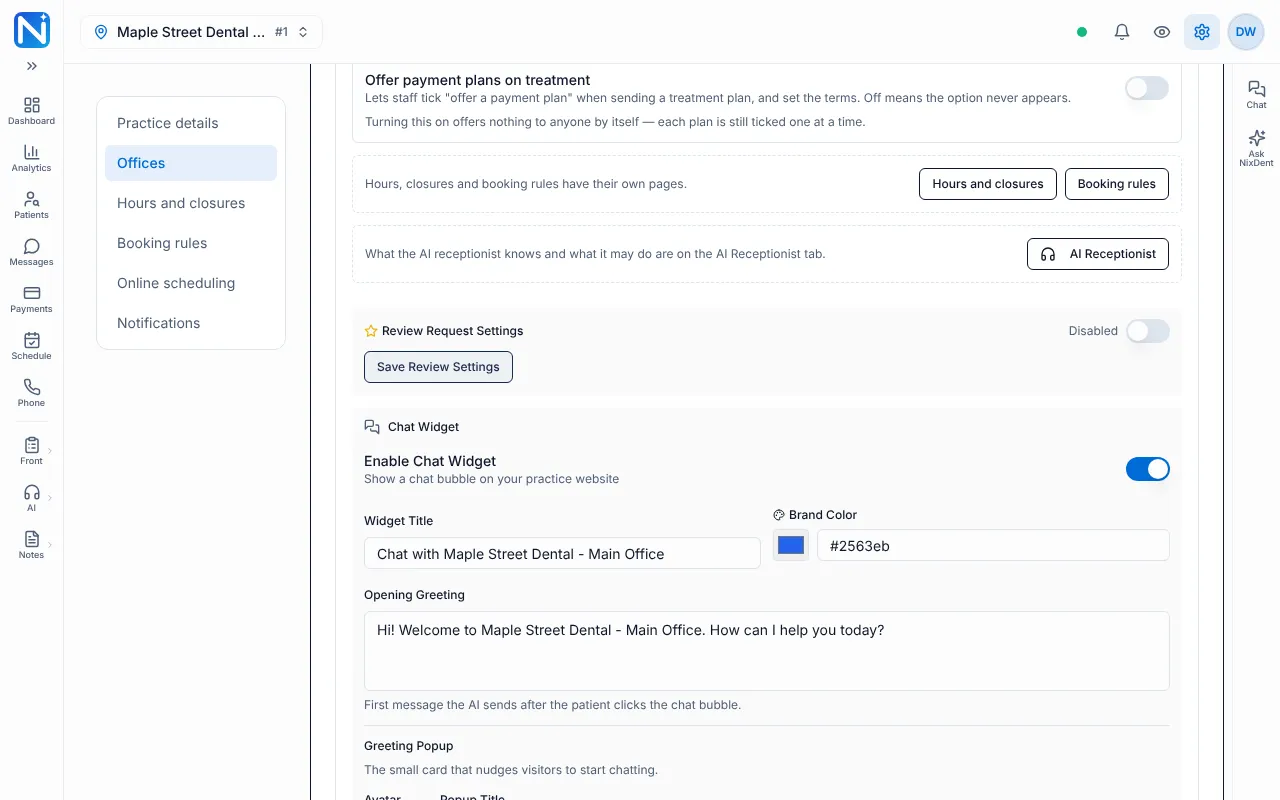
- Switch on Enable Chat Widget (“Show a chat bubble on your practice website”).
- Fill in:
- Widget Title. The words at the top of the chat. It starts as “Chat with” and your office name.
- Brand Color. Pick a color or type a hex code such as
#2563eb. - Opening Greeting. The first message the AI sends after a visitor opens the chat.
- Greeting Popup (the small card that nudges visitors): an Avatar (a picture up to 5 MB), a Popup Title (60 characters at most) and a Popup Subtitle.
- Click Save Chat Settings. A message says “Saved. Chat widget settings updated.” and the Embed Code box and Preview Widget button show at the bottom of the block.
- Click Preview Widget to try it in a new tab before it goes on your site.
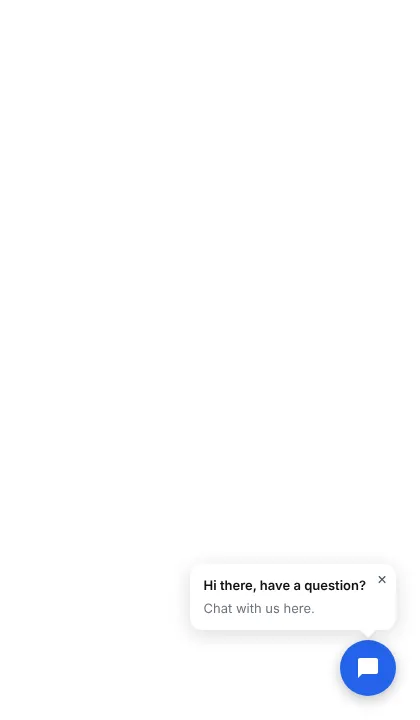
The preview first shows the round chat bubble with the greeting popup you wrote.
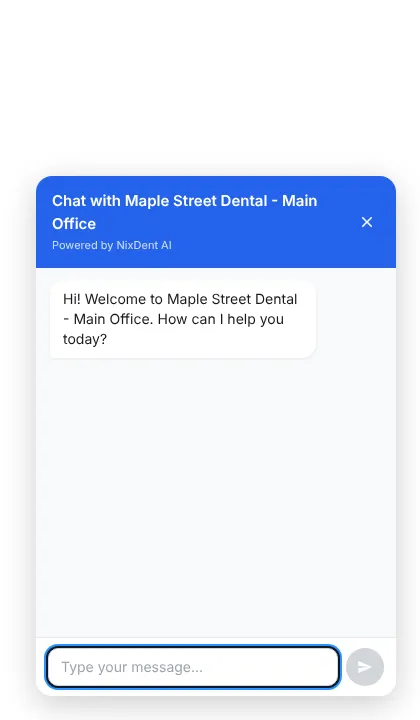
Click the bubble to open the chat. The window shows your Widget Title and your Opening Greeting.
Install it on your website
Section titled “Install it on your website”- In the Embed Code box, click the copy button. The code is one line, and it has your office’s own number in it.
- Paste it on your website just before the closing
</body>tag. If someone else manages your website, send them the code and the words “paste this on every page before the closing body tag”. - Open your website in a private window. The chat bubble should appear.
Your site’s styles don’t change the widget, and it only shows when Enable Chat Widget is on and saved. Turning it off hides the bubble without removing the code.
Each office has its own code. For a multi-office practice, use the right office’s code on that office’s page.
What the chat does
Section titled “What the chat does”The chat uses what you entered for your AI receptionist: your hours, services, insurance notes, policies and booking rules. See What to give your AI receptionist.
- It answers questions, offers appointments and books them.
- Early in a chat it asks for a name and a phone or email, one thing at a time, so your team can follow up. It carries on helping if they decline.
- To book or look up an appointment, it checks the visitor’s full name, date of birth and phone number.
- If it can’t help or book, it takes a message at the end of the chat. Messages go to Messages.
- It replies in short plain text.
Chats are kept under AI Receptionist → Chat Logs. See Review website chats.
Common problems
Section titled “Common problems”The bubble doesn’t show. Check, in order: Enable Chat Widget is on and you clicked Save Chat Settings; the code is on the page, before </body>; your website builder isn’t blocking custom scripts; a browser extension isn’t hiding it. The checklist item Chat is on the practice website turns yellow with “No chats in 7 days — the snippet may not be on the website yet” if nobody has used it for a week.
Preview works but my site doesn’t. The code is missing or has the wrong office number.
I changed the color and nothing happened. Click Save Chat Settings, then refresh your website. The browser may hold the old look for a short time.
Chats aren’t showing in Chat Logs. Check the date range and outcome filters at the top of the page.