

Build a patient segment
Who can do this: Anyone on your team.
Go to Outreach → Segments, and pick the office at the top left. Segments belong to one office.
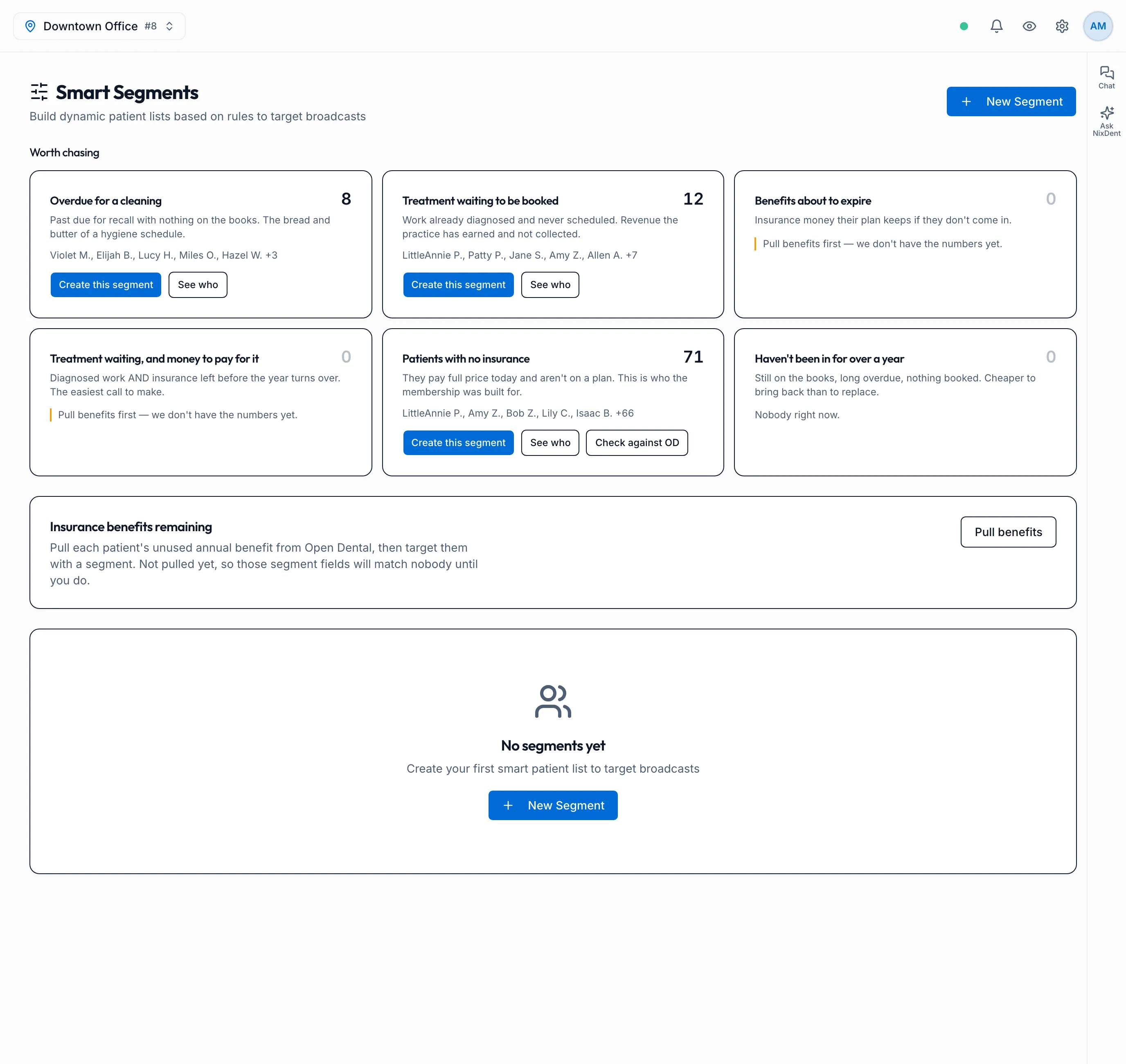
A segment is a saved set of rules, like “last visit more than 180 days ago” and “no upcoming appointment”. It’s worked out from your Open Dental patients each time you use it, so it stays current. You use segments to choose who gets a broadcast.
Every segment automatically leaves out inactive patients, people who aren’t patients of the office (such as prospects), patients marked do-not-contact, and patients opted out of automation on their patient card.
Start from a suggestion
Section titled “Start from a suggestion”Under Worth chasing, NixDent counts patients in common groups. Click See who to see the names, or Create this segment to start a segment with those rules filled in.
| Card | Who’s in it |
|---|---|
| Overdue for a cleaning | Recall more than 30 days overdue, nothing booked |
| Treatment waiting to be booked | Unscheduled treatment, nothing booked |
| Benefits about to expire | At least $100 of insurance left, benefit year ending within 90 days |
| Treatment waiting, and money to pay for it | Unscheduled treatment, at least $200 of insurance left, benefit year ending within 90 days |
| Patients with no insurance | No insurance on file and not already a membership member |
| Haven’t been in for over a year | No visit in over a year, nothing booked |
On Patients with no insurance, click Check against OD to double-check the whole list against Open Dental before you send anything.
Pull insurance benefits first
Section titled “Pull insurance benefits first”Cards and rules about insurance money need each patient’s remaining benefit from Open Dental. Until you pull it, they match nobody.
- Under Insurance benefits remaining, click Pull benefits. Use Pull again later to refresh.
- Click See all N with benefits left to see the list, biggest balances first. Click why? on a row to see how the figure was worked out.
- Type an amount in Only those with more than $___ left, then click Create a segment from this.
Patients whose plan has no annual maximum in Open Dental are left out, because there’s no way to know what they have left. Click See who, and which plans to find them, so the maximum can be entered in Open Dental.
Build your own
Section titled “Build your own”- Click New Segment.
- Enter a Name and, if you like, a Description (optional).
- Next to Match, choose ALL rules (AND) or ANY rule (OR).
- Click Add Rule, then pick a field, a comparison and a value. Add as many rules as you need.
- Watch Live Preview: it shows how many patients match, with a few example names.
- Click Create Segment.
Rules you can use
Section titled “Rules you can use”| Rule | Value |
|---|---|
| Last visit (days ago) | A number, with >, <, >= or <= |
| Has upcoming appointment | Yes / No |
| Has unscheduled treatment | Yes / No |
| Recall days overdue | A number, with >, <, >= or <= |
| Recall status | pending, contacted, scheduled, completed or declined |
| SMS opted out | Yes / No. Includes patients who replied STOP to your texts. See Texting rules and patient opt-outs |
| Email opted out | Yes / No |
| Has phone on file | Yes / No |
| Has email on file | Yes / No |
| Has dental insurance | Yes / No |
| Already a membership member | Yes / No |
| Insurance remaining over ($) | A dollar amount (needs a benefits pull) |
| Benefit year ends within (days) | A number of days (needs a benefits pull) |
Edit or delete a segment
Section titled “Edit or delete a segment”Use the pencil on a segment’s card to change it, then Save Changes.