

Work the recall list
Who can do this: Anyone on your team.
Go to Front Desk → Recall List, and pick the office at the top right.
How the list is built
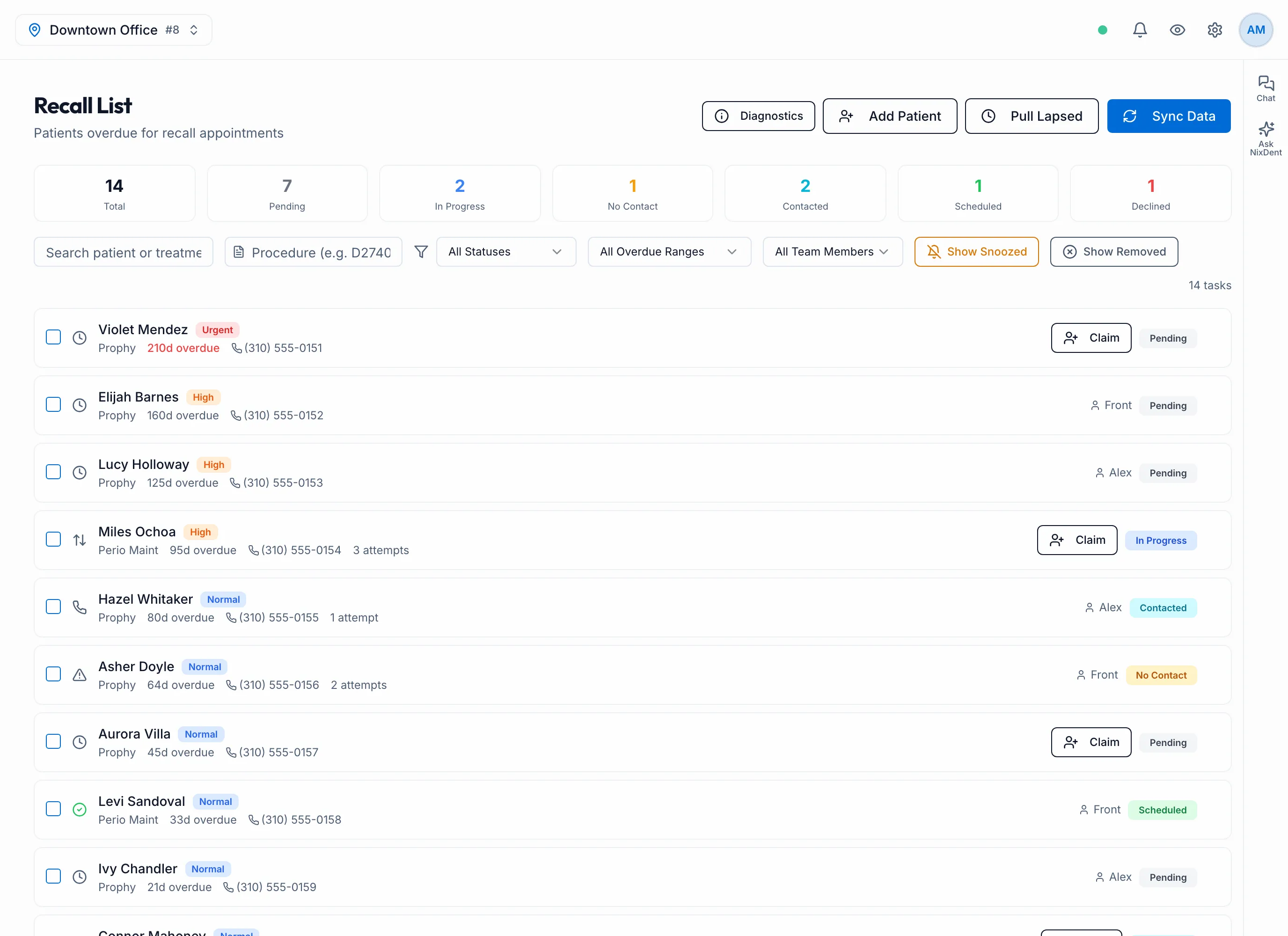
Section titled “How the list is built”Click Sync Data to build or refresh the list from Open Dental. It adds patients whose cleaning or perio maintenance is overdue and who have nothing booked:
- A cleaning is due 6 months after the last one.
- Perio maintenance is due 3 months after the last one. A last visit counts as perio when its appointment type or procedure mentions perio, SRP, PMX, or the codes D4341, D4342 or D4910.
A visit counts as a recall visit when Open Dental marks it as a hygiene visit, or its appointment type or procedure looks like a cleaning, perio or recall visit. If your office uses unusual shorthand, a patient may be missing from the list. Tell NixDent.
Each refresh also tidies the list. A patient who books a recall visit moves to Scheduled. A patient who has had their cleaning moves to Completed. A patient who is no longer active in Open Dental is removed. Use Remove to keep a patient off the list.
The list doesn’t refresh itself. Click Sync Data at the start of a calling session. A patient who books, or is no longer overdue, stays on the list until the next sync.
After a sync you see Sync Complete or Sync Ran — No New Tasks. The number in the message counts every overdue patient written, including ones already on the list, so don’t read it as “new”. If it says to check the connection, see How NixDent connects to Open Dental.
Patients are marked by how overdue they are: Urgent (more than a year), High (more than 6 months) or Normal.
The buttons at the top are Diagnostics, Add Patient, Pull Lapsed and Sync Data. The normal sync looks back 24 months. Pull Lapsed reaches back 5 years to add patients whose last cleaning was more than 24 months ago. Use the overdue filter to see them. If your office’s connection can’t do this, you’ll see a message saying so.
Each row shows the visit type (Prophy or Perio), “N d overdue” and a priority badge.
Find the right patients
Section titled “Find the right patients”- Search by patient or treatment, or type a procedure code (for example D1110).
- Filter by status, by how overdue (All Overdue Ranges, Up to 4 months, 4 – 6 months, 6 – 12 months, 12 – 24 months, 24 – 36 months, 36 – 48 months, 48 – 60 months, 60+ months), or My Tasks.
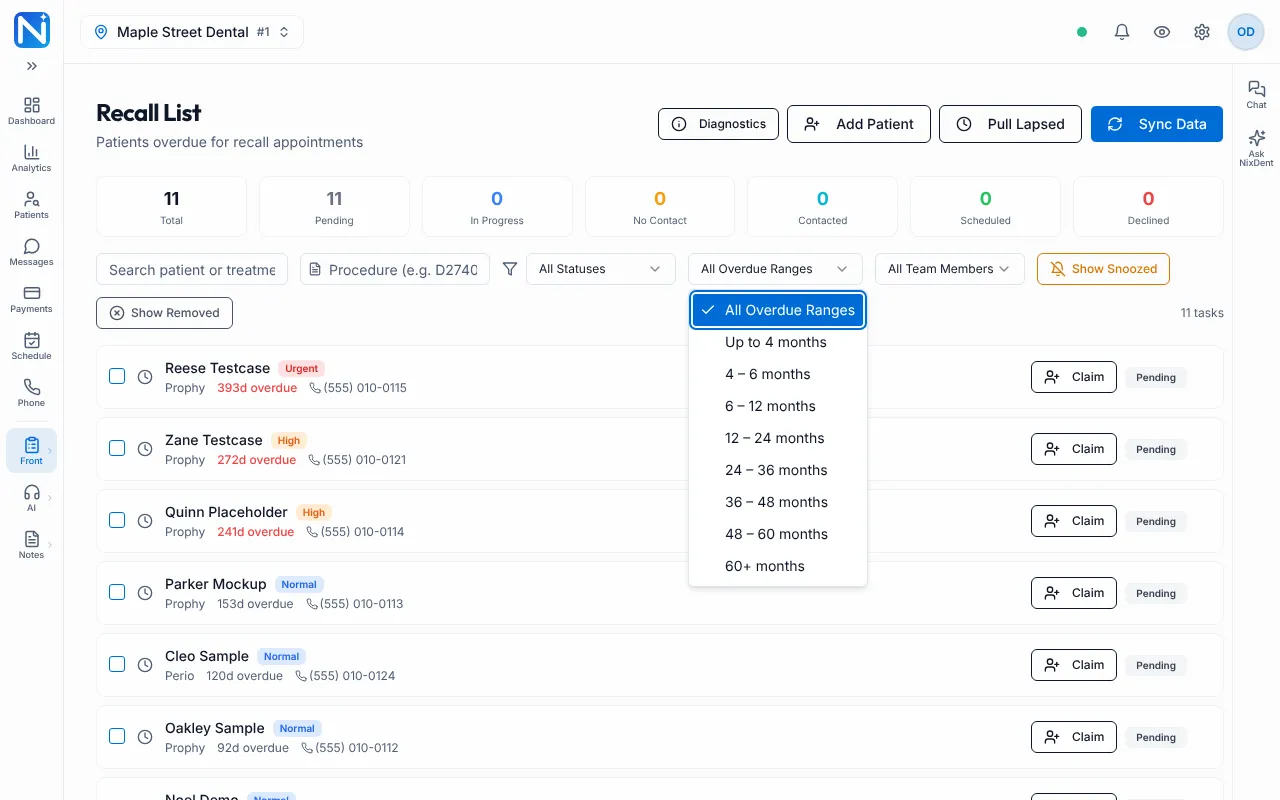
- Show Snoozed and Show Removed bring back hidden patients. A snoozed or removed patient stays hidden until you show them.
The counts along the top show how many are Pending, In Progress, No Contact, Contacted, Scheduled and Declined.
Work a patient
Section titled “Work a patient”Click Claim on a row to make it yours. Click the row to open it.
- Call or email using the phone number and email shown.
- Under Add Follow-Up Note, pick an outcome (for example No Answer or Scheduled Appointment) and add a note. For No Answer, Left Voicemail or Callback Requested, you can set a Follow-Up Date.
- Click Save Follow-Up Note. It appears in Activity History with your name.
The outcome updates the status for you: Scheduled Appointment → Scheduled, Patient Declined → Declined, No Answer or Left Voicemail → No Contact, Contacted - Spoke with patient or Callback Requested → In Progress.
In the same window you can also:
- Change the Status or who it’s Assigned To.
- Snooze Task for 1 week, 2 weeks, 1 month, 3 months, or until a date. Clear Snooze undoes it.
- Remove the patient from the list. They won’t come back on the next sync. Find them under Show Removed and click Re-add if you change your mind.
Hand patients to the AI
Section titled “Hand patients to the AI”Available if your plan includes Outbound Calls, and once a Default Recall Campaign is set in Outreach → Settings. See Set up AI calling campaigns.
- Tick the patients, then click Send To AI Recall Campaign in the blue bar. Or open one patient and click the same button.
- The AI starts calling during your calling hours. The row shows an AI badge.
- Each call is logged in the patient’s Activity History, and the status updates: Scheduled if they book, Declined if they say no, Contacted if they’re reached, No Contact if not.
Patients with no phone number, marked do-not-contact, opted out of automation, or already being called are skipped.
To stop the AI calling someone, open them and click Remove from AI Campaign. The task goes back to Pending.
Add a patient by hand
Section titled “Add a patient by hand”Click Add Patient, type a name or phone number, click Search, then click the patient to add them. Use this for someone you want called even though they aren’t flagged overdue.