

Add a person
Who can do this: Owners and Office Managers.
Go to Settings → Team and click Add person.
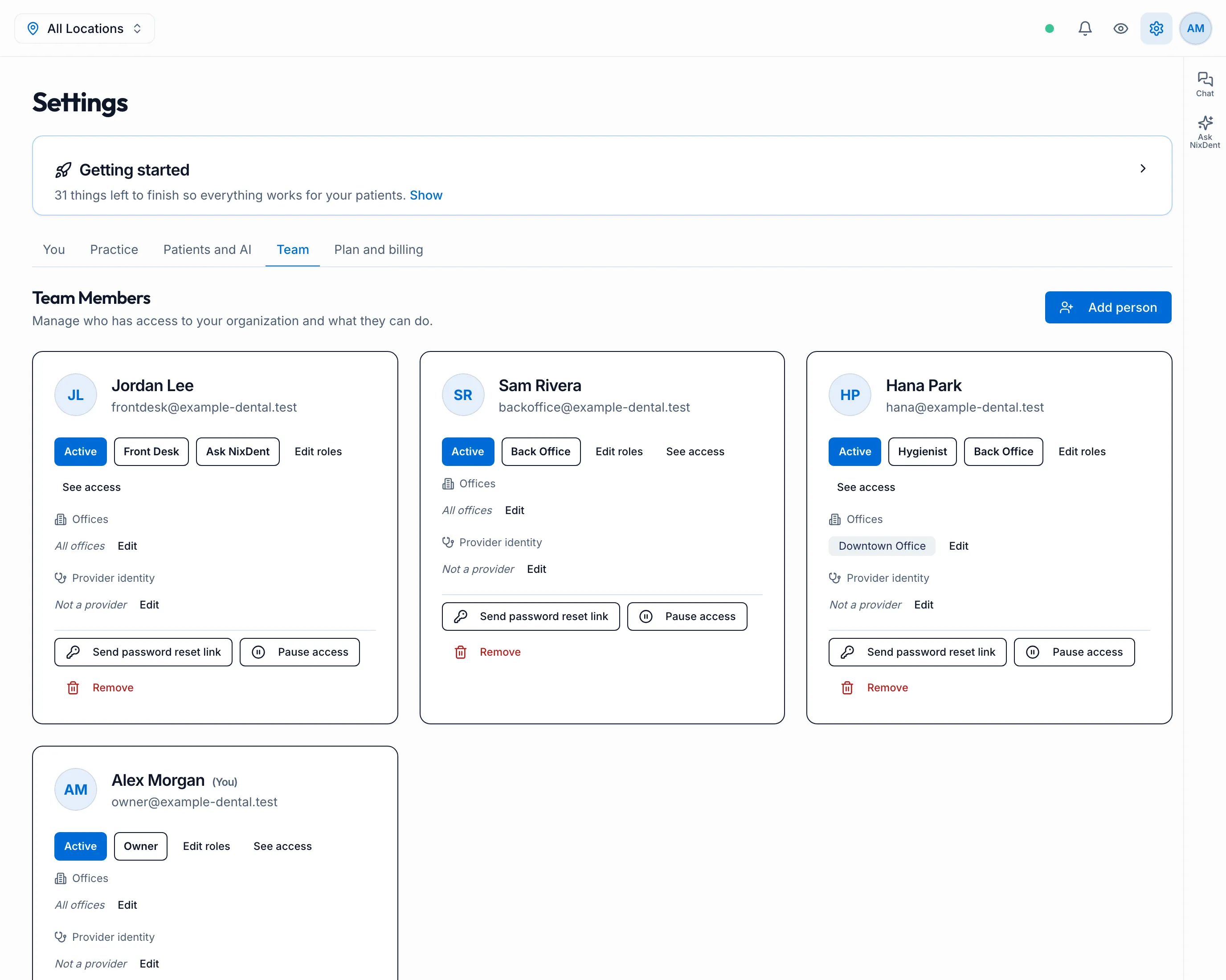
- Enter their first name, last name and email.
- Under What do they do?, tick every role that applies. Someone who is a hygienist and also helps at the front desk gets both. See Roles and what they allow.
- If they should have Ask NixDent, switch it on under Extra access.
- If you have more than one office, tick the offices they work at under Which offices?. Leave them all unticked for every office.
- Click Add person.
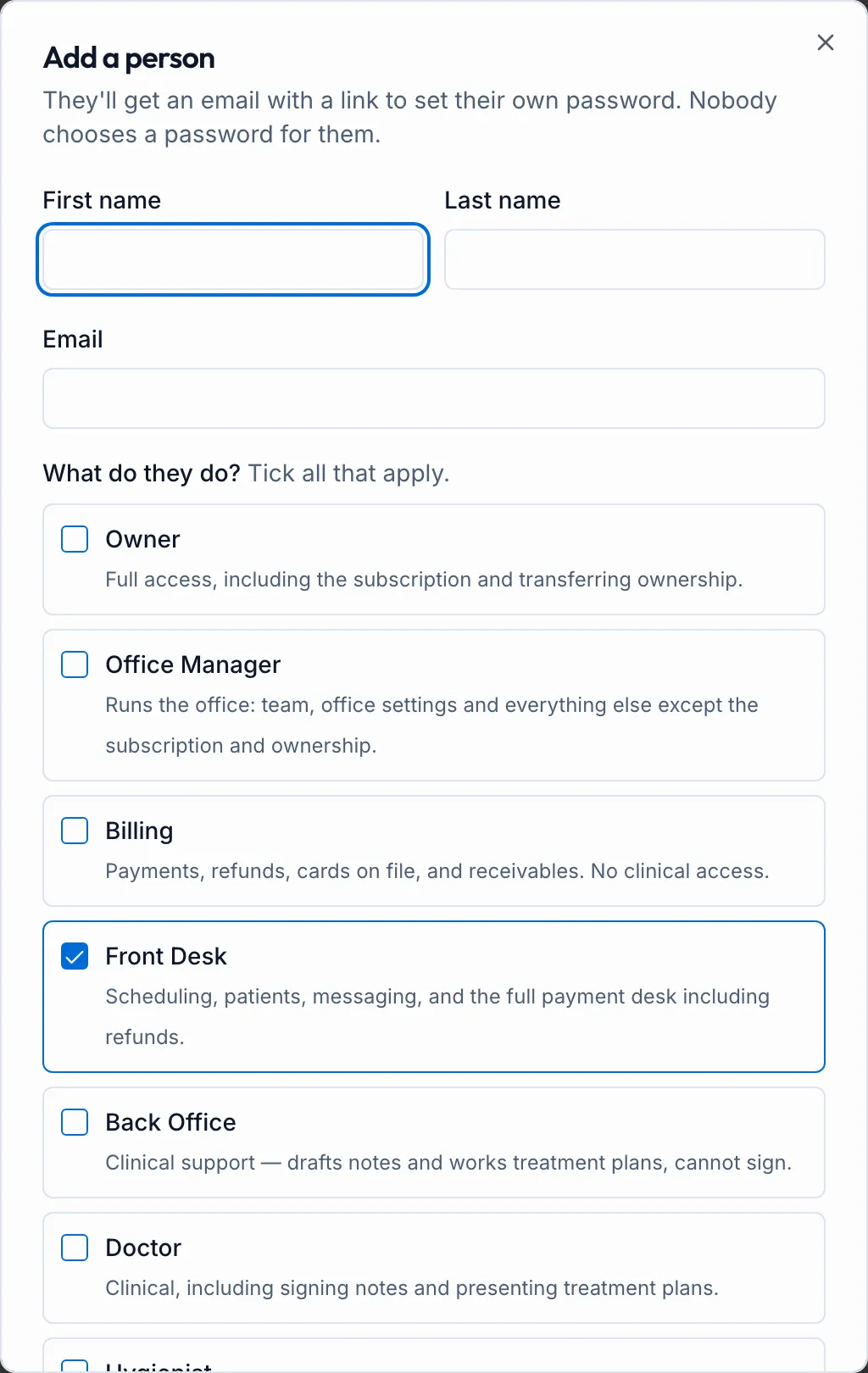
They get an email with a link to set their own password. Nobody chooses a password for them, including you and NixDent.
If they didn’t get the email
Section titled “If they didn’t get the email”On their card, click Resend invite. The button reads Send password reset link once they’ve set a password.
Ask them to check spam, and that the address is spelled correctly. The email comes from NixDent, not from your practice.
Offices
Section titled “Offices”Each card shows the person’s Offices. All offices means every office, including ones you add later. Click Edit to limit them to specific offices. They then only see patients, schedules and reports for those offices.
Provider identity
Section titled “Provider identity”For clinicians, Provider identity links the person to their provider in Open Dental. It must be set for their clinical notes to be filed under the right provider. Click Edit and pick them from the list.