

Call summaries and the huddle brief
Who can do this: Owners and Office Managers.
Go to Settings → Practice → Notifications, and pick the office at the top right.
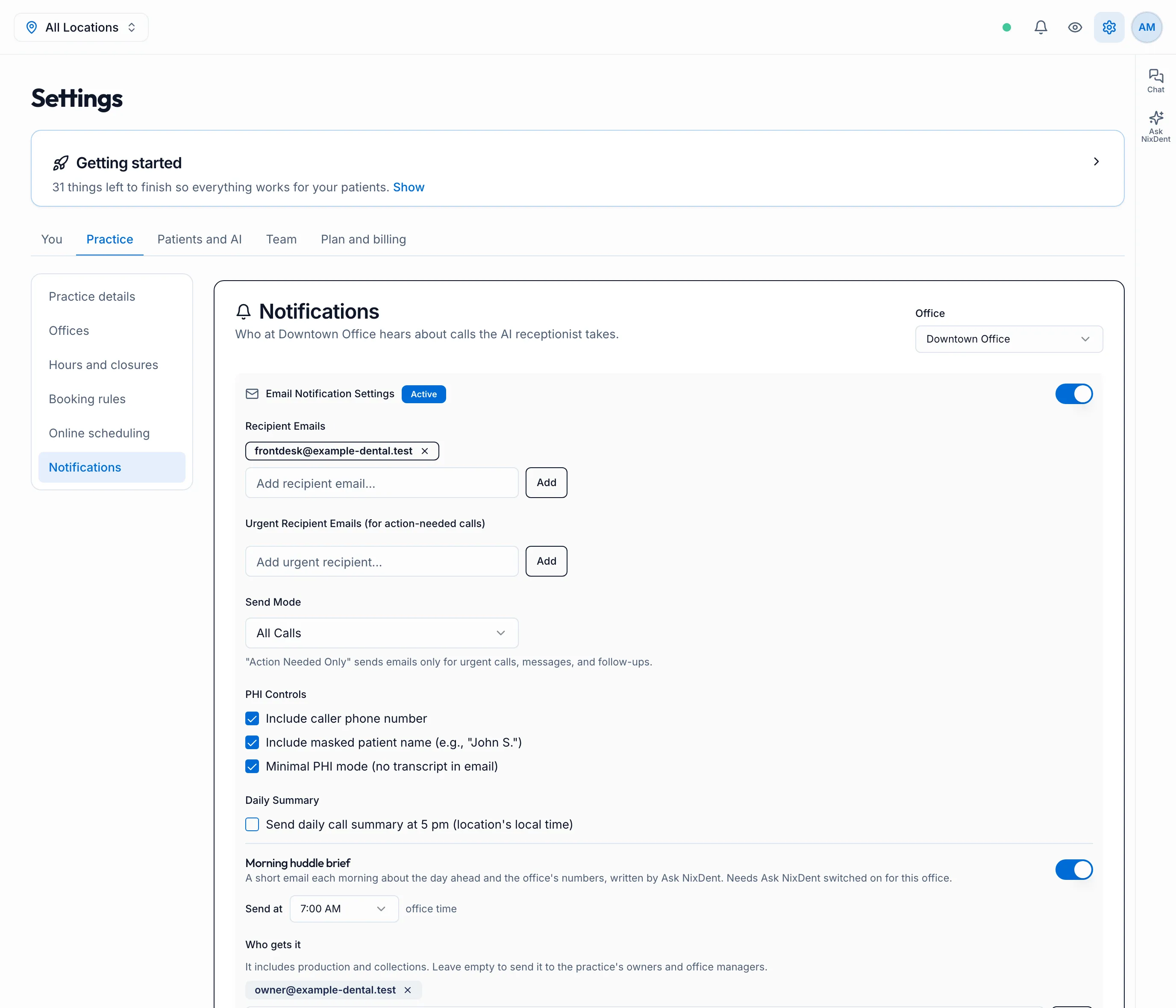
Call summary emails
Section titled “Call summary emails”- Make sure the Email Notification Settings switch is on.
- Under Recipient Emails, type an address and click Add. Add as many as you need.
- Under Urgent Recipient Emails, add anyone who must hear about calls that need action, such as a call-back or an emergency.
- Choose a Send Mode:
- All Calls: an email after every call.
- Action Needed Only: only urgent calls, messages and follow-ups.
- Click Save Notification Settings.
Keeping patient details out of email
Section titled “Keeping patient details out of email”The PHI Controls decide how much is in each email:
- Include caller phone number
- Include masked patient name: shows “John S.”, never the full name.
- Minimal PHI mode: leaves the call transcript out. The full call is always in NixDent.
Daily summary
Section titled “Daily summary”Tick Send daily call summary for one email at 5 PM office time with the day’s calls.
Morning huddle brief
Section titled “Morning huddle brief”A short email each morning about the day ahead and the office’s numbers, written by Ask NixDent.
- Turn it on with the switch, and choose Send at (office time).
- Who gets it: add addresses. Leave it empty to send it to the practice’s owners and office managers.
- It includes production and collections, so only add people who should see those.
- It needs Ask NixDent switched on for the office. See Give someone Ask NixDent.
Click Save Notification Settings when you’re done.