

The Getting started checklist
Who can see it: Owners and Office Managers.
At the top of Settings there’s a Getting started card. It lists, office by office, what is still missing or worth checking. It disappears when nothing is left. Yellow items keep it showing; items marked optional never appear.
Until NixDent adds your first office there is no checklist. See Create your account.
The card starts closed as a one-line summary. Click it to open or close the list; your choice is remembered on that computer.
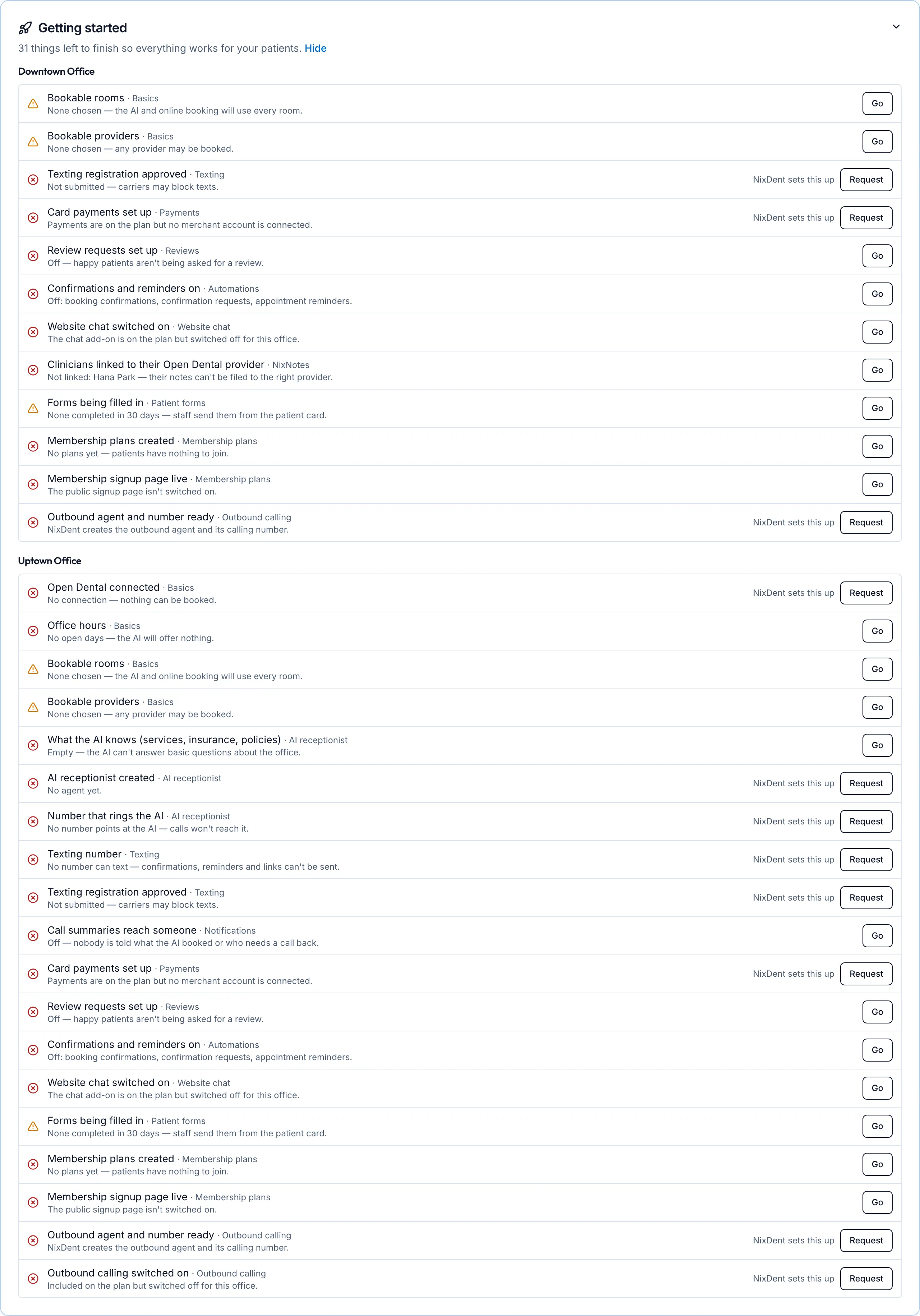
Reading the list
Section titled “Reading the list”- A red circle means something is missing, and patients will notice. For example, no office hours means the AI can’t offer any times.
- A yellow triangle means it works, but check it’s what you want. For example, with no bookable rooms chosen, every room can be booked.
- The small grey word after each item is the area it belongs to, such as Basics, Texting or Reviews.
Finishing an item
Section titled “Finishing an item”- Go takes you to the page where you fix it. Make the change, save, and the item drops off the list. Some Go buttons open other pages, such as Payments or Membership Plans.
- NixDent sets this up with a Request button means only NixDent can do it. Examples are connecting Open Dental, creating the AI receptionist, phone numbers, texting registration, and the merchant account for card payments. Click Request and the NixDent team gets a ticket with the details filled in.
- Some items, such as Bookable rooms and Bookable providers, can be locked by NixDent on a new office. Go then opens a page you can’t change. Use Request to ask NixDent to unlock them or to tell them what you want.
What each item means
Section titled “What each item means”Labels are exactly as shown in the app. Red means missing, yellow means worth checking. Items only appear when the product is on your plan.
Basics
Section titled “Basics”| Item | Red when | Yellow when | Who fixes it |
|---|---|---|---|
| Office address and time zone | The office address is empty | NixDent for the address. You for the time zone, in Offices. A new office starts on Pacific Time, so check yours by eye. | |
| Open Dental connected | No connection | Connected but hasn’t reported in recently | NixDent. Use Request. See Your Open Dental connection. |
| Office hours | No open days saved | You. See Hours, holidays and closed days. | |
| Bookable rooms | None chosen, so every room can be booked | You. See Booking rules. | |
| Bookable providers | None chosen, so any provider can be booked | You. See Booking rules. |
AI receptionist
Section titled “AI receptionist”Only if AI Receptionist is on your plan.
| Item | Red when | Who fixes it |
|---|---|---|
| What the AI knows (services, insurance, policies) | Services, insurance and policies are all empty | You. See What to give your AI receptionist. |
| AI receptionist created | There is no live AI receptionist for the office | NixDent. Use Request. |
| Number that rings the AI | No active number is assigned to the AI | NixDent. See Phone numbers. |
| Texting number | No active number can text | NixDent. Use Request. |
| Call summaries reach someone | Summaries are off, or on with no email address | You. See Call summaries and the huddle brief. |
Texting
Section titled “Texting”| Item | What it needs | Who fixes it |
|---|---|---|
| Texting registration approved | Shows yellow until the registration is approved | NixDent |
| Texting opt-in page and policies | Red until your patient opt-in page is live. It goes live when your texting registration is submitted | NixDent |
Other items, when the product is on your plan
Section titled “Other items, when the product is on your plan”| Group | Items |
|---|---|
| Phone system | 911 address on every phone |
| Payments | Card payments set up, Payments being taken |
| Online booking | Online booking link |
| Reviews | Review requests set up, Review requests going out |
| Automations | Confirmations and reminders on, Automated texts going out |
| Website chat | Website chat switched on, Chat is on the practice website. See Put the chat widget on your website |
| Notifications | Morning huddle brief |
| NixNotes | Clinicians linked to their Open Dental provider. See Add a person |
| Patient forms | Patient forms ready to send, Forms being filled in |
| Membership plans | Membership plans created, Membership signup page live |
| Team | An owner or office manager can sign in |
Remember
Section titled “Remember”- The card remembers whether you collapsed it, on that device.
- NixDent sets this up items have a Request button that sends a support ticket with the office and item filled in.