

Set up AI calling campaigns
Who can do this: Anyone on your team.
Available if your plan includes Outbound Calls. NixDent also switches outbound calling on for each office. Until then, the pages say Outbound calling is not enabled for this location. The Outreach menu appears once at least one of your offices has it.
Go to Outreach → Campaigns, and pick the office at the top left.
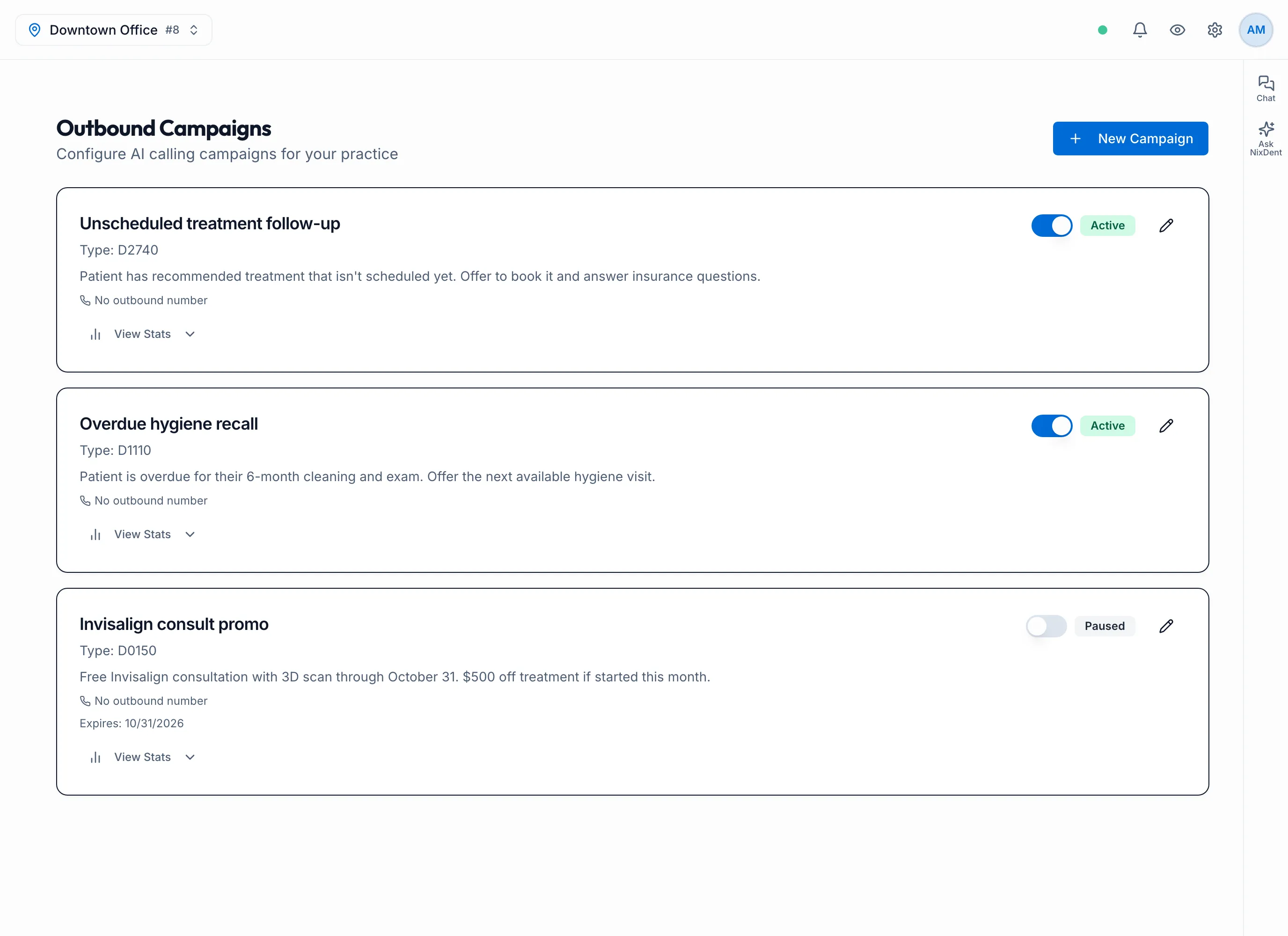
How it fits together
Section titled “How it fits together”- A campaign is the script: why the AI is calling, what the offer is, and which number it calls from.
- A lead is a person to call. Every lead belongs to one campaign. A lead with no campaign is never called. See Work your call leads.
- The AI calls leads during your calling hours, retries on a schedule, and records the result of every call.
Create a campaign
Section titled “Create a campaign”- Click New Campaign.
- Fill in the fields below. Campaign Name, Agent Introduction and Offer Details are required.
- Click Create Campaign.
| Field | What it’s for |
|---|---|
| Campaign Name | For your team. The AI also knows the name. |
| Agent Introduction | Why the AI is calling, in a sentence. For example “we have a special offer for a free teeth whitening”. |
| Offer Details | The offer itself. The AI works it into the call. |
| Procedure Info (optional) | Plain-language notes about the treatment, so the AI can answer questions. |
| Pricing (optional) | The only price the AI may say. Leave it blank and the AI won’t mention a price at all. |
| Outgoing Caller ID | The number patients see. Use location default uses your office’s outbound line. |
| Collect Insurance Information | When on, the AI asks for insurance company, employer group and member ID. |
New campaigns start Active.
Text messages between calls
Section titled “Text messages between calls”Switch on SMS Sequence to send a text after a call that didn’t reach anyone.
- Click Add Step. Each step is a column: Call outcome → Wait → Send SMS.
- Click the Call outcome box. Set After call attempt # and tick voicemail, no answer or any.
- Click the Wait box and set the Delay (minutes after call).
- Click the Send SMS box and write the message. You can use
{{first_name}},{{office_name}}and{{office_phone}}.
Texts always go from your office’s outbound number, whatever caller ID the campaign uses for calls.
Pause or edit a campaign
Section titled “Pause or edit a campaign”- To edit, click the pencil on the campaign card, change what you need, then click Save Changes.
- To pause, turn off the switch on the card. The badge changes from Active to Paused, and your office’s notification recipients get an email if notifications are turned on for the office.
What the AI does on the call
Section titled “What the AI does on the call”- Asks for the person by first name, then says who it is, which office it’s calling from, and that the call is recorded.
- If they’re an existing patient, confirms their date of birth before saying anything about their care. If it doesn’t match, it shares nothing from their record.
- Explains why it’s calling, using the campaign’s introduction and offer. For existing patients with treatment waiting, it names the treatment.
- Books the appointment straight into Open Dental, and offers to book family members too.
- If it’s a bad time, it asks when to call back and calls then.
- If it reaches voicemail, it leaves a short message with your Office Main Line and no details about the patient’s care.
If someone asks whether they’re talking to a person, the AI says it’s an AI assistant for your office. If they ask not to be called, the lead is marked Not Interested and isn’t called again.
After the call
Section titled “After the call”- The lead’s status and Call History update. You can play the recording and read the transcript on the lead’s page.
- Your office’s notification recipients get an email when a patient books, says no, gets a voicemail, or needs a call back from the office. Set recipients in Call summaries and the huddle brief.
- If the lead came from the Recall List, Unscheduled Treatment or Broken Appointments, that task updates too, with the call noted in its activity.
- If nobody answers, the AI tries again. See the retry settings below.
See how a campaign is doing
Section titled “See how a campaign is doing”- On a campaign card, click View Stats: total leads, booked, connect rate, average calls per lead, and a breakdown of call outcomes.
- Read outbound reporting (Outreach → Reporting) compares campaigns and lead sources over the last 7, 30 or 90 days.
- Review the outbound call log (Outreach → Call Log) lists every call, with recordings and transcripts. Filter by outcome or campaign.
Calling hours and retries
Section titled “Calling hours and retries”Go to Outreach → Settings. Click Save Settings when you’re done. The Recall Automation card below has its own Save Campaign Settings button, so the two buttons save different cards.
| Setting | What it does |
|---|---|
| Agent Calling Name | The office name the AI says. |
| Doctor Name | How the AI refers to the provider. |
| Agent Persona Name | The first name the AI introduces itself with. |
| Start Time / End Time | The AI only calls between these times, in the office’s time zone. |
| Daily Retry Call Time | When next-day retries go out. |
| Calls Per Day (Days 2–6) | 1 call per day or 2 calls per day. |
| Initial Retry Delay (minutes) | With 2 calls per day, how long to wait before the second call. |
| Daily Attempt Days | How many days the AI keeps trying. |
| Max Total Attempts | After this many calls, the lead becomes Unresponsive and calling stops. |
| Office Main Line (for voicemails) | The number the AI reads out in voicemails and texts. |
| Max Concurrent Calls | How many calls this office runs at once, from 1 to 3. The total across all offices is capped at 3, and calls from patients to your AI receptionist always come first. |
Default campaigns for your worklists
Section titled “Default campaigns for your worklists”Under Recall Automation, choose the campaign used when staff send patients to AI calling from each list, then click Save Campaign Settings:
- Default Recall Campaign for the Recall List
- Default Unscheduled Treatment Campaign for Unscheduled Treatment
- Default Broken Appointment Campaign for Broken Appointments
Only active campaigns are listed. Write the broken-appointment campaign to rebook: these patients already booked once.