

What your patient sees when they authorize a payment plan
A payment plan only starts after the patient has seen the amounts and signed. This page explains the screen they see.
Who can do this: Owners, Office Managers, Billing and Front Desk create the plan. See Payment plans.
Where the link comes from
Section titled “Where the link comes from”- You choose Send to patient to accept when you create a plan. See Payment plans.
- The patient accepts a payment plan on a signed treatment plan and is taken straight to this page.
What the patient sees
Section titled “What the patient sees”- Your office name and details, and the plan summary: Plan total, Schedule (for example “6 monthly payments”), the amount of each payment and “First payment on {date}”. Plan total is the amount spread over the payments. It doesn’t include a deposit.
- Authorize your payment plan.
- A sentence about the card. If you already keyed the card, it says “Your card is already on file. Sign below to authorize” the payments. If not, the patient adds the card they’d like charged.
- When the first payment is taken:
- If the first payment date is today: “Your first payment will be charged when you sign.”
- Otherwise: “You won’t be charged today - your first payment is {date}.”
- Card boxes, unless a card is already saved.
- Your signature, with wording authorizing {office} to charge the card the plan amount on the schedule shown, for the total shown. The patient may cancel by contacting the practice.
- A tick box agreeing to sign electronically.
- The Authorize button, or Authorize & pay if a payment is due today.
If a deposit applies, the page says it will be charged now.
After signing: Payment received - you’re all set (a payment was taken) or Card saved - you’re all set (nothing yet).
Common problems
Section titled “Common problems”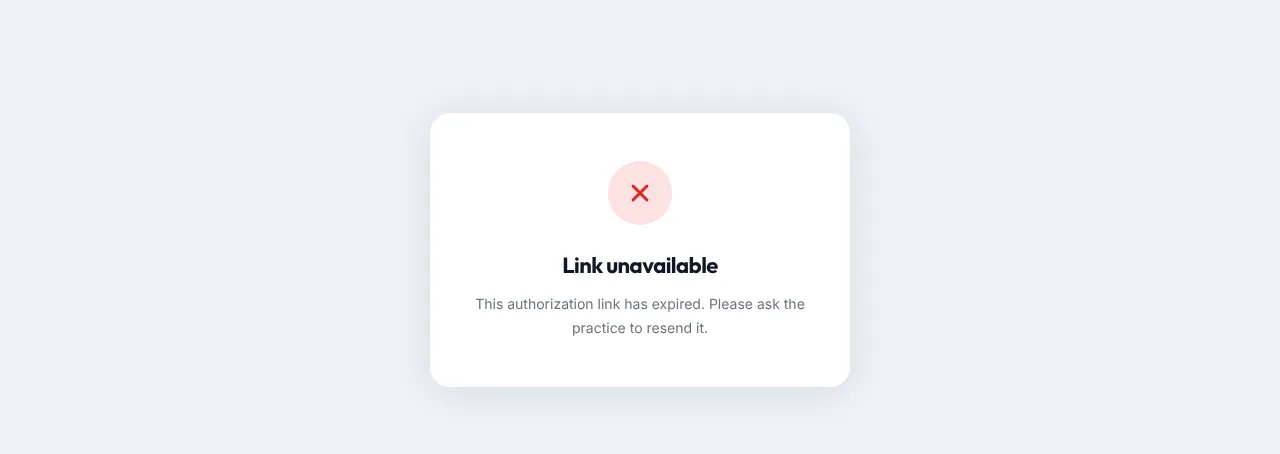
“This authorization link has expired. Please ask the practice to resend it.” Open Payments → Payment Plans, find the plan (status Pending) and click Send link. Each time you click Send link, the previous link stops working and a new one is sent. If the new link still doesn’t open, cancel the plan and create a new one.
A payment fails later. The plan changes to Failed and doesn’t retry by itself. See Payment plans.