

Create your account
Who can do this: Anyone with a work email. The person who signs up becomes the Owner of a new practice.
Signing up gives you a NixDent sign-in and a new practice to set up. It does not connect Open Dental or turn on the AI receptionist by itself. NixDent does those parts for you. See After you sign up.
Sign up
Section titled “Sign up”- Go to the NixDent sign-in page and click Create one.
- Enter your First name and Last name.
- Enter your Work email. Use the address you want to sign in with, such as
[email protected]. - Choose a Password. Use the eye button to show or hide what you type. Choose a strong password. The form tells you what is missing.
- Click Create Account.
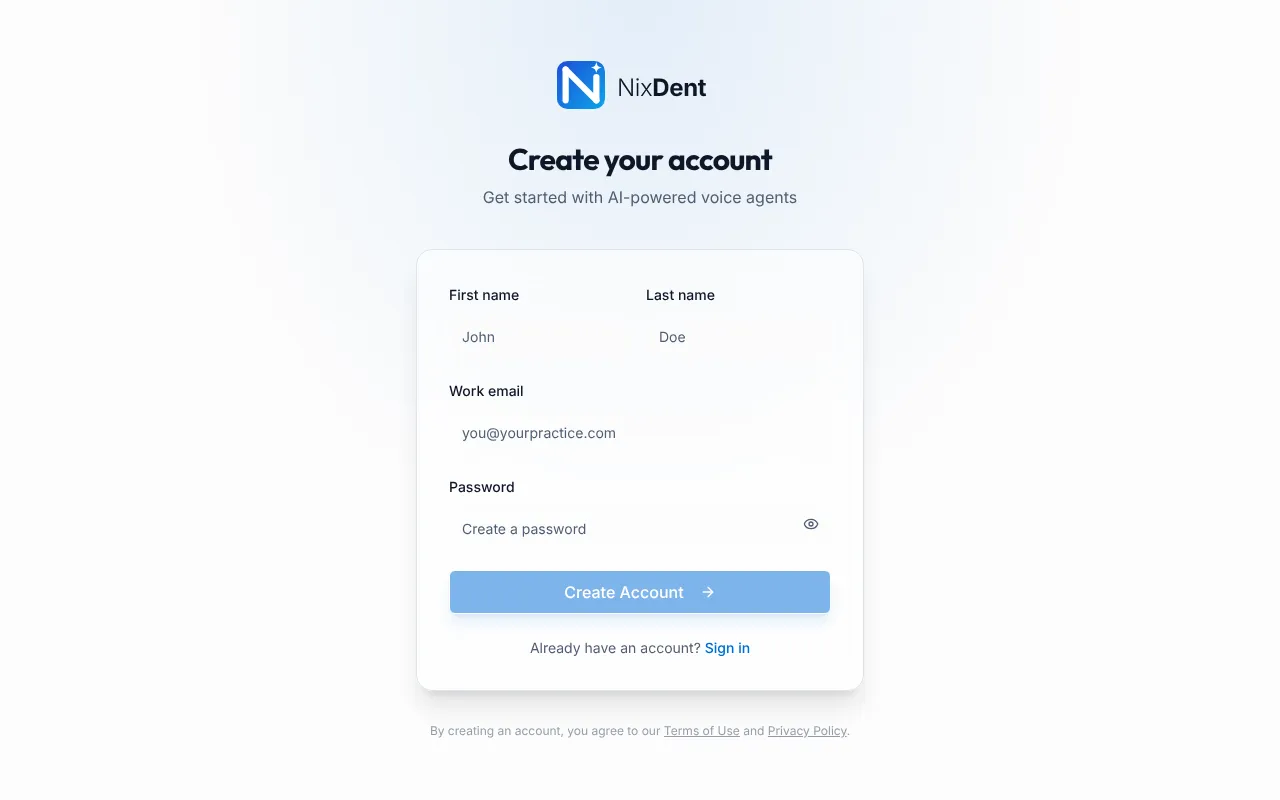
By creating an account you agree to the Terms of Use and Privacy Policy. Both are linked at the bottom of the form.
What happens when you click Create Account
Section titled “What happens when you click Create Account”- You are signed in straight away and land on the Dashboard.
- NixDent creates a practice for you, named after you (for example “Jordan’s Practice”). You are its Owner.
- You can rename the practice in Settings → Practice → Practice details. The name matters: the AI receptionist uses it when it answers the phone. See Practice details.
What you see the first time
Section titled “What you see the first time”A brand-new practice has no offices yet, and that shapes every screen. Pages that work office by office, such as Offices, Hours and closures, Booking rules, Notifications and the AI receptionist page, say “No offices set up yet.” The Getting started checklist does not appear until your first office exists. The dashboard shows zeros, because the AI is not answering calls yet.
After you sign up
Section titled “After you sign up”NixDent sets up your offices, your Open Dental connection, your AI receptionist and your phone number. Contact NixDent support, say you have just signed up, and ask for your office to be set up. Once your office exists, the Getting started checklist shows what is left.
While you wait:
- Add your team from Settings → Team → Add person. See Add a person.
- Write down what the AI should know. Use the worksheet in What to give your AI receptionist. You can enter it in Settings once your office exists.
Common problems
Section titled “Common problems”“An account with this email already exists.” That email already has a NixDent sign-in. Go to the sign-in page and use Forgot password?. See Sign in and reset your password.
The Create Account button is greyed out. The password is not strong enough yet. Keep going until the form accepts it.
“Signup failed” appears. Read the message. It says what is missing, for example that the password needs to be longer.