

Review website chats
Who can do this: Everyone on your team can read chats. Setting up the widget is for Owners and Office Managers. To put the chat on your website, see Put the chat widget on your website.
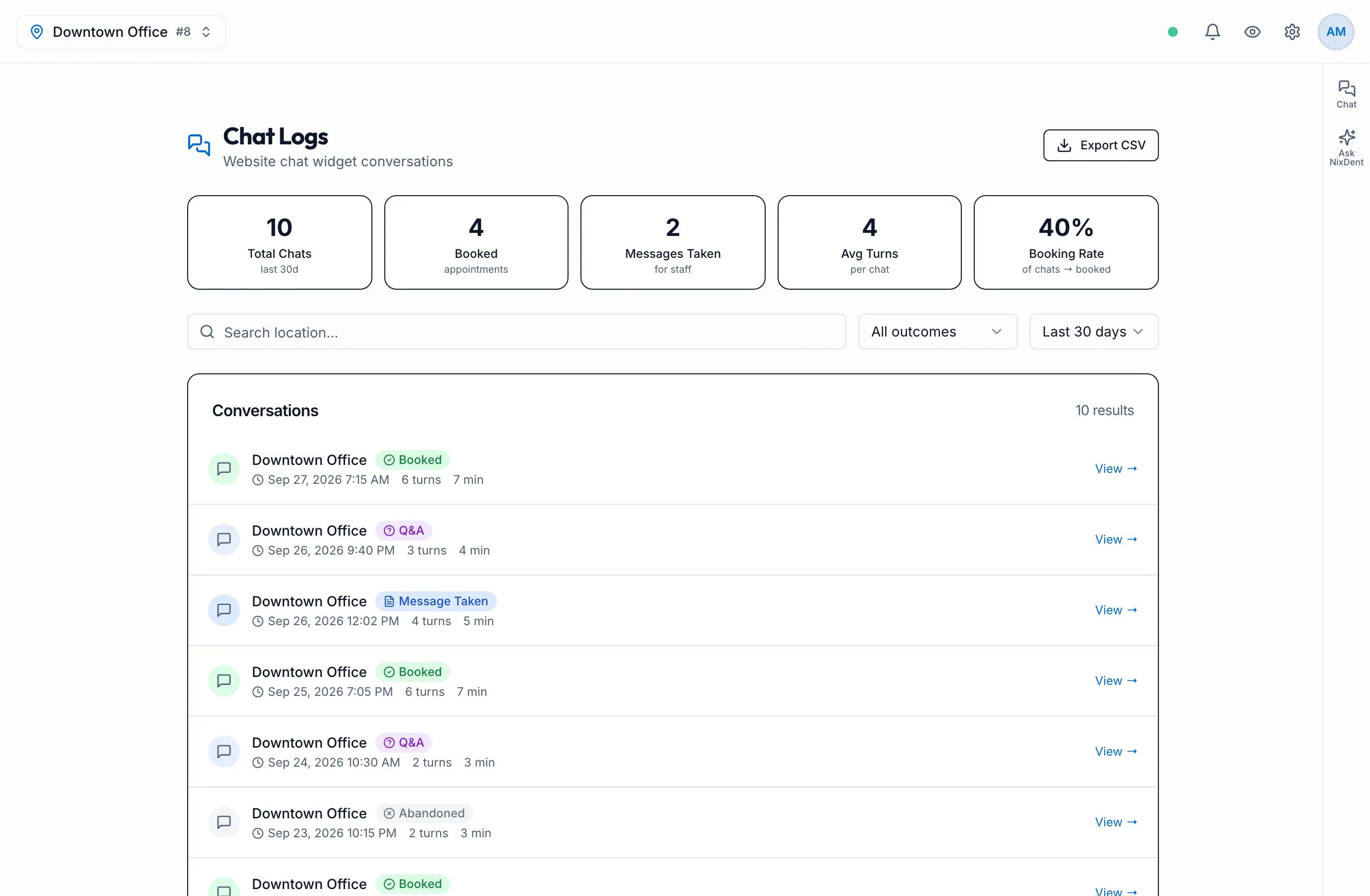
If your practice uses the NixDent chat on its website, every conversation is kept in AI Receptionist → Chat Logs. The chat is an add-on that NixDent turns on. To ask for it, an Owner or Office Manager goes to Settings → Practice → Offices and clicks Request next to Website chat widget. The block reads “an add-on NixDent turns on for your practice”.
The numbers at the top
Section titled “The numbers at the top”| Number | What it means |
|---|---|
| Total Chats | Conversations in the period you picked |
| Booked | Chats that ended with an appointment booked |
| Messages Taken | Chats where the patient left a message for your staff |
| Avg Turns | How many messages a chat takes on average |
| Booking Rate | The share of chats that ended in a booking |
Find a conversation
Section titled “Find a conversation”- Pick a period: Last 7 days, Last 30 days, Last 60 days or Last 90 days.
- Filter by outcome: Booked, Message Taken, Q&A (a question was answered), Abandoned, or All outcomes. A chat that hasn’t finished shows In Progress.
- If you have more than one office, type in the search box to narrow by office.
Click View → on a conversation to read the whole chat.
Click Export CSV to download the list.
For phone calls the AI answered, see Call Logs.
What the chat asks visitors
Section titled “What the chat asks visitors”- Early in a chat it asks for a name and a phone or email, once and lightly.
- To book or look up an appointment it checks full name, date of birth and phone number.
- Chats that end in Message Taken put the message in Messages.