

Online scheduling — your booking link
Who can do this: Owners and Office Managers. Everyone else can look but not change anything.
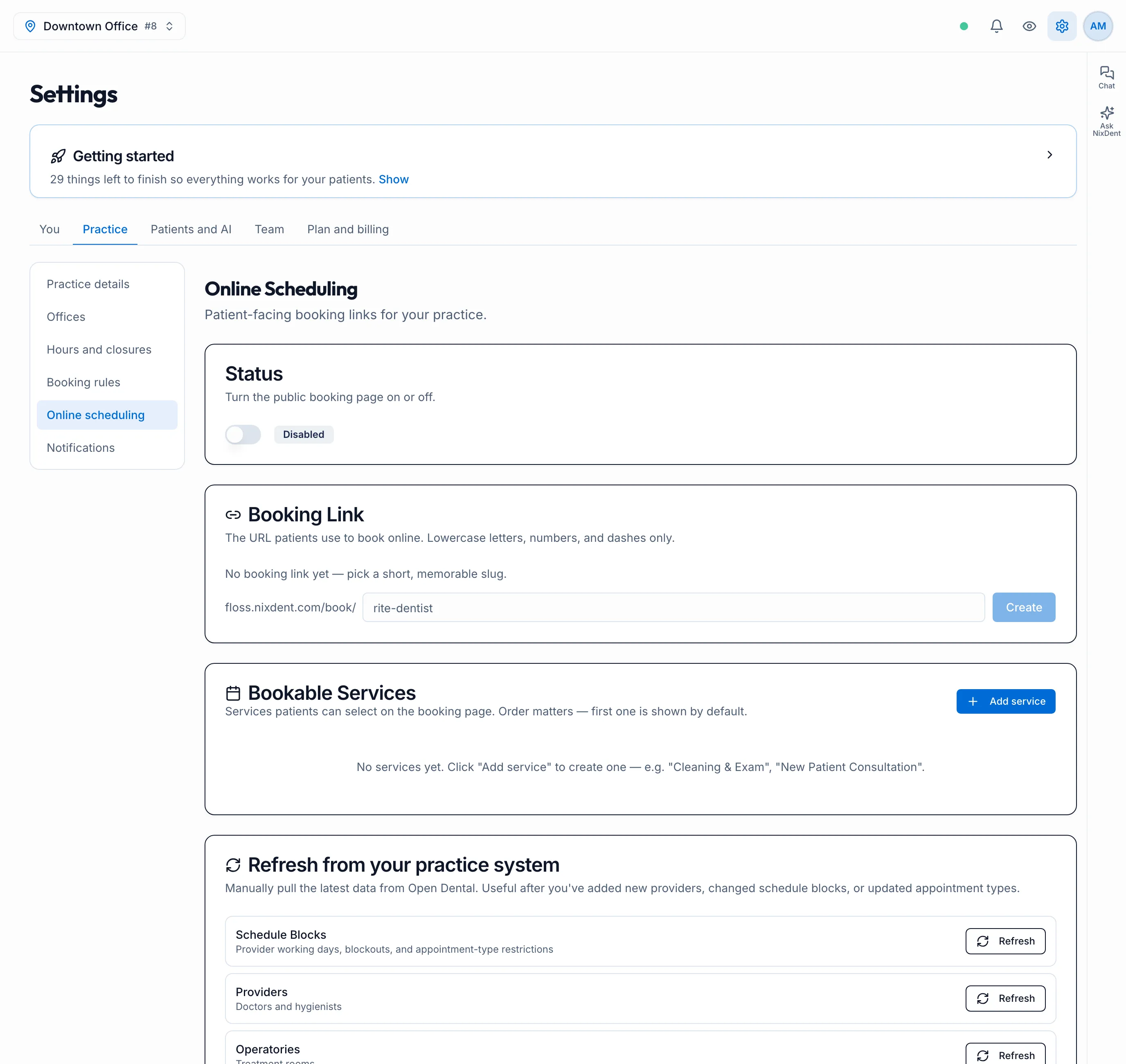
Go to Settings → Practice → Online scheduling, and pick the office at the top right. Each office has its own booking page.
Set it up
Section titled “Set it up”- Booking Link: if there’s no link yet, type a short name for it, such as
downtown-dental, and click Create. Lowercase letters, numbers and dashes only. The full link then shows on the page; click the copy icon to copy it. - Bookable Services: click Add service and fill in:
- Service name, such as Cleaning & Exam or New Patient Consultation.
- Duration (min): how long the appointment is. If a patient picks no service, the default length (60 minutes unless NixDent changed it) is used.
- Available for: All patients, New patients only or Existing patients only.
- Active (visible on booking page).
- Status: turn the switch on. The badge changes from Disabled to Active.
The link looks like https://floss.nixdent.com/book/your-link. Put the link on your website, in your Google Business profile and in your emails.
To change a service, click its pencil icon. Use its switch to hide it from the booking page without deleting it. To change the link, click the pencil next to it.
What patients see and what happens
Section titled “What patients see and what happens”Patients say whether they’re new or existing, pick a service (only the ones available to them are listed), a provider and an open time, then enter their details. The first active service is chosen for them unless they pick another.
- Existing patients must enter their first name, last name and date of birth exactly as they are in Open Dental. If they don’t match, the page asks them to check or call the office, so no duplicate patient is created.
- New patients are added to Open Dental as new patients.
- The appointment is written into Open Dental with a note that starts “Booked online by” the patient’s name, then any insurance details and note the patient entered, and ends with Created by NixDent (Online Booking).
- A confirmation text or email goes out only if your office has switched on the Booking Confirmation automation. See Automations.
Open times follow your hours and closures and your booking rules: only the rooms and providers you’ve allowed are offered. If no providers are ticked in Booking rules, every active provider appears. A patient can’t book a day the office is closed. The page looks up to 60 days ahead, and how far apart start times are is set by NixDent (use Request to change it). A service’s Available for setting only changes which services are listed when the patient picks New or Returning.
If Status is off, the link shows “Online scheduling is not enabled for this location”. For a step-by-step walk through, see What patients see on your booking page.
Refresh from Open Dental
Section titled “Refresh from Open Dental”If you’ve just added a provider, changed schedule blocks or updated appointment types in Open Dental, use Refresh from your practice system at the bottom of the page. It’s hidden when the office isn’t connected. See How NixDent connects to Open Dental. Click Refresh next to Schedule Blocks, Providers, Operatories, Appointment Types or Appointments. It usually finishes within a minute. Each one can be refreshed again after 5 minutes.