

Ask NixDent: ask about your practice
Who can do this: Owners and Office Managers. Anyone else only if an Owner or Office Manager has switched on Ask NixDent for them. See Give someone Ask NixDent.
Ask NixDent answers questions about your practice in plain English, using your own numbers. For example: “How did we do last month?” or “How many patients are due for recall this month?”
Open it
Section titled “Open it”-
Pick one office in the location picker at the top left. Ask NixDent works on one office at a time. With All Locations picked, the panel says “Choose a single location to ask about.”
-
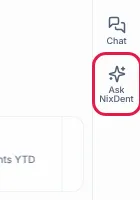
Click Ask NixDent (sparkle icon) on the right edge of the screen. On a phone, it is in the top bar.
-
A panel slides out.
Ask a question
Section titled “Ask a question”- Click one of the suggestions (for example How did we do last month?, What should the team focus on today? or How many patients are due for recall this month?), or type your own in Ask about your practice.
- Press Enter to send. Press Shift+Enter for a new line. A question can be up to 2,000 characters.
- While it works, you see short progress lines such as “Running a report…” or “Checking the schedule…”.
- The answer appears as plain text.
Questions work best when they name a time period and a thing to measure. “Which provider had the highest case acceptance last quarter?” is better than “How are we doing?”
Ask about a report you are looking at
Section titled “Ask about a report you are looking at”On the Analytics page, each report has an Explain this button (beside Save view and CSV). Click it and Ask NixDent opens already knowing which report and date range you are looking at. The panel says “About” and the report name, and suggests follow-up questions. See Use the reports on Analytics.
What it can do
Section titled “What it can do”- Run any of the Analytics reports and read the headline numbers and top groups.
- Read your key numbers, the schedule totals for a day, your recall counts, and your AI receptionist call totals.
- Save a patient list. It can create a named list on your Segments page, for example “Lapsed 2+ years with treatment planned”. Patients who opted out are always left out. Nothing is sent. A person reviews the list and decides what to do with it. See Segments.
- Draft an email. It can write a reusable email and save it as a draft template in Broadcasts. Nothing is sent. A person chooses the list, reads the email and decides whether to send. See Broadcasts.
What it cannot do
Section titled “What it cannot do”- It cannot text, call or email anyone.
- It cannot change appointments, patient records or settings.
- It does not show patient names or phone numbers in its answers. Under an answer, a box headed From this answer lists the report it used and how many rows, for example “Unscheduled treatment - 24 rows”.
Your conversations
Section titled “Your conversations”- Each person has their own conversations, one set per office. They follow you between devices, so you can start at the front desk and finish on a laptop.
- Conversations are kept for 72 hours after the last message, then deleted. The panel tells you this before you ask your first question. Treat it as a working note, not a record. Copy anything you need to keep.
- Click the New conversation button (pencil, top of the panel; it appears after your first question) to start fresh. Your earlier conversation stays listed under Earlier conversations until it expires.
- Click the trash can beside an earlier conversation to delete it now.
Report a wrong answer
Section titled “Report a wrong answer”Under an answer, click This answer was wrong. You can add a note under What was wrong?, then click Send (or Cancel). The panel then says “Sent to NixDent. Thank you - it is how this gets better.”
This sends the last few messages of that conversation to NixDent so the team can fix the problem. Don’t include anything you wouldn’t want NixDent to read. It only happens when you choose it.
Monthly allowance
Section titled “Monthly allowance”Each office has its own monthly allowance of Ask NixDent use. A practice with three offices has three separate allowances. When 80% or more is used, the panel shows how much of the month’s allowance is used. If an office reaches its limit, the panel says: “This location has used its Ask NixDent allowance for the month. It resets on the 1st - contact NixDent if you need more.”
Common problems
Section titled “Common problems”| What you see | What it means | What to do |
|---|---|---|
| “Ask NixDent isn’t switched on for you. The practice owner or office manager can turn it on in Team → Edit roles.” | Your roles don’t include Ask NixDent. | Ask your Owner or Office Manager. See Give someone Ask NixDent. |
| “Ask NixDent is not included in this practice’s plan.” | Your plan doesn’t include it. | Owner: check Settings → Plan and billing. |
| “Ask NixDent has not been switched on for this location yet.” | The office switch is off. | Owner or Office Manager: Settings → Practice → Offices, then the Ask NixDent switch. |
| “The assistant is temporarily unavailable.” | Ask NixDent is paused for now. | Try again later. Contact NixDent if it lasts. |
| “Choose a single location to ask about.” | All Locations is picked. | Pick one office. |
| The answer looks wrong. | AI can misread a question. | Rephrase with a date range, open the report in Analytics to compare, and use This answer was wrong. |
What to do next
Section titled “What to do next”- Open the report behind a number in Analytics.
- Use a saved patient list in Segments or Broadcasts.