

Watch the Pulse feed
Who can do this: Everyone on your team. Sending a completed form to Open Dental from Pulse needs the Owner, Office Manager or Front Desk role.
Pulse is a live list of what is happening at your practice, newest first. It is the quickest way to see that a patient booked, finished a form, paid, or texted you, without opening five pages.
Open Pulse
Section titled “Open Pulse”Click the bell in the top bar. On a computer it is at the top right, before the eye icon and the gear (Settings). On a phone it is in the top bar between Ask NixDent and your account picture.

A small red number on the bell shows how many events have happened since you last opened Pulse. It reads 9+ when there are more than nine. The count is kept in the browser you are using, so it can differ between your computer and your phone.
Pulse follows the location picker at the top left. Pick one office to see only that office, or All Locations to see every office you have access to.
What shows up in the feed
Section titled “What shows up in the feed”Each row shows the patient name (when there is one), a one-line summary, how long ago it happened, who did it (patient, staff, AI or system) and its category.
Pulse can show things like:
- A patient booked, confirmed, canceled or asked to reschedule an appointment, or arrived.
- Forms sent, completed, linked to a patient, or sent into Open Dental.
- A patient signed a treatment plan or authorized a payment plan.
- A payment received.
- A review.
- A patient texting, emailing, or using your website chat.
- One of your automatic messages going out.
The feed refreshes by itself about every 10 seconds. You don’t need to reload the page.
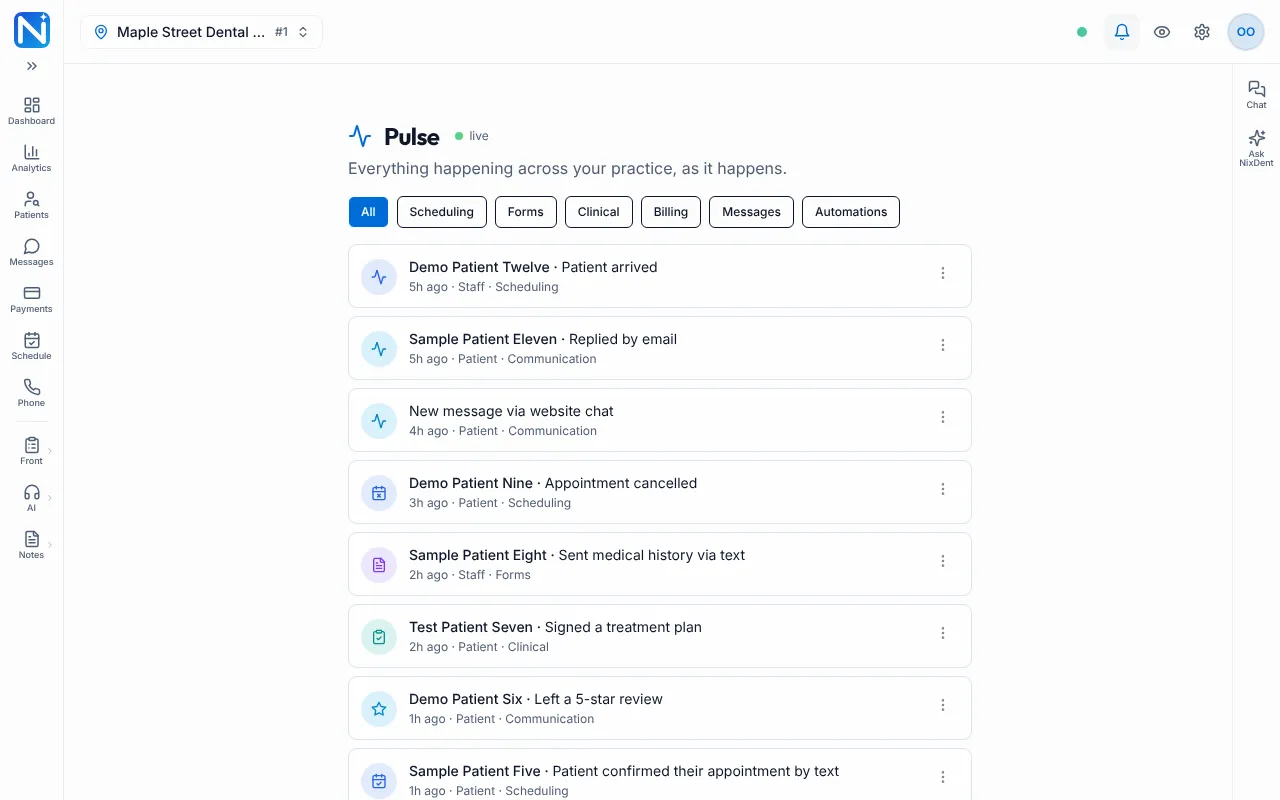
Filter by category
Section titled “Filter by category”Use the buttons under the title: All, Scheduling, Forms, Clinical, Billing, Messages and Automations. The selected button is filled in.
Act on an item
Section titled “Act on an item”Click the three dots at the end of a row.
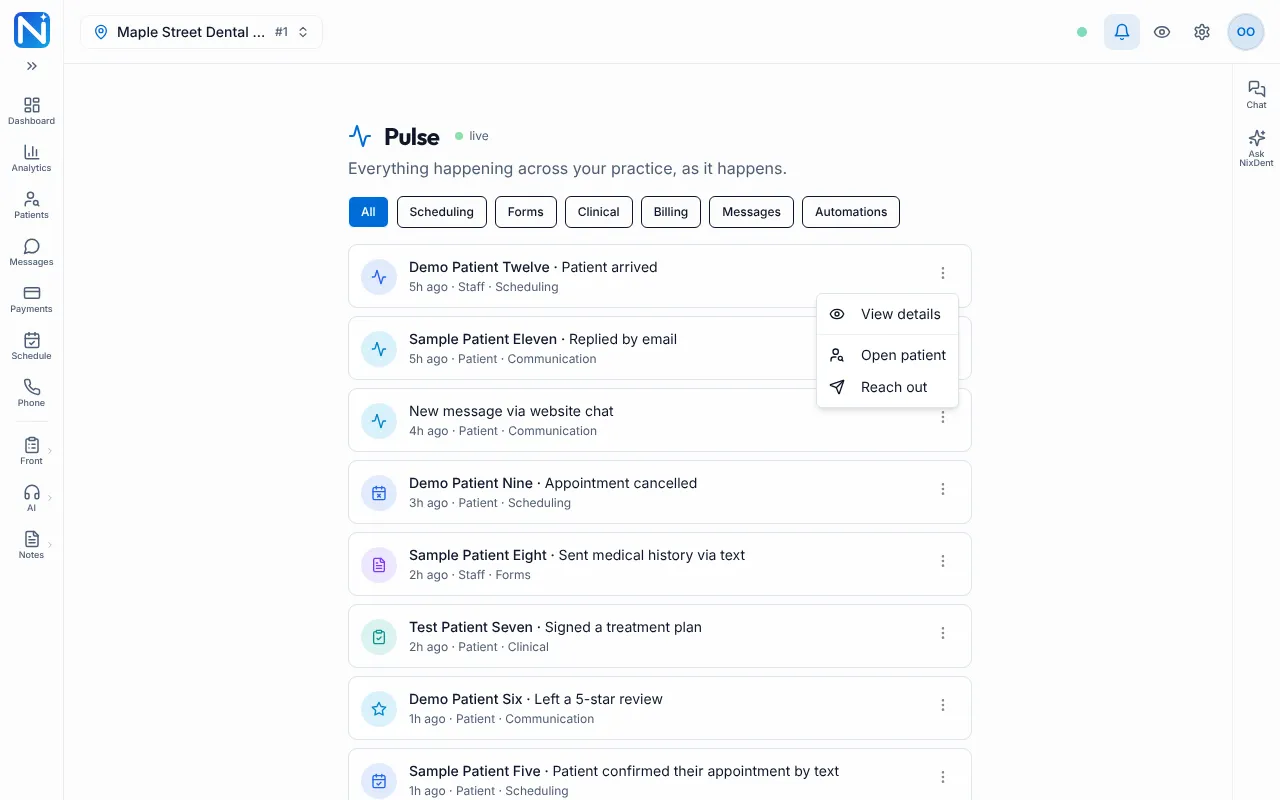
| Menu item | What it does |
|---|---|
| View details | Opens a window with what happened, the patient, the type, the category, who did it, when, and any extra details. |
| Preview / download form | Opens the finished form as a PDF. Only on completed forms. |
| Open Dental import | Opens the window for sending that form into Open Dental. Only if your role allows it. |
| Open patient | Opens that patient on the Patients page. Only when the row has a patient name. |
| Reach out | Opens that patient’s card on the Chat tab so you can text them. If the row has no patient name, it opens Messages. |
Forms waiting for Open Dental
Section titled “Forms waiting for Open Dental”If completed forms are waiting to be sent into Open Dental, an amber bar appears above the feed, for example “2 forms waiting for Open Dental”. Click it (or Review) to see the list, then click Open beside a form to work on it. You only see this bar if your role can send forms to Open Dental.
For how forms reach Open Dental, see Patient forms.
Common problems
Section titled “Common problems”The feed is empty. Pulse shows only the office you picked. Check the location picker. A brand-new office shows “No activity yet” until the first booking, form, payment or message.
I can’t find an older event. Pulse shows the 50 most recent events. For older activity, use the patient card’s Comms tab or Call Logs.
The patient name is missing. Some events, such as a general website chat, aren’t tied to a patient. Reach out then opens Messages.
What to do next
Section titled “What to do next”- Reply to a patient in Messages.
- Run through your morning numbers in the huddle.