

Make and take calls with NixDent Phone
Who can do this: Everyone on your team, if your practice uses NixDent Phone. Setting up call flows, ring groups and extensions is for Owners and Office Managers. See Manage your phone system.
NixDent Phone lets you make and take office calls in your browser, with the patient’s details on screen. Click Phone in the left menu.
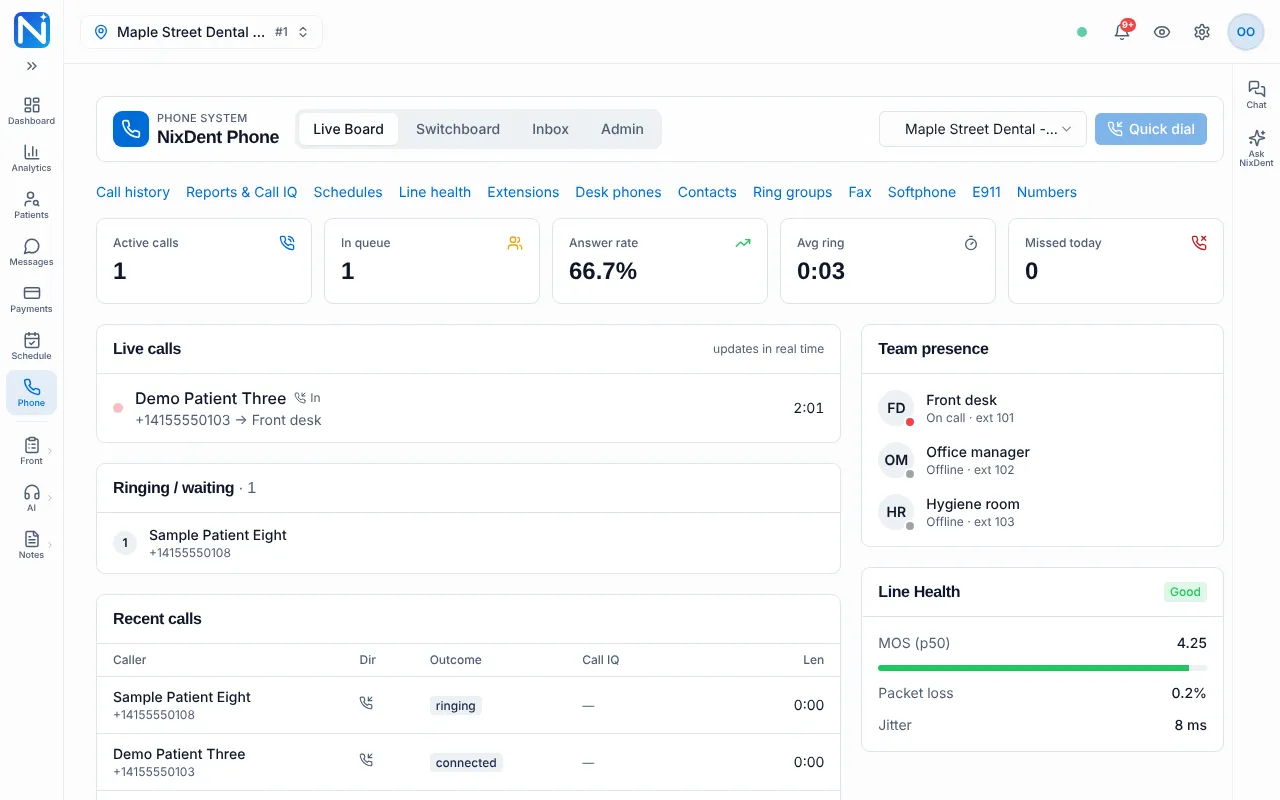
The Phone page has four tabs: Live Board, Switchboard (the visual call-flow builder), Inbox and Admin (phone numbers, extensions and the feature list). Changing things on Switchboard and Admin is for Owners and Office Managers. Under the tabs is a row of links: Call history, Reports & Call IQ, Schedules, Line health, Extensions, Desk phones, Contacts, Ring groups, Fax, Softphone, E911 and Numbers. See Phone reports and Call IQ, Phone contacts and fax and Manage your phone system.
Set yourself up (once)
Section titled “Set yourself up (once)”- Go to Phone and click Softphone in the row of links under the tabs.
- Wait for the status to change from Connecting… to Ready. Your name and extension show under it.
The status can read Offline, Connecting…, Ready, Dialing…, Incoming call, On call, On hold or Error.
From then on the softphone follows you around NixDent. A round phone button (NixDent Dialer) sits at the bottom right of every page, and incoming calls pop up wherever you are.
Answer a call
Section titled “Answer a call”An Incoming call box drops down at the top of the page, with the caller’s name if they’re a patient. Click Answer or Decline.
Place a call
Section titled “Place a call”Any of these works:
- Click the NixDent Dialer button, type the number and click Call.
- Click Quick dial at the top of the Phone page. A small box titled “Call number (+1…)” opens. Type the number and press OK. The button is greyed out (“Softphone connecting…”) until the browser phone is ready.
- On the Softphone page, search for a patient or contact by name or number and click the row. Or click a number under Recent calls to call back.
During a call
Section titled “During a call”On the Softphone page you have:
| Button | What it does |
|---|---|
| Mute / Hold | Mute your microphone, or put the caller on hold. |
| Keypad | Press numbers, for example in a phone menu. |
| Transfer | Type a number or extension, then click Transfer. |
| Conf. | Add a third person to the call, then click Add. |
| Add note | Type call notes. They save to the call as you type. |
| Record | Click Record to start recording the call. The label changes to Recording. Click it again to stop. It’s greyed out until the call has connected. |
| Chart | Open the Patients page, when the caller is matched to a patient. Greyed out otherwise. |
You can also pick an outcome under Disposition: choose an outcome (Booked, Rescheduled, Left voicemail, No answer, Callback requested, Wrong number, Not interested or Completed), and Block this caller for nuisance calls. Click the red button to hang up.
The NixDent Dialer button gives you Mute, Hold, Keypad and Hang up from any page.
Do not disturb
Section titled “Do not disturb”Click DND on the Softphone page to stop calls ringing you. Click DND on to turn it off.
The Live Board
Section titled “The Live Board”The Live Board tab shows the office’s phones right now:
- Active calls, In queue, Answer rate, Avg ring and Missed today.
- Live calls in progress, and Ringing / waiting. Call back shows on a waiting caller once your softphone is ready.
- Recent calls, with the columns Caller, Dir, Outcome, Call IQ and Len.
- Team presence: each person’s status (Available, On call, Busy, Away, Do not disturb or Offline) and extension number.
- Line Health: a call-quality summary.
The Live Board has its own office menu. It doesn’t follow the office picker at the top left. For multi-office practices, use the Location menu on the Phone page for the Live Board, Inbox and Admin.
The phone Inbox
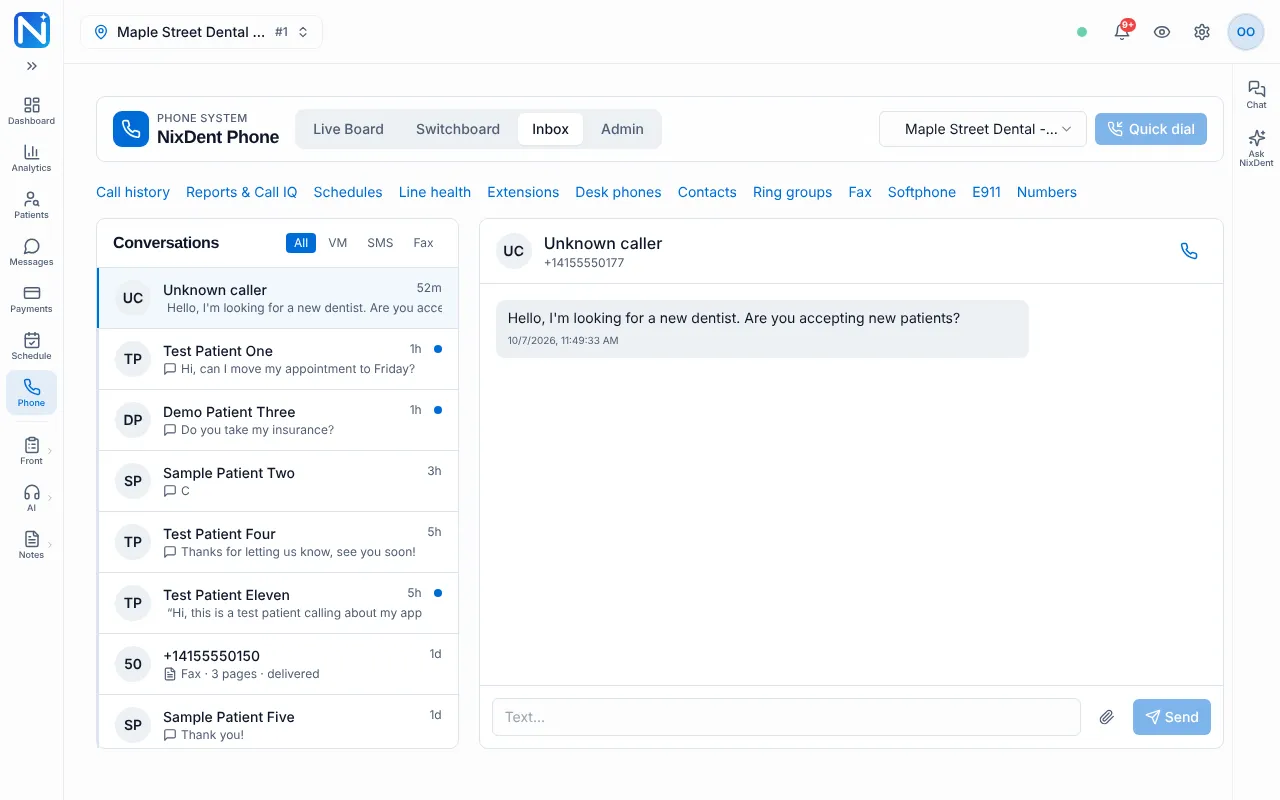
Section titled “The phone Inbox”The Inbox tab collects voicemails, texts and faxes to your phone numbers, grouped by caller. Filter with All, VM, SMS or Fax. Texts here are the same conversations as in Messages. A text from a number that isn’t a patient shows as “Unknown caller”.
An unread conversation has a dot. Opening it marks its voicemails and texts read. Voicemails have a player and a transcript, and missed calls show as “Missed call”. Open a conversation to listen, read, call back, or text a reply from the office number.
Call history
Section titled “Call history”Click Call history under the tabs for the office’s 200 most recent calls, with a player, notes and Call IQ. See Phone reports and Call IQ.
For calls the AI receptionist answered, see Review what the AI handled.