

Review what the AI handled
Who can do this: Everyone on your team.
Both pages are under AI Receptionist in the left menu: Call Logs for phone calls and Chat Logs for your website chat.
Call Logs
Section titled “Call Logs”Go to AI Receptionist → Call Logs. It lists the most recent calls the AI receptionist took, across the offices you have access to, newest first. The page shows the latest 50 calls, and the search, filters and Export CSV work on those calls.
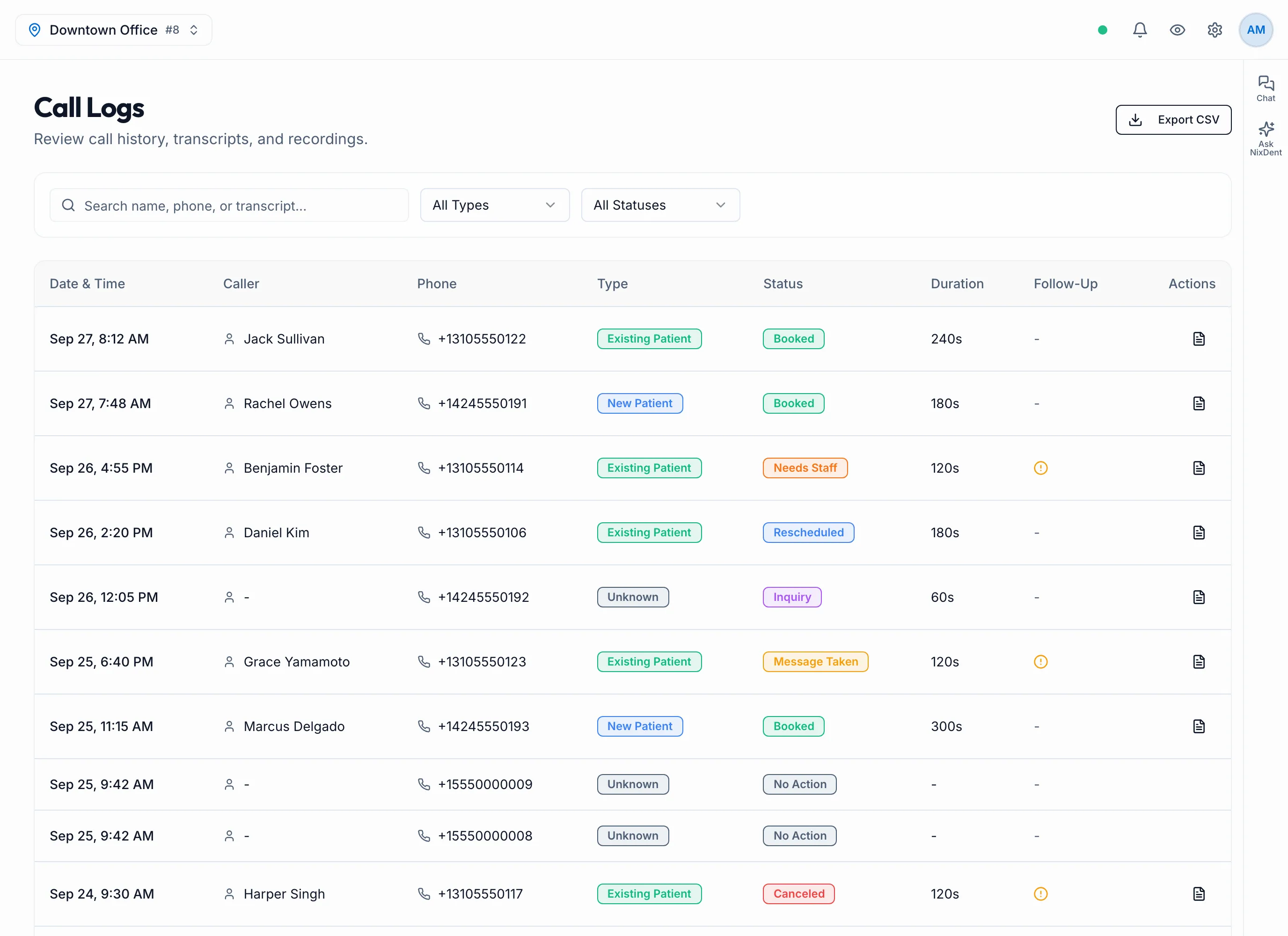
Each row shows the Date & Time, Caller, Phone, Type, Status, Duration (in seconds, for example 73s), Follow-Up and Actions.
Find the calls that need you
Section titled “Find the calls that need you”- An amber circle with an exclamation point in Follow-Up means the AI thinks someone should call the patient back. A dash means it didn’t flag the call.
- Filter Status to Needs Staff or Message Taken to see calls the AI couldn’t finish.
- Filter Type to All Types, New Patient, Existing Patient or Unknown.
- Search in Search name, phone, or transcript… by name, phone number, or any words said on the call.
| Status | Meaning |
|---|---|
| Booked | The AI booked an appointment. |
| Rescheduled | The AI moved an appointment. |
| Canceled | The AI canceled an appointment. |
| Message Taken | The caller left a message for the office. |
| Inquiry | The caller asked a question. |
| Needs Staff | The call needs a person at the office. |
| No Action | Nothing needed doing. |
Read or listen to a call
Section titled “Read or listen to a call”- Click the page icon (View Transcript) to open Call Details: the caller, the status, a Summary, and the full transcript.
- Click the play icon (Play recording) to listen. It opens a player under the row. Click it again (Stop recording) to stop, or click the small square at the right of the player (Close player). You need to be signed in to NixDent to play a recording.
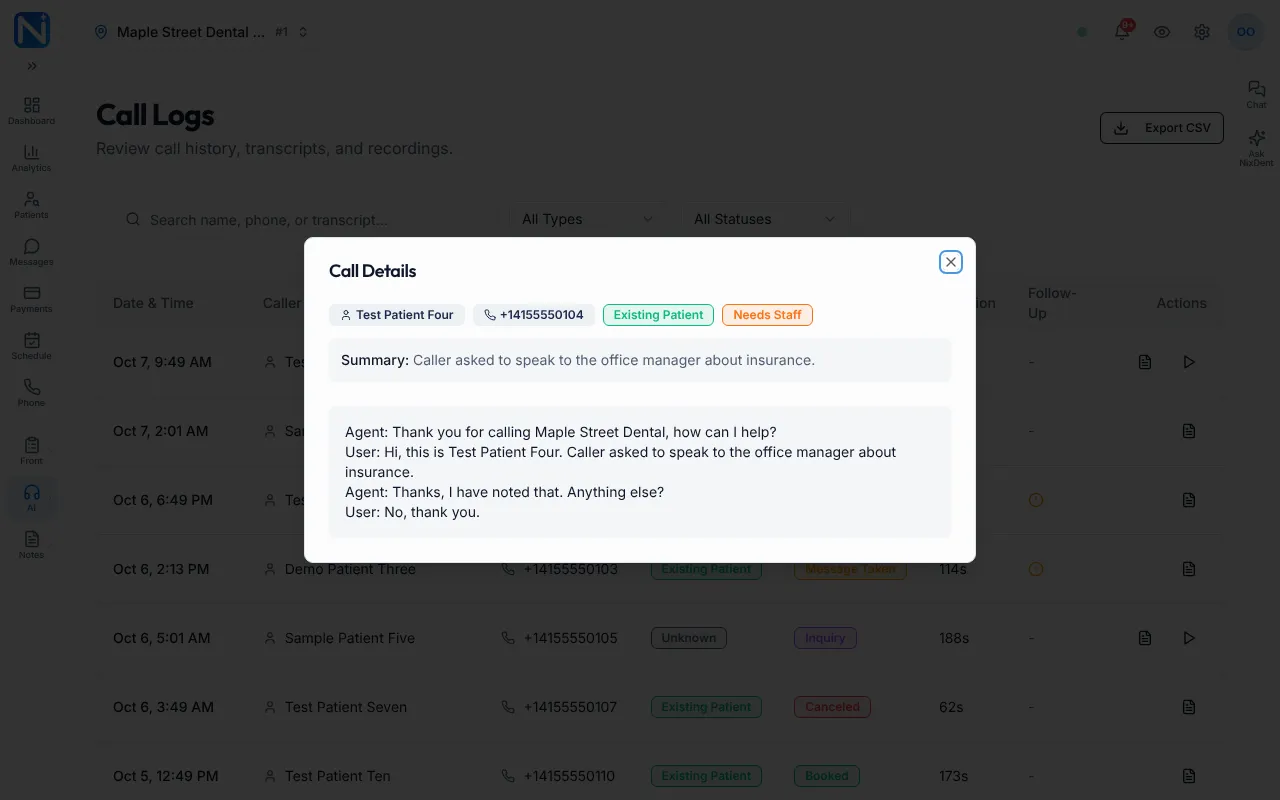
The page icon only shows when the call has a summary or a transcript, and the play icon only shows when the call has a recording.
The link in a call summary email opens the same call here, with the transcript open.
To download the list, click Export CSV. It includes the rows your filters show, with the columns Date, Caller Name, Caller Phone, Caller Type, Booking Status, Duration (s), Follow-Up (Yes/No) and Outcome.
Chat Logs
Section titled “Chat Logs”Go to AI Receptionist → Chat Logs to read conversations from the chat on your website. Pick the office at the top left.
At the top: Total Chats, Booked, Messages Taken, Avg Turns and Booking Rate for the period. These are worked out from the conversations that match the filters you chose. Pick Booked and the Booking Rate becomes 100%.
- Filter by outcome (All outcomes, Booked, Message Taken, Q&A or Abandoned) and choose Last 7 days, Last 30 days (the default), Last 60 days or Last 90 days.
- To find a conversation, type an office name in the Search location… box. The search is by office name, not by what was said in the chat.
- Click a conversation to read it. Messages are marked Patient or AI Agent.
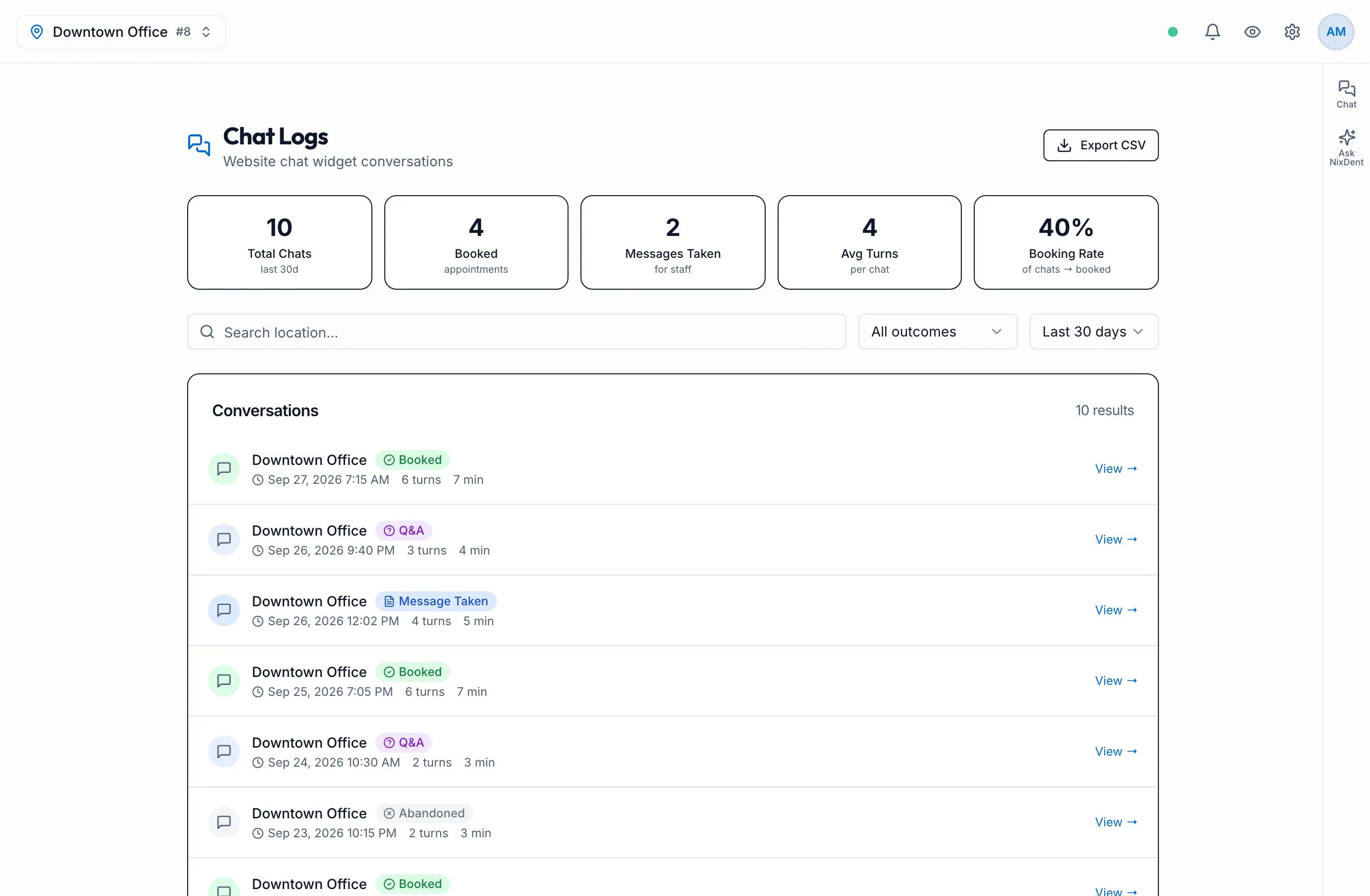
A chat with no outcome yet shows In Progress. Chat Logs lists up to 200 conversations. Click Export CSV to download the list (Date, Location, Outcome, Messages, Duration (min)).
Chat Logs shows conversations from the chat on your website. If there are none, the page says to enable the chat widget in Settings. See Website chats.
Common problems
Section titled “Common problems”| What you see | What it means |
|---|---|
| A call is missing from Call Logs | Call Logs shows only the latest 50 calls. |
| No play icon on a call | That call has no recording. |
| Follow-Up shows a dash | The AI didn’t flag the call. Only the amber mark means follow up. |
Related
Section titled “Related”- Call summaries and the huddle brief: choose who gets an email after each call.
- What the AI receptionist knows and may do