

What your patient sees when they fill in a form
When you send a patient a form or a form bundle, they fill it in on their own phone or computer. This page explains the steps so you can walk a patient through it.
Who can do this: Anyone who can open Patients can send a form once forms are on. See Patient forms and form bundles.
What the patient does
Section titled “What the patient does”- Open the link in the text or email.
- Confirm who they are. They enter their date of birth (or last name, if NixDent has no date of birth on file). If they get it wrong too many times, the link locks for a short while.
- Fill in the form. The page shows your logo (when one is uploaded), the office name and, for the patient’s own form, “For: {patient}”. A notice at the top asks them to complete the form in one sitting: their answers are saved on the device as they go, but if they leave it inactive for a while the progress is cleared and they have to start over. The step line reads “Step 1 of 3” with the page title. Required questions carry a star and the page says “* Required”. Some questions only appear after a previous answer.
- Use Next and Back to move between pages. Each page is checked before they can move on.
- If the form needs a signature, the last page shows the statement and a signature box. The patient draws with a finger or mouse.
- Press the submit button at the end. They see Form Submitted! “Your form has been submitted. Thank you!”
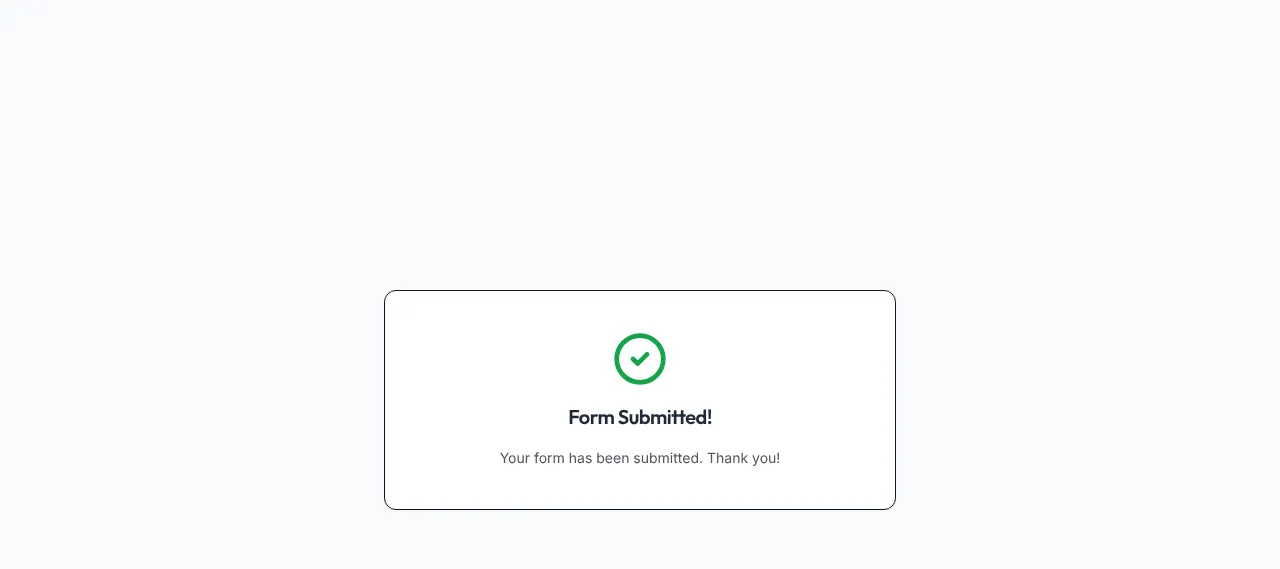
A form can’t be submitted twice. A second visit shows Already Completed (“This form has already been submitted. No further action is needed.”).
Form bundles
Section titled “Form bundles”A bundle opens as a packet: the patient confirms who they are once, then fills in each form in the order you set. The page shows “Form 1 of 3”. When every form is done they see All Forms Submitted!
If the patient stops partway
Section titled “If the patient stops partway”- What they typed is kept on their device while they work, so a reload or a failed submit doesn’t lose it.
- Signatures have to be entered again if the form clears.
- After a period with no activity the form clears from the device and asks them to confirm who they are again. The page tells the patient they can’t come back to a half-finished form later. Tell patients to set aside a few minutes.
What happens when they submit
Section titled “What happens when they submit”- NixDent saves the answers and makes a PDF. If the patient is linked to Open Dental, the PDF is filed in their Open Dental imaging, in a category that matches the type of form.
- Depending on your Send completed forms to Open Dental setting, answers like address, emergency contact and medical history go to the chart right away or wait for staff review. See Build and edit forms.
- If the form was the Text Message (SMS) Consent form, their consent is recorded for your office. See Text message consent and your opt-in page.
Common problems
Section titled “Common problems”“Link Expired”. The page says “This form link is no longer valid. Please contact the practice to receive a new link.” Send the form again from Patients → ⋮ → Send Form.
The patient didn’t get the text. They may have replied STOP, or the number is wrong. Use email, or copy the link shown after you send. See Texting rules and patient opt-outs.