

Sign in and reset your password
Who can do this: Everyone.
Sign in
Section titled “Sign in”- Open NixDent and go to the sign-in page.
- Enter your Email and Password. Use the eye button to check what you typed.
- Click Sign in.
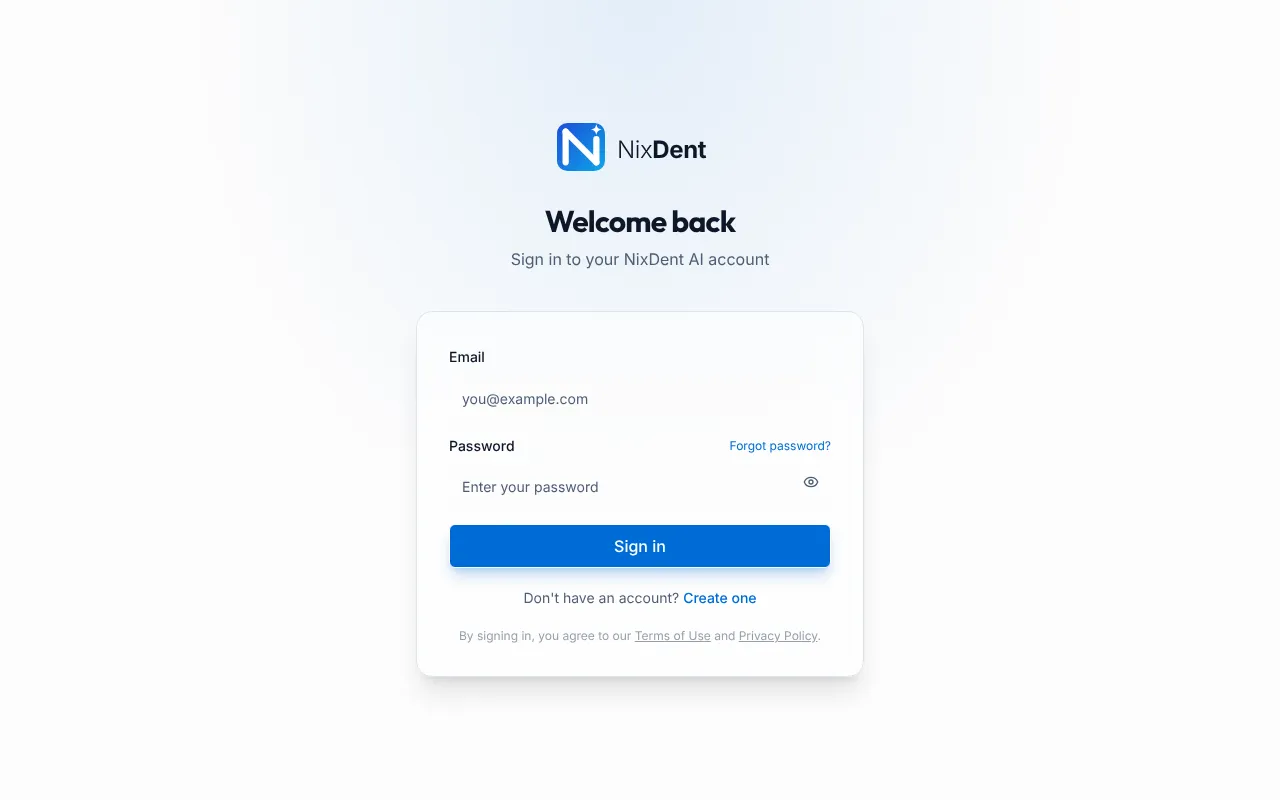
A wrong email or password shows Sign in failed with “Invalid email or password.” It does not say which of the two was wrong. If you keep getting it, use Forgot password?.
If you use two-factor sign-in
Section titled “If you use two-factor sign-in”After your password is accepted, an Authentication code box appears.
- Open your authenticator app and read the 6-digit code. It changes every 30 seconds.
- Type it in and click Verify and sign in.
- Lost your phone? Type one of your recovery codes instead. Each recovery code works once.
A wrong code says “That code is not right. Check your phone’s clock if it keeps failing.” Set your phone’s date and time to automatic and try the next code. A code you already used says “That code has already been used”. Wait for the next one.
If you have no phone and no recovery codes, ask your Owner or Office Manager to reset your two-factor. See Pause, remove, or help someone sign in.
Forgot your password
Section titled “Forgot your password”- On the sign-in page, click Forgot password?.
- Enter your email and click Send Reset Link.
- The page says “If an account exists for your email, you’ll receive a reset link shortly.” It says this whether or not the email belongs to an account, for privacy.
- Open the email from NixDent and click Reset Password. The link works once and expires, so use it soon.
- On the Set new password page, type a new password under New Password and click Reset Password. Choose a strong password. The page tells you what is missing.
- You see “Password reset! You can now sign in with your new password.” Sign in with it.
If no email arrives, check spam and make sure you typed the address you were invited with. Each new request cancels the previous link.
A password reset signs you out on every other browser and device.
Your first sign-in after being added to a team
Section titled “Your first sign-in after being added to a team”When an Owner or Office Manager adds you, NixDent emails you Your NixDent account is ready. Nobody chooses a password for you.
- Click Set your password in the email. The link expires.
- The page opens as Set new password. Choose a strong password and click Reset Password.
- Sign in with your email and the new password.
If the link has expired, ask your Owner or Office Manager to send a new one. If that doesn’t work, contact NixDent support. See Add a person.
If you already use NixDent at another practice, you get a different email, You’ve been added to your practice. Sign in as usual, then switch practice from the practice menu.
Older invitation links
Section titled “Older invitation links”Some earlier invitations use a page titled Set up your account. It says “You were invited as” your email and asks for First name, Last name and Create a password, then Create Account.
If the page says “Invalid or expired invite link”, the link has been used or has run out. Ask for a new invitation.
If sign-in is blocked
Section titled “If sign-in is blocked”After several wrong tries in a row, NixDent makes you wait a short time before you can try again. Wait, then type carefully. If the account is locked, you see “Too many failed sign-in attempts. Ask an owner or admin at your practice to unlock your account.” An Owner or Office Manager clicks Unlock on your card in Settings → Team.
Common problems
Section titled “Common problems”I never got the reset email. Check spam. Check the address. Wait a minute and try once more.
The link says “Invalid or expired reset link”. Links work once and expire. Request a new one.
I signed in but can only see a two-factor setup screen. Your practice requires two-factor. Finish the setup to continue. See Sign-in and security.
I’m still stuck. See I can’t log in.