

Patient forms and form bundles
Who can do this: Owners and Office Managers edit forms and bundles. Anyone who can open Patients can send a form once forms are on.
Go to Settings → Patients and AI → Forms.
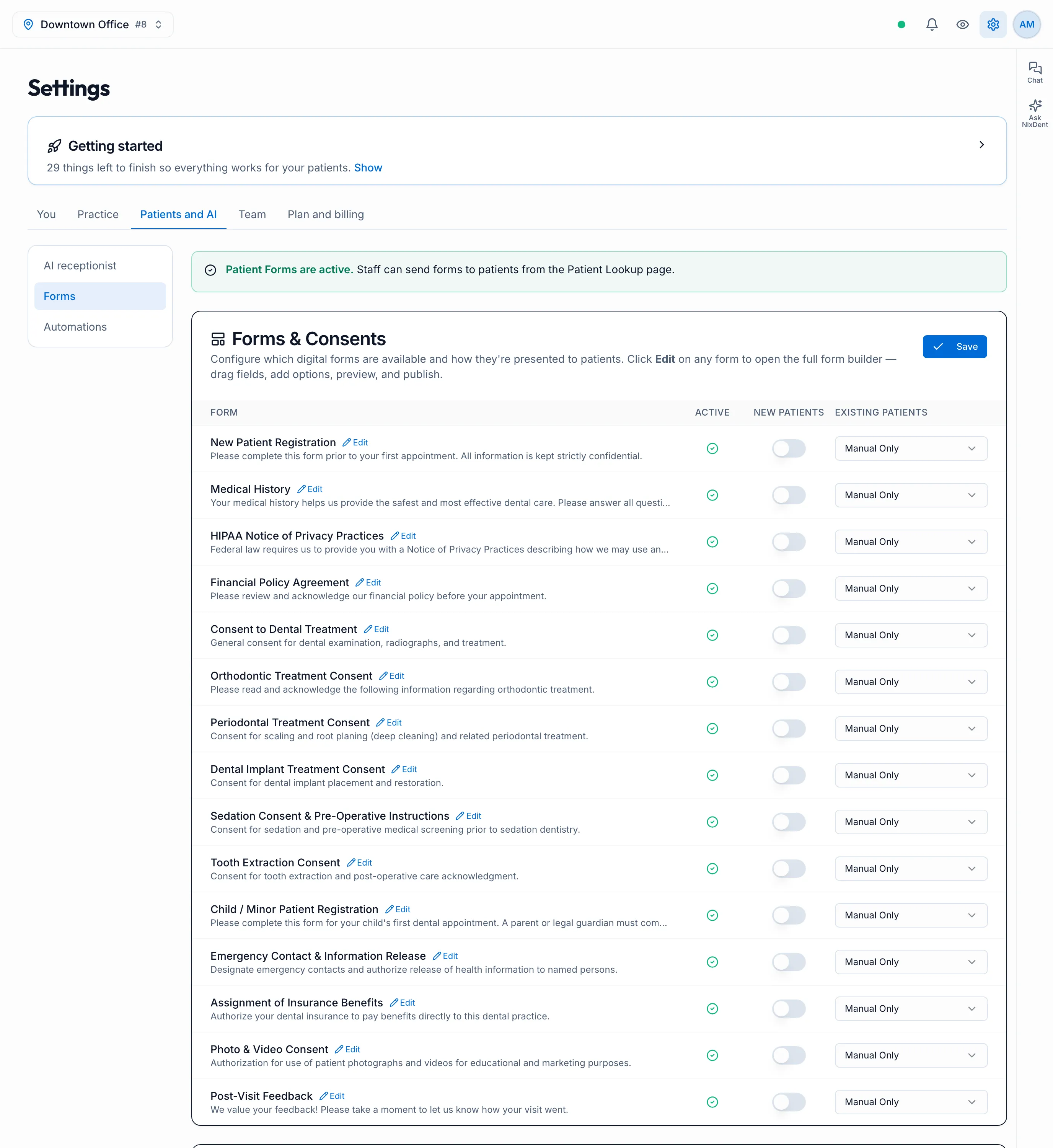
Is it on?
Section titled “Is it on?”The banner at the top tells you:
- Patient Forms are active. Staff can send forms.
- Patient Forms are not yet enabled. You can set forms up now, but nobody can send them until NixDent turns forms on. Click Request forms to ask.
The forms you start with
Section titled “The forms you start with”Forms & Consents lists ready-made forms such as New Patient Registration, Medical History, Dental History, financial policy and treatment consents. The New form or consent window offers many more intake forms and procedure consents. See Build and edit forms.
Each row has Active, New Patients (a switch) and Existing Patients (Manual Only, Show (Optional), Required When Due). The Save button at the top saves the last two. The ⋮ menu has Make a copy, Restore latest template and Activate / Deactivate. A form shown as Not added can be added with Add to my forms.
Edit a form
Section titled “Edit a form”See Build and edit forms for every step. In short:
- Click Edit next to the form. The form builder opens.
- Add fields with Add Field: text, date, phone, email, dropdowns, multiple choice, checkboxes, Signature, File Upload, section headers, and Paragraph / Consent text. Mark a field Required if patients must fill it in. Use Pages to split a long form.
- Click Preview to see it the way a patient will.
- Click Save Draft to come back later, or Publish when it’s ready.
- Click Back to Settings.
Make a bundle
Section titled “Make a bundle”A bundle (a Form group in the Send Form window) sends several forms under one link. The patient confirms who they are once, then fills in the forms in the order you set. A bundle link asks for the patient’s last name, not their date of birth.
- Under Form Bundles, click New bundle.
- Type a Bundle name, such as New Patient Packet.
- Under Add a form, pick each form. Use the arrows to change the order.
- Click Create bundle.
To change a bundle, click its pencil. To delete it, click the bin.
A bundle is also what the New Patient Forms message sends. See Automatic patient messages.
Send a form to a patient
Section titled “Send a form to a patient”- Go to Patients and find the patient.
- Click the ⋮ menu on their row, then Send Form.
- Check the Patient name.
- If you have bundles, choose Single form or Form group, then pick the form or bundle.
- Choose SMS, Email or Both, and check the phone number or email address. If the form is a consent, you can also pick a Doctor (for consents).
- Click Send Form.
The patient gets a link to fill the form in on their own phone or computer. After sending, the link also shows on screen (Patient link (copyable)) so you can copy it.
If the patient has replied STOP to your texts, the form is still created and the window says “Text not sent”. Send it by email instead. See Texting rules and patient opt-outs.
A half-finished form is cleared after a period with no activity and can’t be resumed later, so tell patients to fill it in in one sitting. To see the pages your patient opens, read What your patient sees when they fill in a form.
Send completed forms to Open Dental
Section titled “Send completed forms to Open Dental”At the bottom of the Forms page, the Send completed forms to Open Dental card controls what happens to the answers. Per office, choose After staff review or Automatically, and decide whether medical history is also added to the patient’s Problems, Medications and Allergies lists. Name and date of birth are never changed, and every import can be undone.