

Ask patients for reviews
Who can do this: Everyone on your team can send requests and see results. Owners and Office Managers set up the review links.
Before you start: add your review links
Section titled “Before you start: add your review links”Review requests need at least one review link for the office.
- Go to Settings → Practice → Offices.
- On the office, find Review Request Settings and switch it on.
- Paste your Google, Yelp and/or Facebook review links.
- Click Save Review Settings.
Without a link, sending fails with No review links configured for this location.
Send a review request
Section titled “Send a review request”From the patient card or the Patients list (by text):
- On the patient card, click Review.
- In Patients, click ⋮ on the row, then Communication → Send Review Request.
From Messages (by text or email):
- In Messages, click the star icon (Review request) at the top of the list. The Request a Review window opens.
- Check the Location, then search for the Patient.
- Under Send via, choose Text or Email, and check the phone number or email address.
- Click Send Review Request.
You can also send one from an open conversation: ⋯ → Send Review Request.
The patient gets a link that asks them to rate their visit from 1 to 5 stars. Their rating shows on the Reviews page. Patients who give 4 or 5 stars are offered buttons to your Google, Yelp and Facebook pages. Patients who give 1 to 3 stars see a thank-you only. To see the page your patient opens, read What your patient sees on the review page.
The Review Request automation sends this same link after a completed visit. See Automatic patient messages.
Automatic review requests respect these opt-outs. They’re skipped, and the reason shows in Recent Activity. A patient who replied STOP to your texts doesn’t get a text request either way. See Texting rules and patient opt-outs.
See how requests did
Section titled “See how requests did”Go to Front Desk → Reviews and pick the office at the top left.
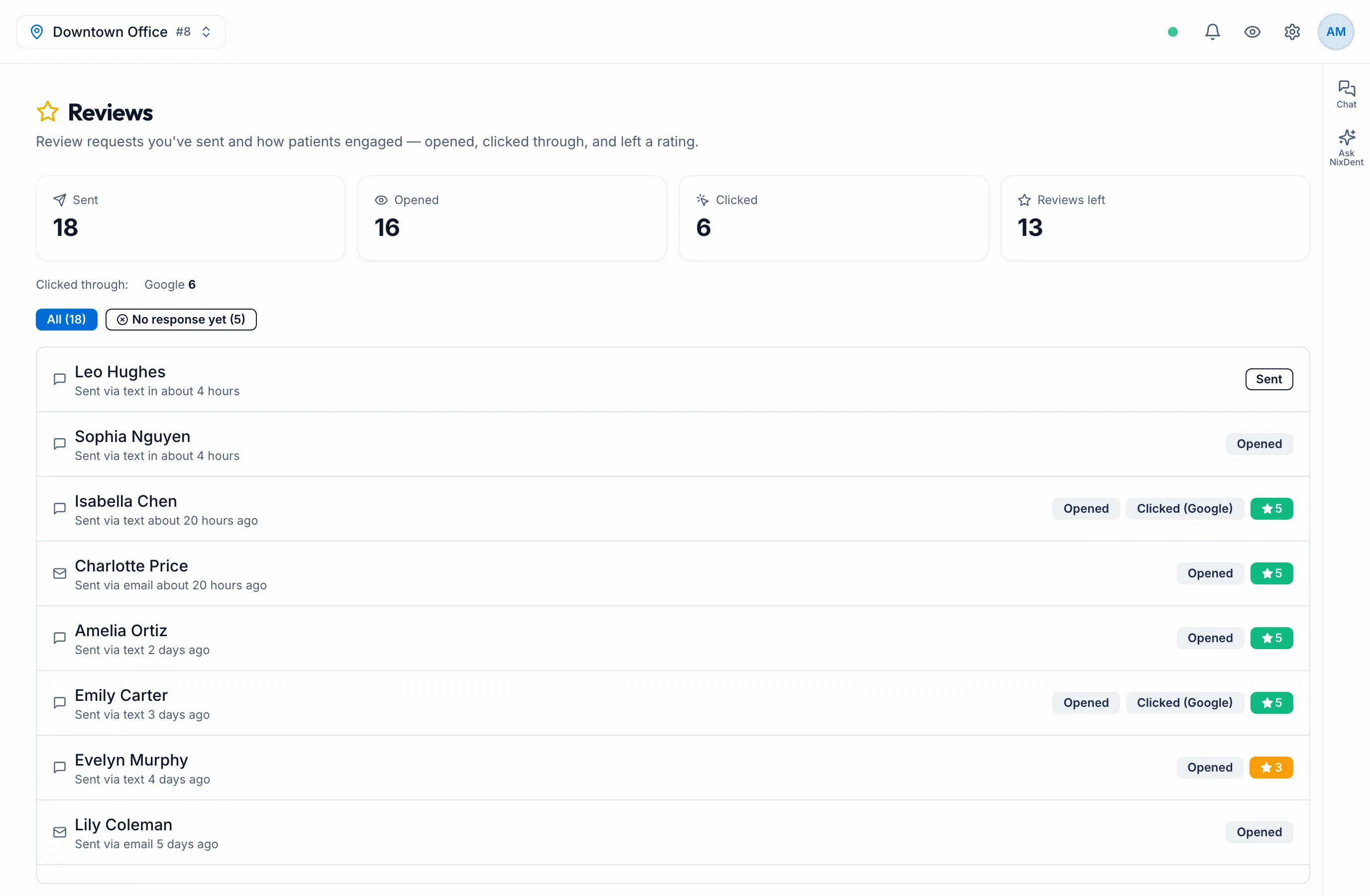
- Sent, Opened, Clicked and Reviews left count the office’s requests.
- Clicked through shows which site patients went to.
- Click No response yet to see who hasn’t rated their visit.
Each row shows whether the request went by text or email, and when. Tags show Opened, Clicked (and to which site), and the star rating once the patient has left one.
The same list is on the Sent tab of the Request a Review window in Messages.