

Phone contacts and fax
Who can do this: Everyone on your team, if your practice uses NixDent Phone.
Contacts
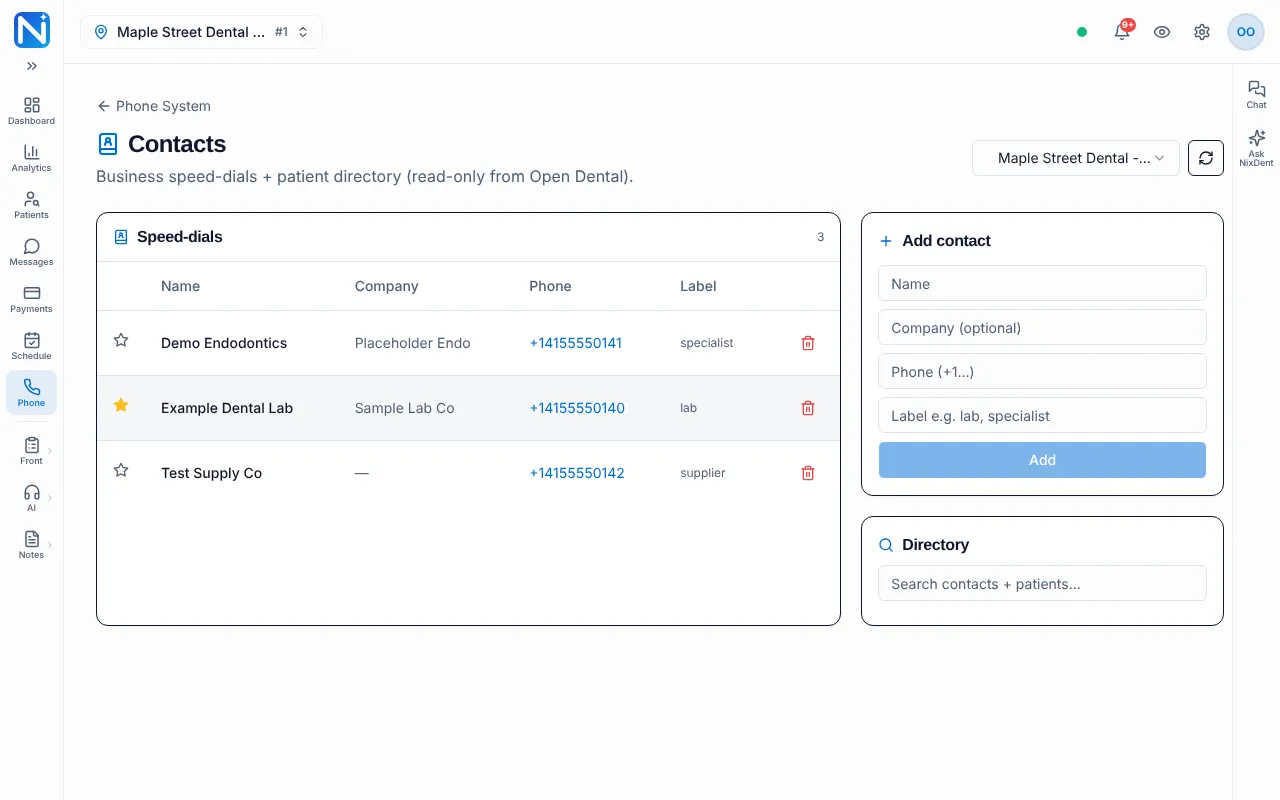
Section titled “Contacts”Go to Phone, then click Contacts in the row of links under the tabs. The page is for business contacts you call often: a lab, a specialist, a supplier.
Add a speed-dial
Section titled “Add a speed-dial”- Pick the office in the Location menu.
- Under Add contact, fill in Name and Phone (+1…) (include +1). Company (optional) and Label (the box suggests “e.g. lab, specialist”) are optional.
- Click Add. The button stays grey until Name and Phone are filled in.
Click the star beside a contact to mark it a favorite. Click the trash can to delete it.
Call someone
Section titled “Call someone”Click the phone number in the table. NixDent Phone dials it from your browser. You need to be set up on the softphone first. See Make and take calls with NixDent Phone.
Search the directory
Section titled “Search the directory”Type at least two letters in Search contacts + patients…. Matches from your speed-dials and from your Open Dental patient list appear below, with a small patient tag on patients. Click the green phone to call. The directory is for calling only: patients are read from Open Dental and are never copied into the speed-dial list.
Go to Phone, then click Fax. You can send a PDF fax from one of your numbers and see every fax sent and received for the office.
Send a fax
Section titled “Send a fax”- Pick the office in Location.
- Under Send a fax, choose From (your number).
- Type To (fax number) with country code, for example +15551234567.
- Under Document (PDF), choose your file. It must be a PDF, up to 10 MB.
- Click Send fax. “Fax queued - watch the status below.” appears.
Read the fax list
Section titled “Read the fax list”The Faxes table shows direction (In or Out), From, To, Pages, Status, When, and a Doc column with a link that opens the document in a new tab (a dash when there is no document). A failed fax shows the reason under its status, for example “Recipient line busy”. You can also see faxes in the Inbox tab on the main Phone page, filtered with Fax.
Faxes can contain patient information. Share them only with people who need them.
Common problems
Section titled “Common problems”- Nothing happens when I click a phone number. The softphone isn’t connected. Open Phone → Softphone and wait for Ready.
- “No numbers” in the From menu. Your office has no NixDent Phone number yet. Ask your office manager to contact NixDent.
- The fax shows Failed. Read the reason beneath the status and check the fax number.
What to do next
Section titled “What to do next”- Review calls, voicemails and texts in the phone Inbox and Live Board.