

What to give your AI receptionist
Who can do this: Owners and Office Managers. Everyone else can read it.
Your AI receptionist knows how to answer a dental phone: greet, find out why someone is calling, check who they are, book, move or take a message. It does not know your office. Everything about your practice that it says out loud comes from what you give it, plus your live schedule in Open Dental.
This guide tells you what to write, where to put it, and how to check it worked. Set aside about 45 minutes with a front desk team member who answers the phone every day.
How the AI uses what you give it
Section titled “How the AI uses what you give it”- It only states facts it has been given. If a caller asks something you never wrote down, the AI is told not to guess. It offers to take a message so a person can call back.
- It never quotes a price unless you listed one. Without a listed price it says someone will reach out with the details.
- Your hours come from one place. Weekly hours and holiday closures come only from Hours, holidays and closed days. If you also type hours into a notes box, the AI is told to ignore them.
- It books only inside your rules. It offers times from your real Open Dental schedule, within the rooms and providers you chose in Booking rules, and never on a closed day.
- It does not read out patient account details. It is built not to read back a caller’s insurance on file, treatment plans, chart notes, or the address, email or phone on file. Those questions become a message for your front desk. You do not need to write anything for this.
- Changes reach it within seconds. After you click Save, the AI is updated. You see “The AI receptionist is using this now.”
Where each thing goes
Section titled “Where each thing goes”Open Settings → Patients and AI → AI receptionist. Pick the office at the top right if you have more than one. Everything below is on that page unless noted.
| What you want the AI to know | Where to put it |
|---|---|
| Practice name it says when it answers | Settings → Practice → Practice details → Organization Name |
| Weekly hours | Settings → Practice → Hours and closures |
| Holidays and days you’re closed | Settings → Practice → Hours and closures → Holidays and closures |
| Time zone | Settings → Practice → Offices → Office Timezone |
| Rooms and providers it may book | Settings → Practice → Booking rules |
| What it says first | How the AI talks to callers → How the AI answers the phone |
| Your office phone number | How the AI talks to callers → Office phone number |
| Services you offer | Office Settings → Services Offered |
| Prices you are happy for the AI to say, specialties, what a first visit involves | More about your services |
| Selling points | Practice Highlights |
| Languages your team speaks | Languages Spoken |
| Insurance stance | Insurance & Payment → Network Status |
| Plans you are in-network with | PPO In-Network |
| Anything else about insurance and billing | More about insurance and payment |
| What to tell new patients before insurance questions | New patient insurance notice |
| Ways to pay | Payment Options |
| Cancellation and no-show rules, walk-ins | Office Policies and More about office policies |
| Common questions and the answers you want | Frequently asked questions |
| Parking, directions, anything else | Other information |
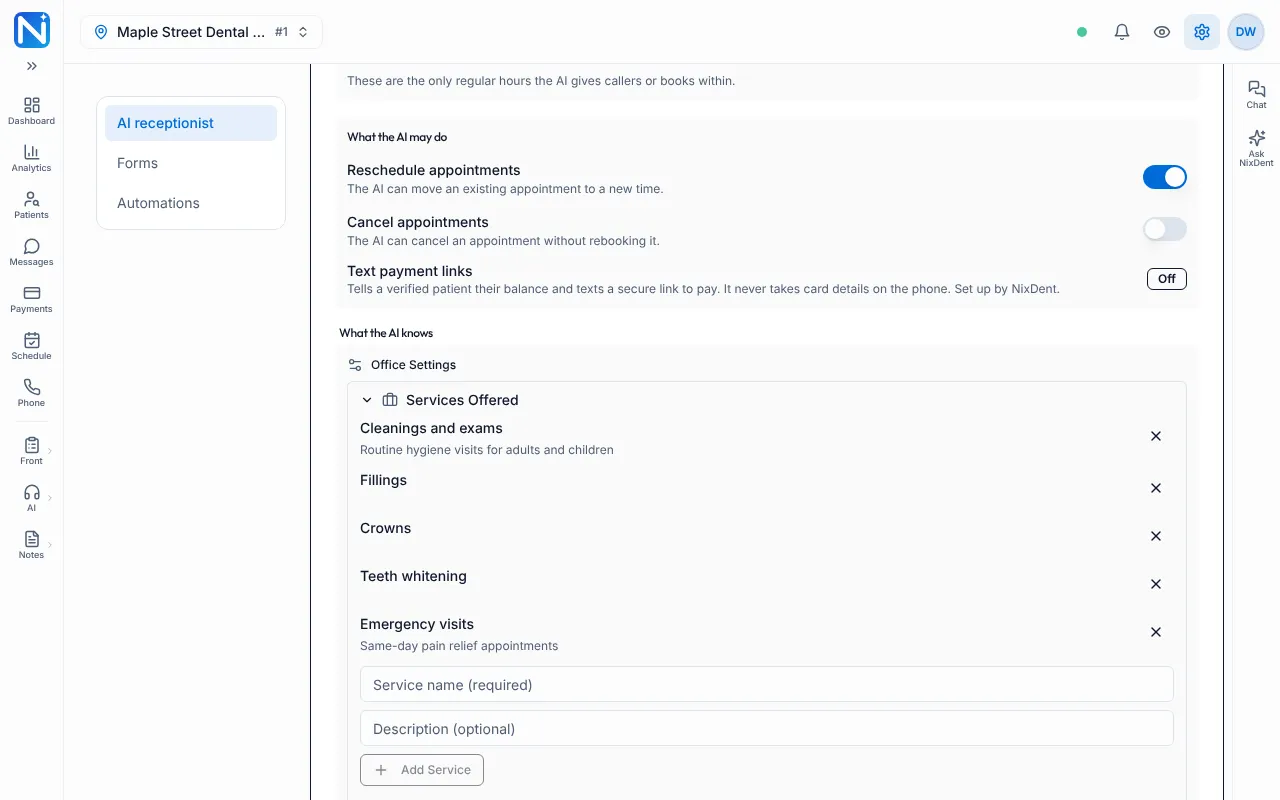
| What it is allowed to do | What the AI may do |
The page has one Save button for the Office Settings and the notes together.
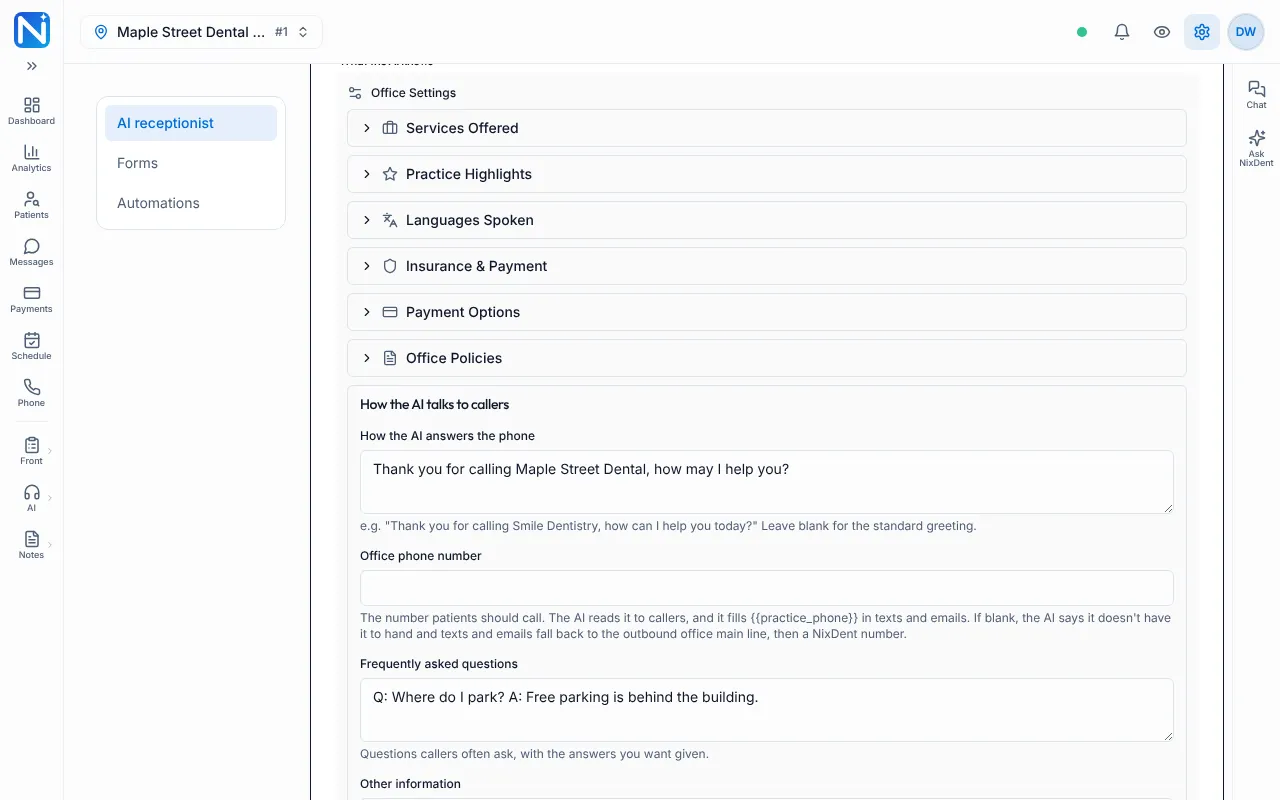
Click a section heading to open it. Services Offered has a Service name (required) box, a Description (optional) box and Add Service:
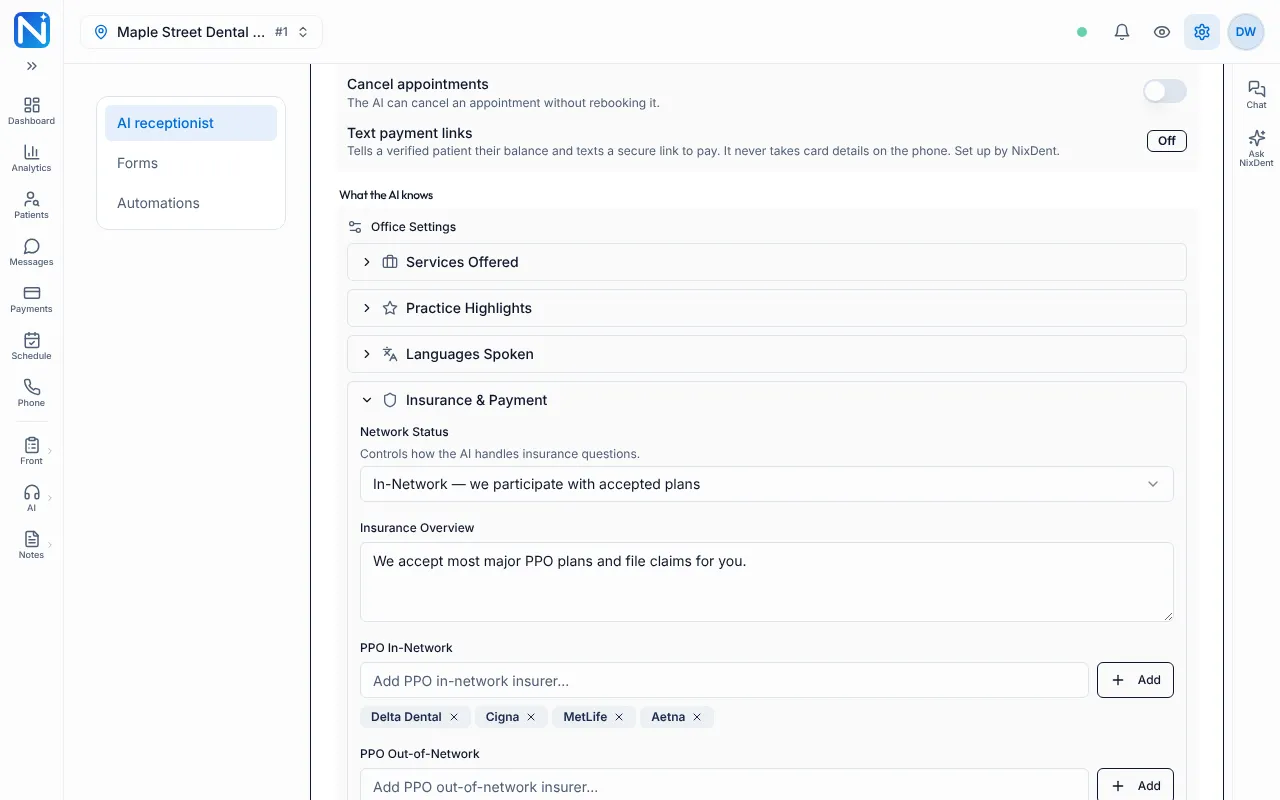
Insurance & Payment starts with Network Status:
Tips that make the biggest difference
Section titled “Tips that make the biggest difference”- Put the thing callers ask most first. Insurance, new patient exams, and “are you accepting patients” are the usual three. Make those answers perfect.
- Write answers, not topics. “We offer Invisalign” is a topic. “We offer Invisalign. A free consultation takes about 30 minutes and no x-rays are needed to book it” is an answer.
- Say what to do when the answer is “it depends”. “For crowns, say the dentist will give a price at the exam.”
- Say plainly what you do not do. “We do not take Medicaid.” “We do not treat children under 3.” The AI can then be honest instead of vague.
- Do not paste in your website. Pick the 15 facts that matter. Long pages bury the one answer a caller needs.
- One fact, one place. Do not put hours in three boxes. Contradictions make the AI hedge.
- No patient names or health details. The notes describe your office, never a patient.
- Read it out loud. If a sentence sounds odd spoken, shorten it.
Your worksheet
Section titled “Your worksheet”Print this page or copy it into a document. Fill it in with your front desk before you open Settings. Examples use a made-up office, “Maple Street Dental”.
Part 1. The basics
Section titled “Part 1. The basics”| Question | Your answer | Example |
|---|---|---|
| Name patients say when they call | Maple Street Dental | |
| Office phone number the AI may read out | (555) 010-0123 | |
| Street address the AI may read out | 100 Example Way, Suite 2, Sampletown | |
| Time zone | Central | |
| Parking and directions in one or two sentences | Free lot behind the building. Enter from Oak Avenue. | |
| Greeting you want (blank = “Thank you for calling Maple Street Dental, how may I help you?”) | Thank you for calling Maple Street Dental. How can I help you today? |
Part 2. Hours and closures
Section titled “Part 2. Hours and closures”| Question | Your answer |
|---|---|
| Open days and times (each day) | |
| Holidays you close for this year | |
| Training days or half days coming up |
Enter these in Hours and closures, not in the notes.
Part 3. Services and selling points
Section titled “Part 3. Services and selling points”| Question | Your answer | Example |
|---|---|---|
| Every service you offer (one line each, plus a short description if helpful) | Cleanings and exams. Fillings. Crowns (same-day available). Invisalign. Emergency visits. | |
| Prices you are happy for the AI to say out loud. Leave blank for any you want a person to quote. | New patient exam and x-rays without insurance: [your amount]. | |
| What a first visit involves | About 60 minutes: exam, x-rays, cleaning if healthy, and a talk with the dentist. | |
| Three things that make you different | Same-day crowns. Evening hours on Tuesdays. Gentle care for nervous patients. | |
| Languages your team speaks | English, Spanish |
Part 4. Insurance and payment
Section titled “Part 4. Insurance and payment”| Question | Your answer |
|---|---|
| In-network, out-of-network, or mixed? | |
| Plans you are in-network with | |
| Plans you definitely do not take | |
| Do you take HMO plans? Medicaid? | |
| What should new patients be told before insurance is discussed? | |
| Do you file claims for out-of-network patients? | |
| Ways to pay: cash, credit card, debit card, CareCredit, Cherry, check, other | |
| Financing or payment plan details you want mentioned |
Part 5. Policies
Section titled “Part 5. Policies”| Question | Your answer | Example |
|---|---|---|
| Cancellation policy | We ask for 2 business days’ notice. | |
| Late cancellation or no-show policy | A fee may apply after a missed visit. | |
| Walk-ins: allowed, not allowed, or emergencies only | Emergencies only. | |
| Children: youngest age you see | ||
| Anything about masks, sedation, or accessibility callers ask |
Part 6. Your top ten questions
Section titled “Part 6. Your top ten questions”Ask whoever answers the phone: “What do callers ask most?” Write the question and the exact answer you want.
| Question | Answer you want given |
|---|---|
| 1. | |
| 2. | |
| 3. | |
| 4. | |
| 5. | |
| 6. | |
| 7. | |
| 8. | |
| 9. | |
| 10. |
Part 7. Emergencies and special situations
Section titled “Part 7. Emergencies and special situations”Decide what you want the AI to say, and write it in Frequently asked questions or Other information. Then test it.
| Question | Your answer | Example |
|---|---|---|
| What should the AI say to someone with severe swelling, bleeding, trouble breathing or a head injury? | Tell them to call 911 or go to the nearest emergency room. | |
| After-hours dental emergency: what do you want them told? | We take a message and a team member calls back when we open. | |
| Is there anything the AI must never say? | Do not promise a specific dentist. |
Part 8. What the AI may do
Section titled “Part 8. What the AI may do”| Question | Your choice |
|---|---|
| May it reschedule appointments? (on by default) | Yes / No |
| May it cancel appointments? (off by default) | Yes / No |
| May it text a payment link? (set up by NixDent) | Ask NixDent |
| Which rooms may be booked? (usually hygiene and new patient rooms) | |
| Which providers may be booked? |
Part 9. Who hears about calls
Section titled “Part 9. Who hears about calls”| Question | Your answer |
|---|---|
| Who gets an email after calls? | |
| Who must hear first about urgent calls or messages? | |
| All calls, or only calls that need action? |
Set this up in Call summaries and the huddle brief.
Enter it and save
Section titled “Enter it and save”- Go to Settings → Patients and AI → AI receptionist.
- Expand each section under Office Settings by clicking its heading, then fill in the answers from your worksheet.
- Fill in How the AI talks to callers.
- Click Save. Look for “Saved. The AI receptionist is using this now.”
- If you instead see Saved — AI receptionist not updated yet, your words are safe but the live AI did not update. Click Update AI now at the top of the page, or try again in a minute. If it keeps failing, use Request.
Then run your test calls: Test your AI receptionist.
Common problems
Section titled “Common problems”The AI gives the wrong hours. Check Hours, holidays and closed days. If hours say “not saved yet”, click Save Hours.
The AI doesn’t know something I typed. Make sure you clicked Save at the bottom of the box, not just typed. Shorten very long text, save again, then re-test.
The AI says something that contradicts itself. Look for the same fact written two ways in two boxes. Remove one.
The AI quoted a price I never wrote. It should not. Report it with the call from Call Logs.