

Follow up on unscheduled treatment
Who can do this: Anyone on your team.
Go to Front Desk → Unscheduled Treatment, and pick the office at the top right.
How the list is built
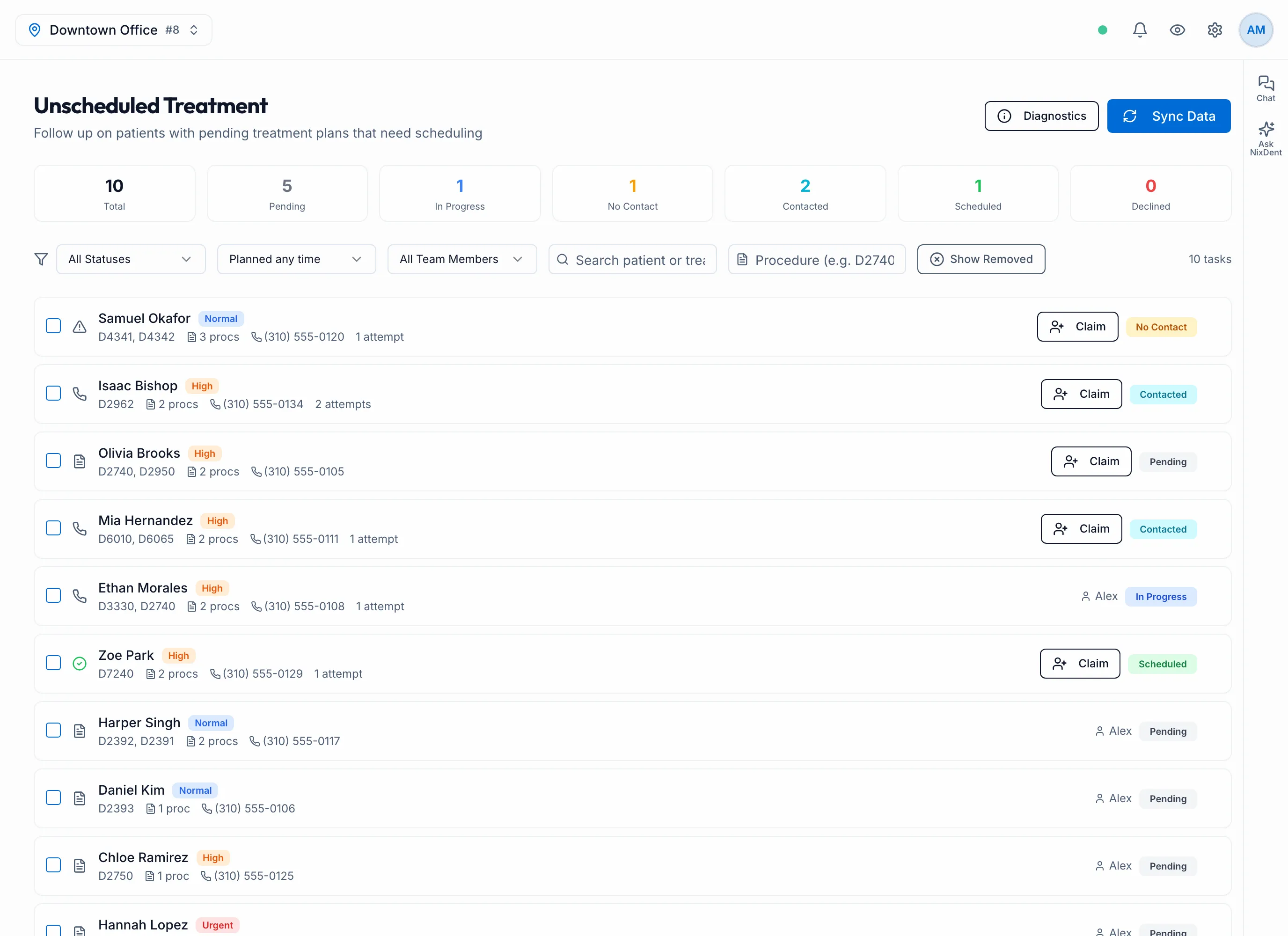
Section titled “How the list is built”Click Sync Data to build or refresh the list from Open Dental. It adds one row per patient with treatment-planned procedures that aren’t on a live appointment. Treatment left on a broken or cancelled appointment counts as unscheduled, so that patient can appear here and on Broken Appointments.
The first time you open the page with an empty list, NixDent starts a sync by itself.
The list doesn’t refresh itself or close rows on its own. Click Sync Data to add new patients, and set the status yourself (Scheduled, Completed or Declined) or Remove the row when treatment is booked or done. Use Remove to keep a patient off the list.
Each row shows the top procedure codes, “N procs”, and a priority based on the total fee: Urgent, High or Normal.
Find the right patients
Section titled “Find the right patients”- Search by patient or treatment, or type a procedure code (for example D2740).
- Filter by status (All Statuses, Pending, In Progress, No Contact, Contacted, Scheduled, Completed, Declined), or by when the treatment was planned: Planned any time, Planned last 7 days, Planned last 30 days, Planned last 90 days, Planned last 12 months, Planned over a year ago, or Planned in a custom range….
- My Tasks shows only rows assigned to you. Show Removed brings back removed patients.
Work a patient
Section titled “Work a patient”Click Claim on a row to make it yours. Click the row to open it.
- Call or email using the phone number and email shown.
- Under Add Follow-Up, pick an outcome and add a note. You can set a follow-up date.
- Click Save Follow-Up. It appears in Activity History.
The outcome updates the status: Scheduled Appointment → Scheduled, Patient Declined → Declined, No Answer or Left Voicemail → No Contact, Contacted - Spoke with patient or Callback Requested → In Progress.
You can also change who it’s Assigned To, or Remove the patient from the list. Removed patients don’t come back on the next sync. Use Show Removed and Re-add to undo.
Hand patients to the AI
Section titled “Hand patients to the AI”Available if your plan includes Outbound Calls, and once a Default Unscheduled Treatment Campaign is set in Outreach → Settings. See Set up AI calling campaigns.
- Tick the patients, then click Send N to AI Campaign. Or open one patient and click Send To AI Campaign.
- The AI calls during your calling hours. After the patient confirms their date of birth, it names the treatment the doctor recommended and offers to book it.
- Each call is logged in Activity History, and the status updates as it goes.
To stop the AI calling someone, open them and click Remove from AI Campaign.