

Take a payment
Who can do this: Owners, Office Managers, Billing and Front Desk.
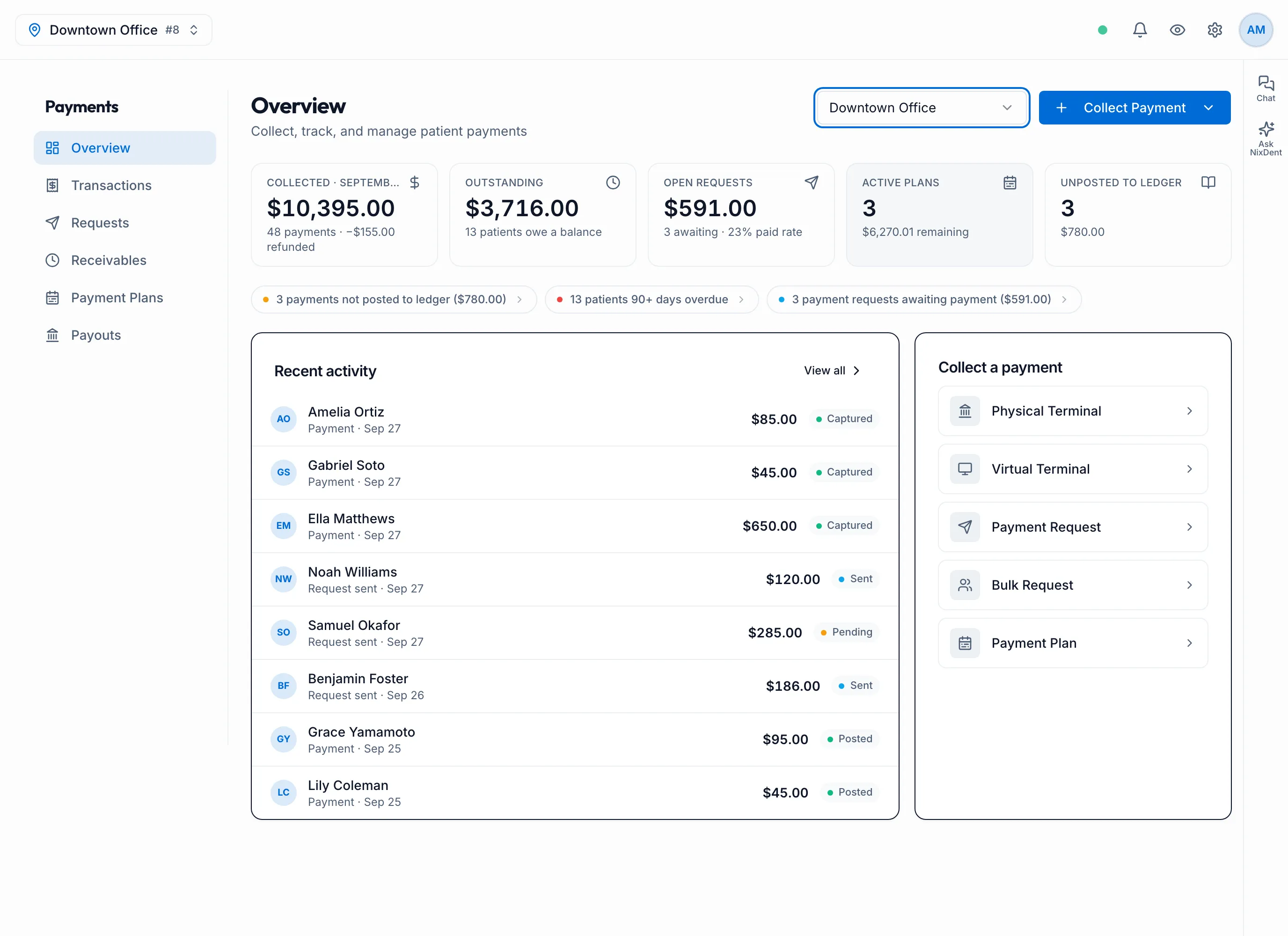
Go to Payments, pick the office at the top left, then click Collect Payment.
You can also start from the patient, which fills in their name and balance for you:
- On the patient card, click Collect.
- On the Patients list or in Messages, open the ⋮ menu and choose Take a payment.
The Payments sections
Section titled “The Payments sections”The Payments page has six sections in a side menu: Overview, Transactions, Requests, Receivables, Payment Plans and Payouts.
Overview shows five tiles: Collected for the current month, Outstanding, Open requests, Active plans and Unposted to ledger. Below them are lines that need attention, a Recent activity list with View all, and Collect a payment buttons. Those buttons read Physical Terminal, Virtual Terminal, Payment Request, Bulk Request and Payment Plan. They do the same as the names in the Collect Payment menu below.
Which way to use
Section titled “Which way to use”| Option | Use it when |
|---|---|
| Single Payment Request (Send Payment Request from a patient) | The patient isn’t at the desk. They get a link by text or email and pay on their own phone. |
| Virtual Terminal | You have the card details, in person or over the phone, and want to key them in. |
| Card on File | The patient already has a saved card. Only from the patient card, Patients list or Messages. See Cards on file. |
| Physical Terminal | The patient is at the desk and your office has a card terminal. |
| Bulk Payment Request | You want to ask many patients with a balance at once. |
| Prepare Payment Plan | The patient will pay a total in installments. See Payment plans. |
Send a payment request
Section titled “Send a payment request”- Choose Single Payment Request (or Send Payment Request from a patient).
- Search for the patient. Their outstanding balance from Open Dental is filled in as the Amount. Change it if needed.
- Check the Phone and Email, and add a Description if it helps the patient, for example “Balance from visit on 5/1”.
- Under Send via, pick SMS or Email, then click Send Link.
The patient opens the link, sees the amount and your office’s name, and pays by card. See What your patient sees when they pay a link. If you have their email, they’re emailed a receipt. If a card covers only part of the amount (common with health-savings cards), the payment is kept and the patient can pay the rest with another card.
If you pick SMS but the office has no texting number, the link goes by email instead.
Track requests under Payments → Requests. While a request is Pending or Sent you can Resend it or Cancel it.
Key a card (Virtual Terminal)
Section titled “Key a card (Virtual Terminal)”- Choose Virtual Terminal.
- Search for the patient. Linking the patient is optional, but without it the payment can’t be sent to their Open Dental ledger.
- If the patient has a card on file, it’s selected for you. To use a different card, choose Enter a different card.
- Enter the Card Number, Expiry (MM/YY), CVV, Cardholder Name and Billing ZIP.
- Enter the Amount and an optional Description, then click Charge Card.
If the card is declined, you’ll see the reason on screen and the attempt is listed under Declined & failed in Transactions.
Use the card terminal
Section titled “Use the card terminal”This only works if NixDent has set up a card terminal for your office.
- Choose Physical Terminal.
- Optionally search for the patient. Their current balance is filled in.
- If your office has more than one terminal, pick it under Terminal.
- Check the Amount and click Send to Terminal. The patient taps, dips or swipes on the terminal.
Ask many patients at once
Section titled “Ask many patients at once”- Go to Payments → Receivables. It lists every patient with a balance, with filters for how overdue it is (0-30, 31-60, 61-90, 90+ days).
- Tick the patients you want.
- Click Request Payment. Each patient gets a link for their own balance.
Patients with no phone or email on file are skipped, and you’re told how many. From a patient’s ⋮ menu you can also Send Payment Request to just them, or Snooze 7 days to leave them off your list for a week.
After you take a payment
Section titled “After you take a payment”Most payments linked to a patient are sent to their ledger in Open Dental automatically. Anything that didn’t make it shows under Not posted to ledger in Transactions.