

Practice Reports — appointments, providers and patients
Who can do this: Owners, Office Managers and Billing.
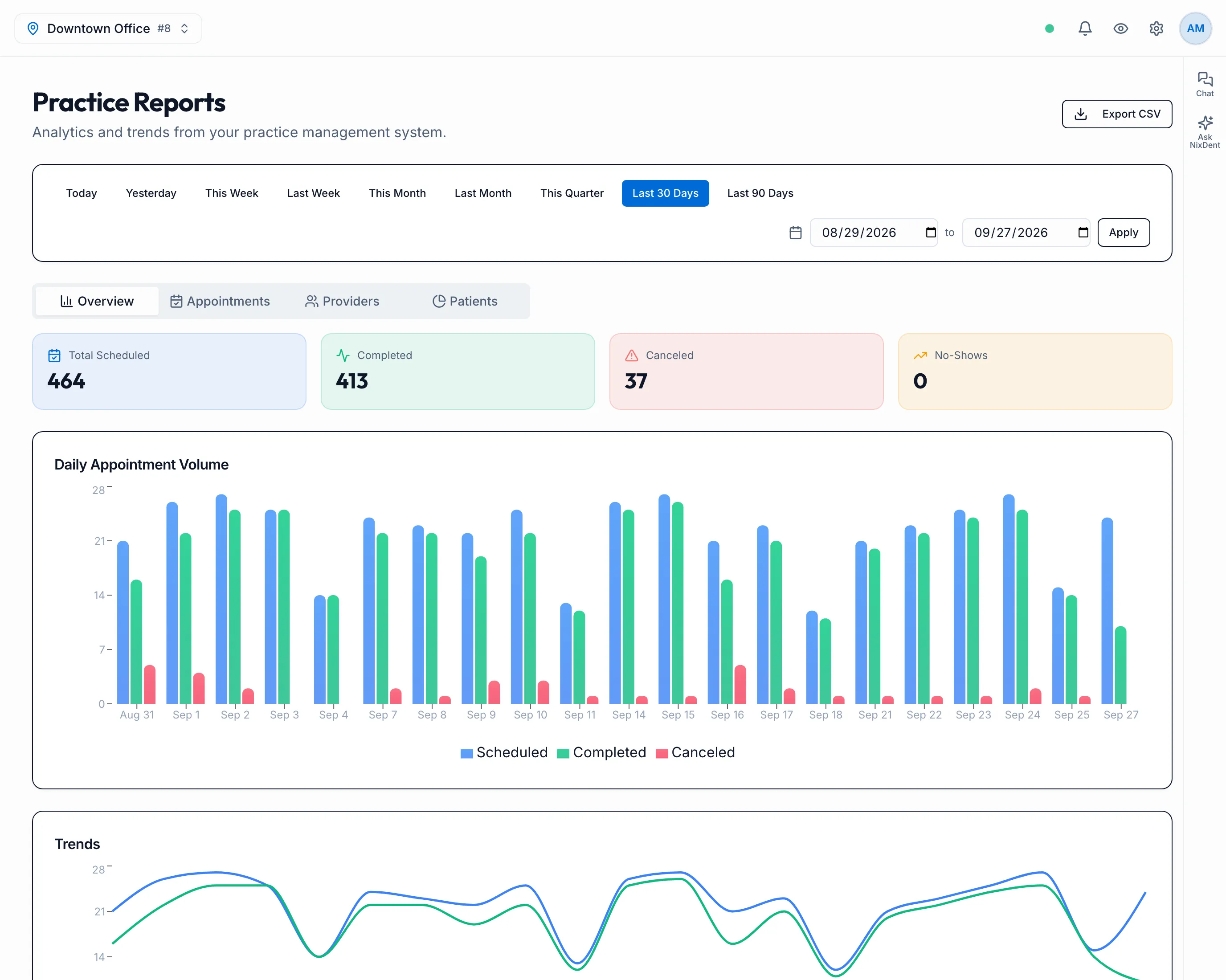
Go to Front Desk → Reports. The page is called Practice Reports. It uses the office chosen in the office picker at the top left; with every office selected, it adds them together.
If you can’t see Reports in the Front Desk menu, your role doesn’t include it. Ask your office manager.
Pick the dates
Section titled “Pick the dates”Click a preset: Today, Yesterday, This Week, Last Week, This Month, Last Month, This Quarter, Last 30 Days or Last 90 Days. The page opens on Last 30 Days.
For other dates, set the two date boxes on the right and click Apply.
The tabs
Section titled “The tabs”| Tab | What’s on it |
|---|---|
| Overview | Total Scheduled, Completed, Canceled and No-Shows, a Daily Appointment Volume chart, and Trends for scheduled, completed and new patients |
| Appointments | Completion Rate, appointments By Appointment Type, and Appointments by Hour of the day |
| Providers | Provider Performance chart and Provider Details table: scheduled, completed, canceled and completion % for each provider |
| Patients | New Patients, Existing Patients and No-Shows, the Patient Mix, and New vs Existing Patients Over Time |
A no-show here is an appointment marked broken in Open Dental.
Export
Section titled “Export”Click Export CSV at the top right. The file has one row per day with the columns Date, Scheduled, Completed, Canceled, No-Show and New Patients for the dates you picked.
If the page says No Practice Connected, the office isn’t connected to Open Dental yet. Contact NixDent.
Related
Section titled “Related”- Read the Analytics page for production and collections
- Use the reports on Analytics for patient-level lists you can work