

What your patient sees on the review page
When you ask a patient for a review, the link opens a short page. This page explains what the patient does, and what you see afterwards.
Who can do this: Everyone on your team can send requests. See Ask patients for reviews.
What the patient does
Section titled “What the patient does”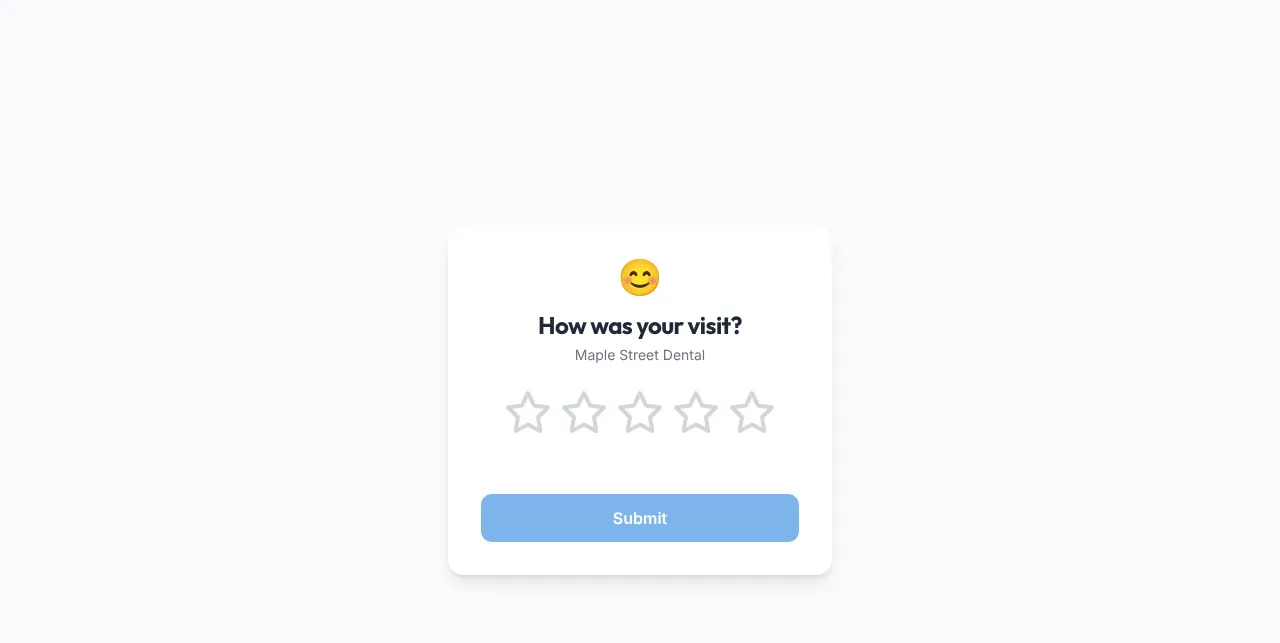
- The page asks How was your visit? with your office name underneath.
- They tap 1 to 5 stars. A short line appears: 1 “We’re sorry to hear that”, 2 “We’ll work to improve”, 3 “Thanks for your honesty”, 4 “We’re glad you enjoyed it!”, 5 “Amazing! Thank you so much!”.
- They tap Submit.
What happens next depends on the rating:
| Rating | What the patient sees |
|---|---|
| 4 or 5 stars | “We’re so glad you loved it!” and a button for each review site you set up: Leave a Google Review, Leave a Yelp Review, Leave a Facebook Review |
| 1 to 3 stars | “Thank You for Your Feedback”. They’re thanked and told you’ll work to do better. No review-site buttons are shown |
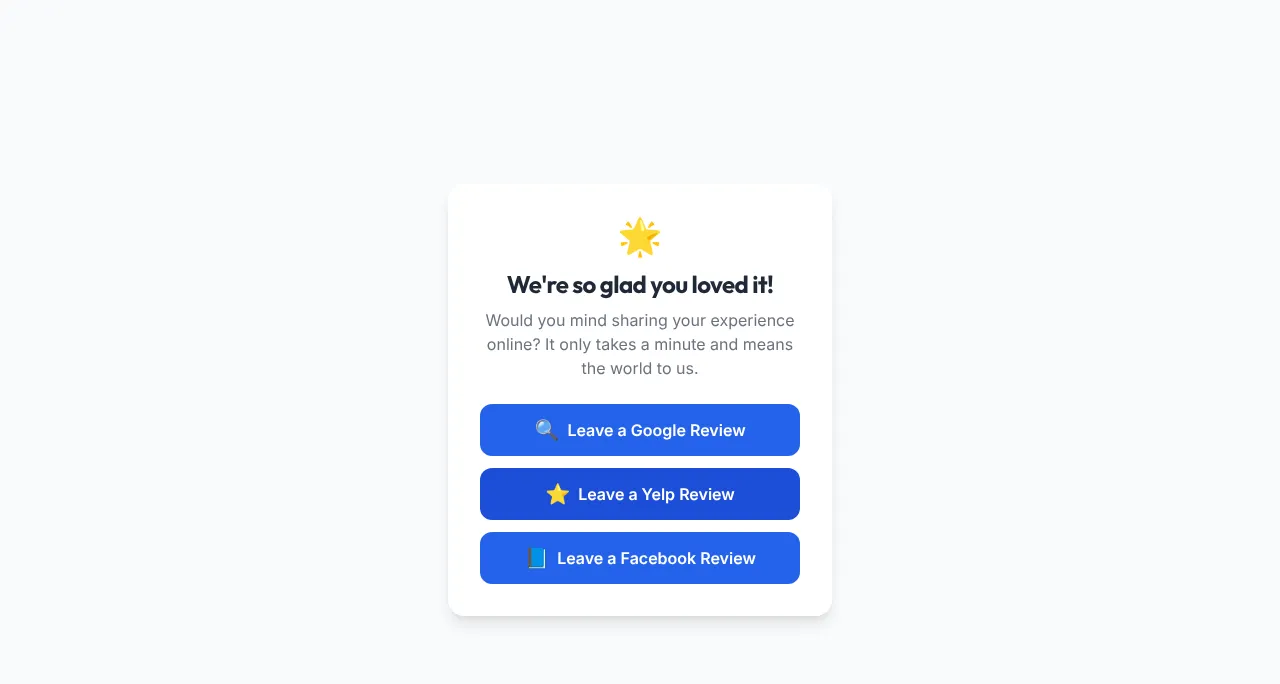
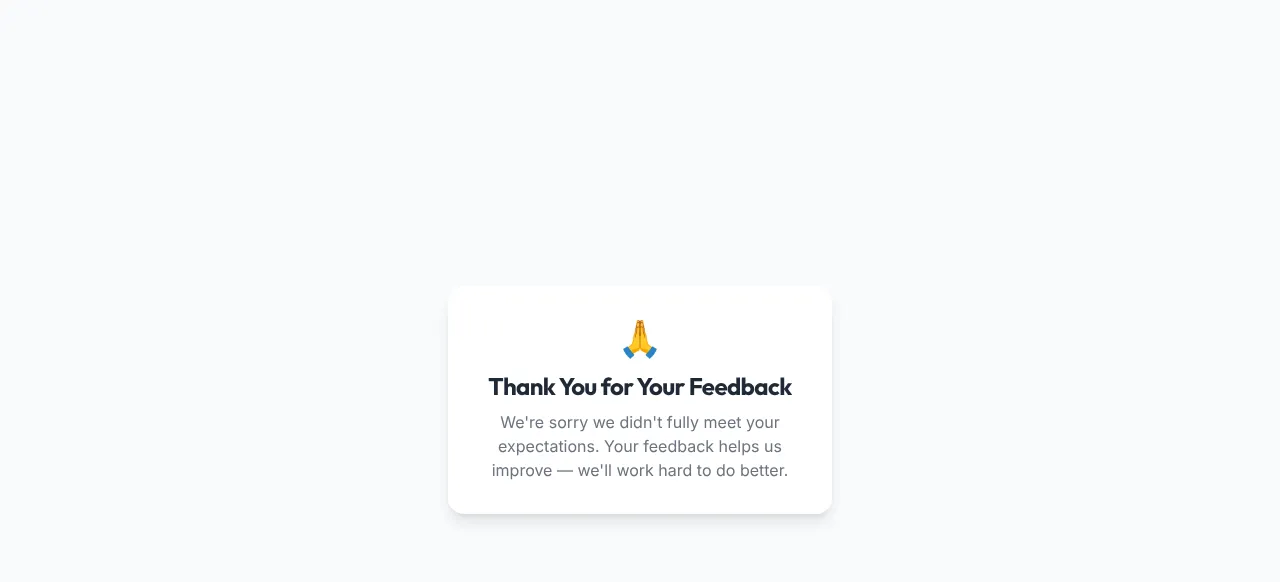
If the patient opens the link again after rating, they see Already Submitted (“You’ve already shared your feedback. Thank you!”). Each request takes one rating, so a patient can’t change it.
What you see
Section titled “What you see”On Front Desk → Reviews you see whether each request was Opened, Clicked (and which site), and the star rating once it’s given. See Ask patients for reviews. A rating also shows in your Pulse activity feed as “Left a {n}-star review”.
Common problems
Section titled “Common problems”“Link Not Found”. The page says “This review link is invalid or has expired.” Send a new request.
The review-site buttons don’t appear after a 4 or 5 star rating. Check that the office has review links set up under Settings → Practice → Offices → Review Request Settings. The buttons only show for sites you’ve added. Check the links before you send requests.
Related pages
Section titled “Related pages”- Ask patients for reviews
- Automatic patient messages (the Review Request message)
- Links your patients receive