

Text patients from Messages
Who can do this: Everyone on your team.
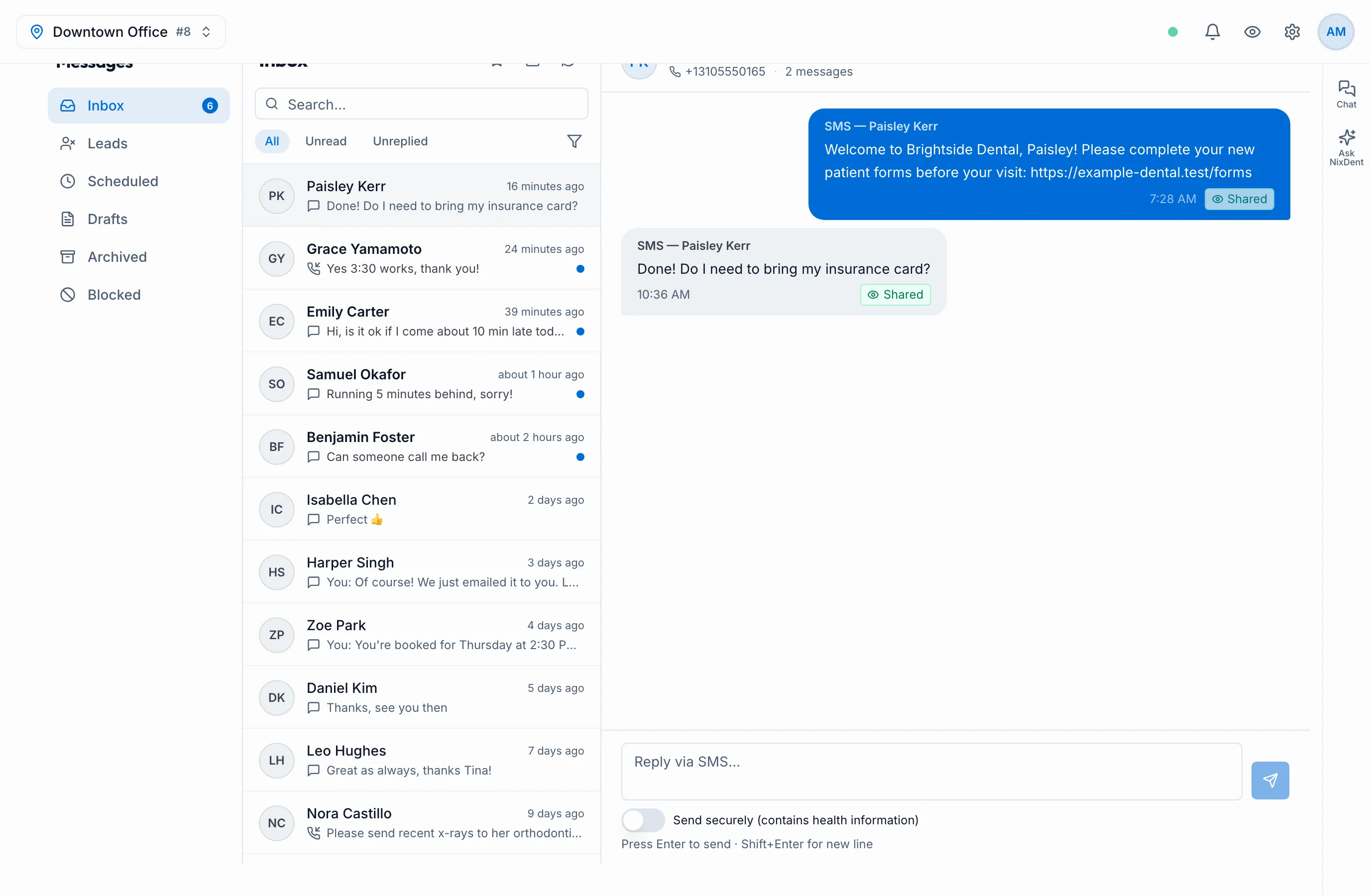
Click Messages in the left menu. Pick the office at the top left to see that office’s messages. Replies go from that office’s texting number, so pick a single office before you reply. With All Locations picked, the send arrow stays grey even after you type.
The folders
Section titled “The folders”| Folder | What’s in it |
|---|---|
| Inbox | Conversations with patients: texts, AI call summaries, bookings, website chats and email. |
| Leads | Calls from unknown callers who aren’t matched to a patient or a name. A text from a number that isn’t a patient shows in Inbox, not here. |
| Archived | Conversations you’ve archived. |
A number beside Inbox or Leads is how many unread messages are waiting.
Three buttons sit at the top of the list: the star (Review request), the pen (New SMS) and the arrows (Refresh). The list also refreshes itself every so often.
Find a conversation
Section titled “Find a conversation”- Type in Search…. It searches names and phone numbers, not the words in messages.
- Click All, Unread or Unreplied.
- Click the funnel to show one channel (SMS, Calls, Chat, Bookings or Email) or one status (Read, Replied or Error). Error finds texts that didn’t go through.
Reply to a patient
Section titled “Reply to a patient”- Click the conversation.
- Type in the box at the bottom.
- Press Enter to send. Press Shift+Enter for a new line.
Your reply goes from the office’s texting number. If Shared number shows beside the name, more than one patient uses that phone number. Phone numbers are assumed to be US numbers (+1).
Opening an unread conversation marks it read.
Send securely
Section titled “Send securely”Switch on Send securely (contains health information) before you send anything clinical. The patient gets a link instead of the text, and confirms their date of birth to read it. They can reply on the same page, and their reply shows in the conversation.
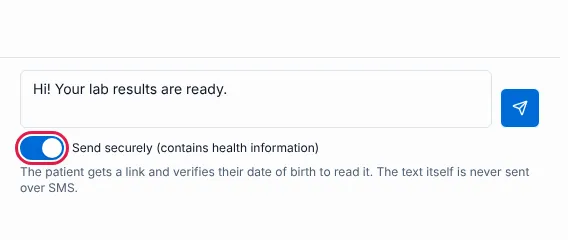
Under a secure message you can Resend link (or Send a new link once it has expired) and Revoke link.
Start a new text
Section titled “Start a new text”- Click the pencil icon (New SMS) at the top of the list.
- Choose the From Location, then search for the patient, or type a Phone Number.
- Type your Message and click Send SMS.
More actions in a conversation
Section titled “More actions in a conversation”Click ⋯ at the top right of a conversation:
- View patient card, Appointments, Treatment plans, Communication log and Patient notes open the patient’s card on that tab.
- Send Review Request. See Ask patients for reviews.
- Take a payment, with the choices Send Payment Request, Physical Terminal, Virtual Terminal, Prepare Payment Plan and Card on File. See Take a payment.
- Mark all read.
- Call patient opens the number in your computer’s or phone’s calling app.
- Internal note: a private note about the conversation (the box is labelled “Internal Staff Note”), visible only to staff. Click Save Note.
- Archive conversation moves it to Archived. Open it there and click Unarchive to bring it back.
Some items only appear when they apply. The patient-card items need the conversation to be linked to a patient. Send Review Request and Call patient need a phone number. Mark all read only shows when something is unread.
The eye icon in the top bar (Hide patient info) blurs names and numbers in Messages.
Related
Section titled “Related”- Communication preferences and do not contact
- You can also text from a patient’s card: the Chat tab. See The patient card.