

Record and sign a clinical note
Who can do this: Doctors, Hygienists, Back Office, Office Managers and Owners can record and draft notes. Only Doctors, Hygienists, Office Managers and Owners can finalize (sign) a note.
Available if your plan includes NixDent Notes and you have a NixNotes seat. See Your plan and NixNotes seats.
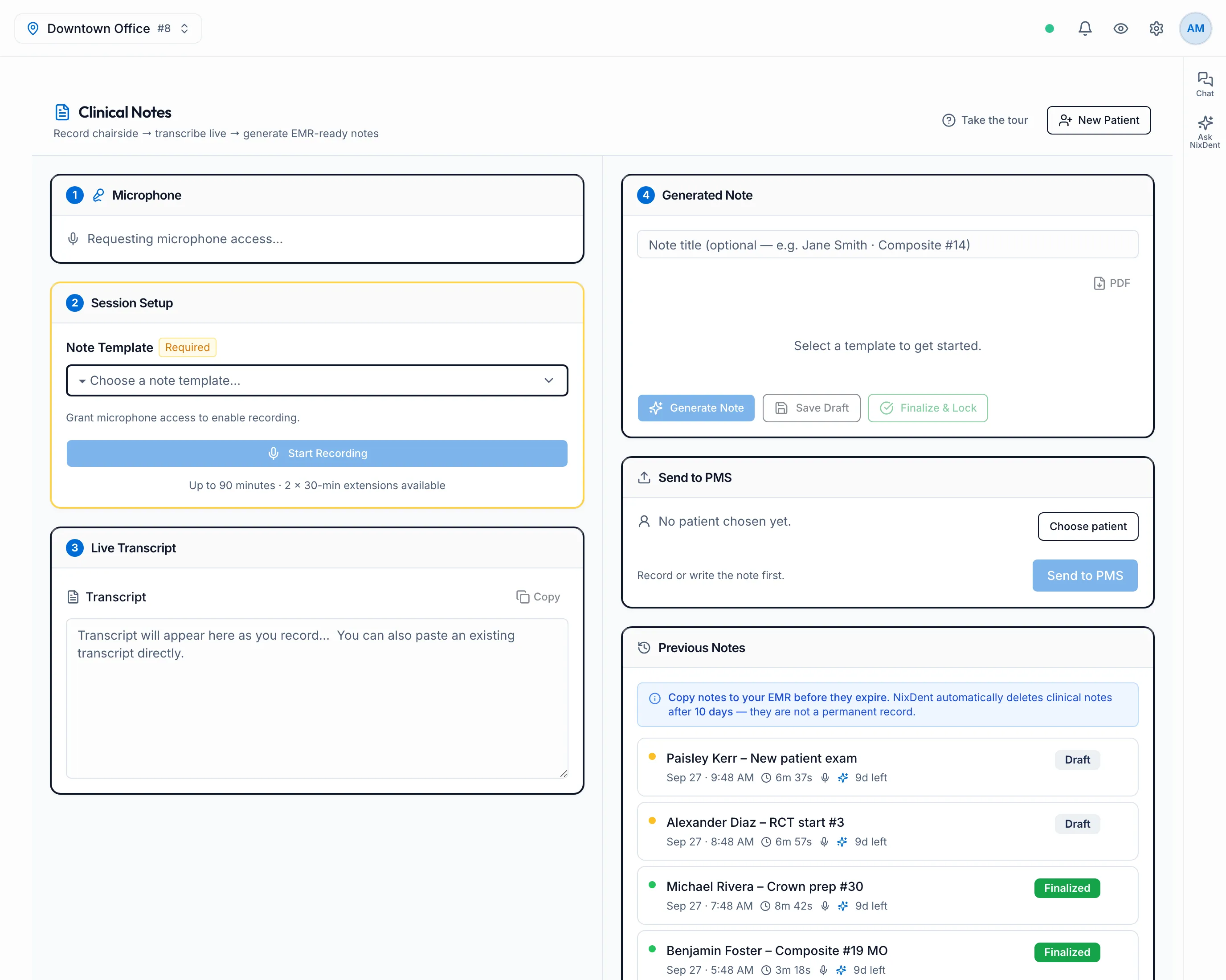
Go to Notes → Record. The page is called Clinical Notes and works in four numbered steps: Microphone, Session Setup, Live Transcript and Generated Note.
Record a visit
Section titled “Record a visit”- Microphone: allow microphone access when your browser asks, and pick your microphone. Speak and check that the Input level moves. If you see Microphone access denied, allow the microphone for this site in your browser settings, then refresh the page.
- Session Setup: click Choose a note template… and pick a template. You can add more than one with Add another template. Recording stays off until a template is chosen.
- Click Start Recording. The transcript fills in under Live Transcript as you talk.
- Click Stop Recording when the visit is done.
A recording can run up to 90 minutes. Near the limit you can click Extend 30 min, up to two times.
You don’t have to record. You can also type or paste a transcript straight into the Live Transcript box.
Draft the note
Section titled “Draft the note”- Under Generated Note, add a title if you like (for example, the patient and procedure).
- Click Generate Note. With several templates, the button says Generate 2 Notes (or more), and each one gets its own tab.
- NixDent drafts the note from the transcript. Read every line. You’re responsible for what the note says, so fix anything that’s wrong or missing.
If the transcript didn’t cover something the template asks for, a yellow box lists those fields. Click a field name to jump to it in the note.
Your work saves itself every few seconds. You can also click Save Draft.
Finalize the note
Section titled “Finalize the note”When the note is right, click Finalize & Lock. The note is marked Finalized and can’t be edited.
- To change a finalized note, click Reopen, make the change, and finalize it again.
- Back Office can draft and save notes, but can’t finalize them. Instead of the button they see A doctor or hygienist signs this note.
Get the note into the patient’s chart
Section titled “Get the note into the patient’s chart”- If your office can send notes to Open Dental, a Send to PMS card appears under the note. See Send a note to Open Dental.
- Otherwise, click Copy and paste the note into the chart, or click PDF to print or save it.
Previous notes
Section titled “Previous notes”Previous Notes lists the notes you’ve recorded, newest first, marked Draft or Finalized. Click one to open it, or hover to rename or delete it.
Start the next patient
Section titled “Start the next patient”Click New Patient at the top. The current note is saved and a blank one opens. Your microphone and template stay selected.