

Phone reports and Call IQ
Who can do this: Everyone on your team, if your practice uses NixDent Phone.
These pages cover calls on your office phone line (NixDent Phone). For calls the AI receptionist answered, see Review what the AI handled.
Call history
Section titled “Call history”Go to Phone, then Call history.
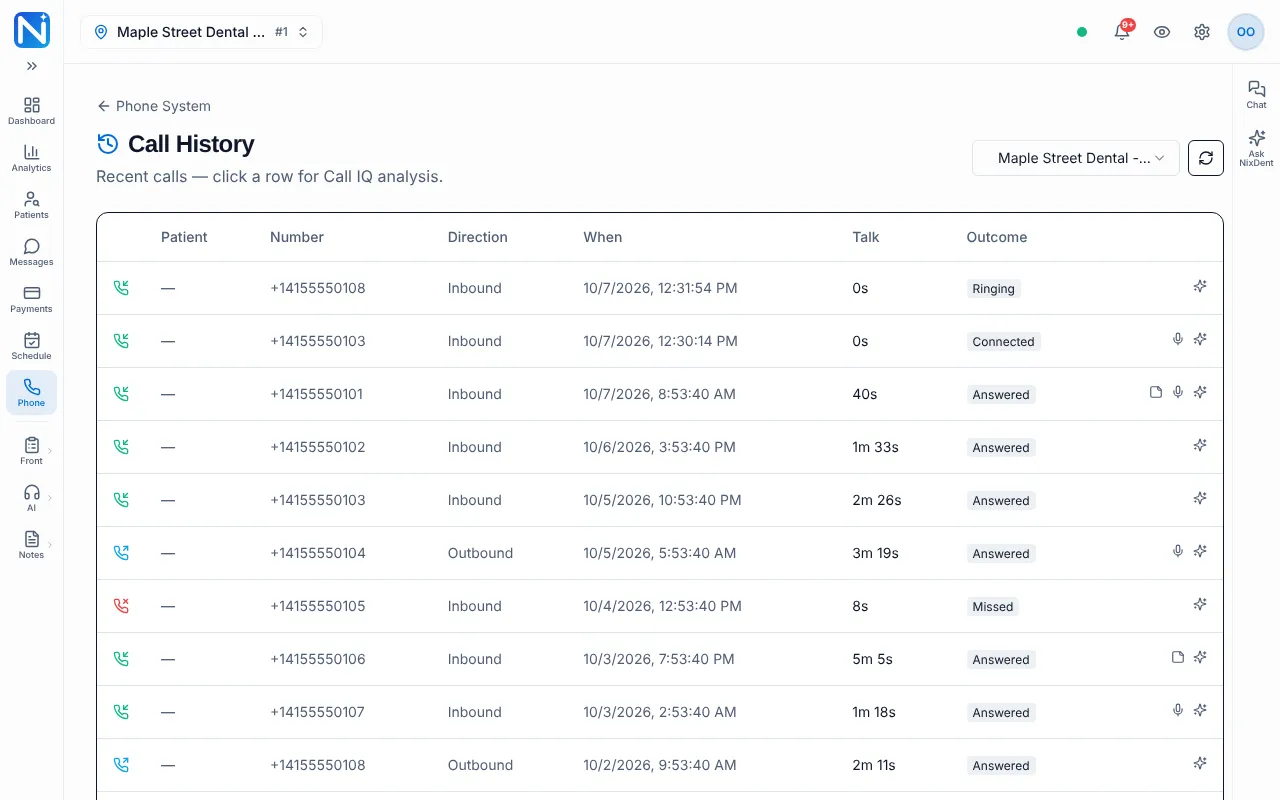
- Pick the office in Location.
- The table lists recent calls (up to 200, from the last 30 days) with Patient (when the number matches an Open Dental patient, otherwise a dash), Number, Direction, When, Talk and Outcome. Small icons show that a call has notes, a recording or a Call IQ review.
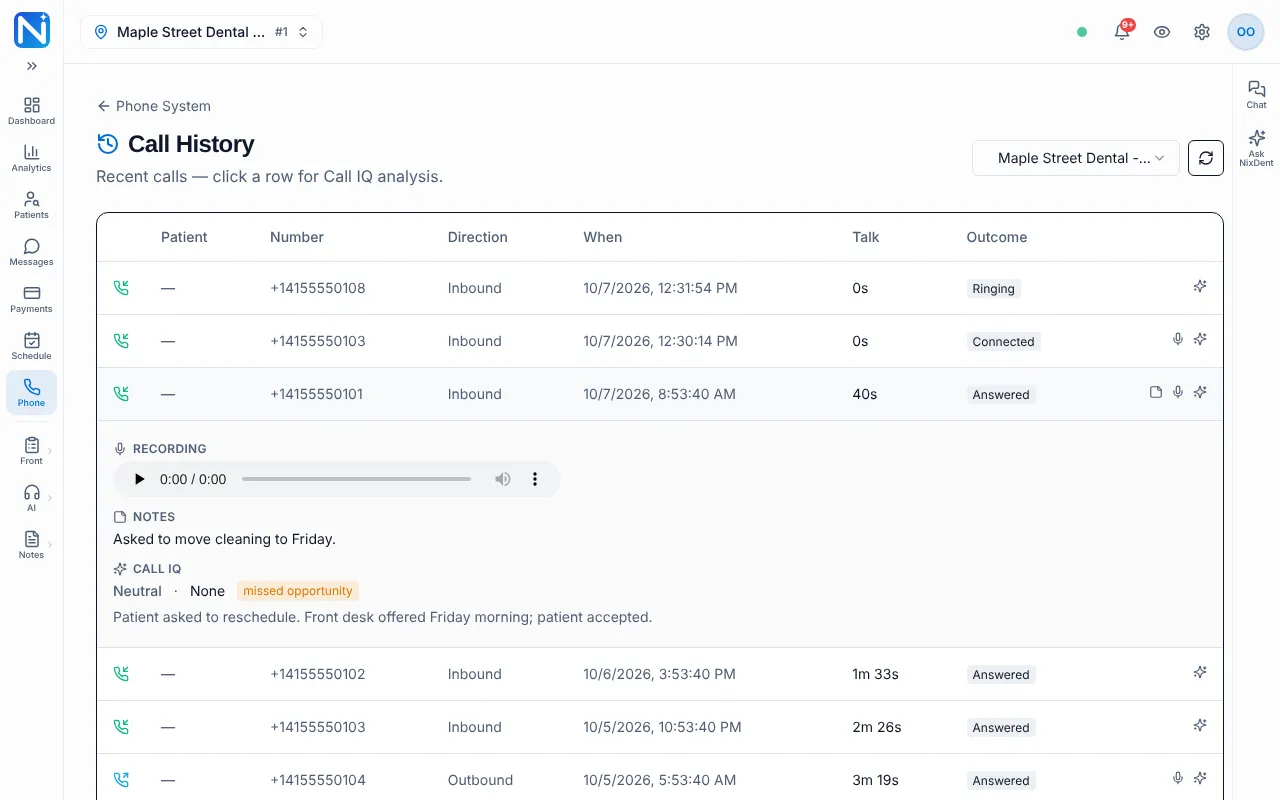
- Click a row to open it. The row expands underneath and you can:
- Play the Recording, if the call was recorded.
- Read the Notes your team typed during the call.
- Read Call IQ, if it has run. It shows the sentiment, the call’s outcome, a flag such as “missed opportunity” and a one-line summary.
What Call IQ is
Section titled “What Call IQ is”Call IQ is an automatic review of a call. It reports the overall sentiment (positive, neutral or negative), the outcome (for example booked), a short summary, and whether the call looks like a missed opportunity, such as a patient who wanted an appointment and didn’t get one.
Call IQ only appears on calls it has reviewed. If you see “Not analyzed yet”, Call IQ hasn’t run on that call. If you never see Call IQ results, ask your office manager to contact NixDent.
Reports
Section titled “Reports”Go to Phone, then Reports & Call IQ.
- Pick the Location and a range: 7 days, 30 days or 90 days.
- The tiles show Total calls (with how many in and out, for example “32 in - 10 out”), Answer rate (with how many were answered), Missed (with how many went to voicemail) and Avg talk time.
- Call IQ shows how many calls were Analyzed, the Avg sentiment (a number from -1 to 1), a colored bar with the count of positive, neutral and negative calls, and the number of Missed opportunities. Without any reviewed calls it says “No analyzed calls yet”.
The Live Board’s Recent calls
Section titled “The Live Board’s Recent calls”On the Live Board tab, Recent calls shows each call’s outcome (for example Booked, Missed or Missed - VM) and a Call IQ column with the sentiment or a Missed opp flag. This is the fastest way to see which missed calls need a call back.
Line health
Section titled “Line health”Go to Phone, then Line health. The Voice quality card shows MOS p50 (a call-quality score, where higher is better), MOS p10 (worst), Avg jitter, Avg loss and Avg RTT (round-trip time). It fills in after you place softphone calls.
If calls sound choppy, check Line health first and tell NixDent support what it shows.
Common problems
Section titled “Common problems”- Reports show zero calls. Check the Location and the range. A brand-new phone setup has no history.
- I want to see everything in the last year. The Reports page offers 7, 30 or 90 days. Call history shows the 200 most recent calls.
What to do next
Section titled “What to do next”- Call back missed callers from the Live Board (Call back) or from the phone Inbox.