

Send an After Visit Summary
Who can do this: Doctors, Hygienists, Back Office, Office Managers and Owners.
Available if your plan includes NixDent Notes, you have a NixNotes seat, and NixDent has switched After Visit Summary on for your office. If it’s off, the page says After Visit Summary isn’t enabled.
Go to Notes → After Visit Summary and pick a single office at the top of the page.
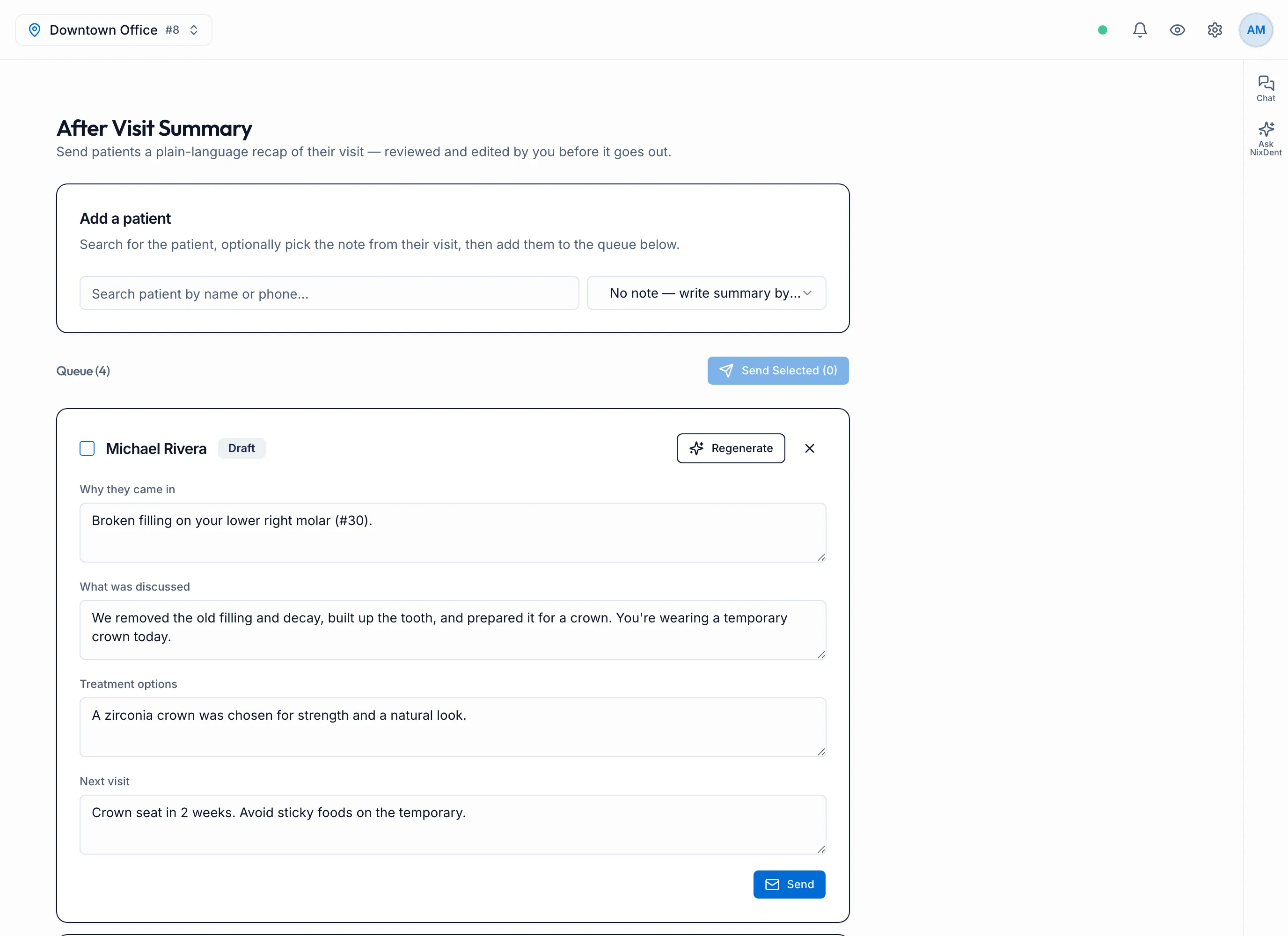
An After Visit Summary is a short, plain-language recap of the visit in four parts: Why they came in, What was discussed, Treatment options and Next visit. You review and edit it before it goes out.
Add a patient to the queue
Section titled “Add a patient to the queue”- Under Add a patient, search by name or phone.
- Optional: in Link a note, pick the finalized note from their visit. Choose No note — write summary by hand to skip it.
- Click the patient. They’re added to the queue as a Draft.
Only finalized notes can be linked. See Record and sign a clinical note.
Draft and edit the summary
Section titled “Draft and edit the summary”- On the patient’s card, click Generate. NixDent drafts the four parts from the linked note.
- No note linked yet? Pick one under No note linked, then click Link.
- Read each part and edit it so it’s accurate and easy for the patient to understand.
- Click Save to keep your edits.
Regenerate replaces the text with a fresh draft from the note.
Send it
Section titled “Send it”- Click Send on one card, or
- tick several cards and click Send Selected.
The patient gets an email, Your Visit Summary from your office, with a link. They confirm who they are before the summary opens, with their date of birth, or their last name if NixDent has no date of birth. Make sure the patient has a date of birth in Open Dental before you send. To see what the patient sees, read What your patient sees in their visit summary. Sent cards are marked Sent with the date and time, and can’t be edited.
To take a patient out of the queue before sending, click the X on their card.