

Run the morning huddle
Who can do this: Everyone on your team.
Go to Front Desk → Huddle. The page is called Morning Report. Pick the office at the top left first.
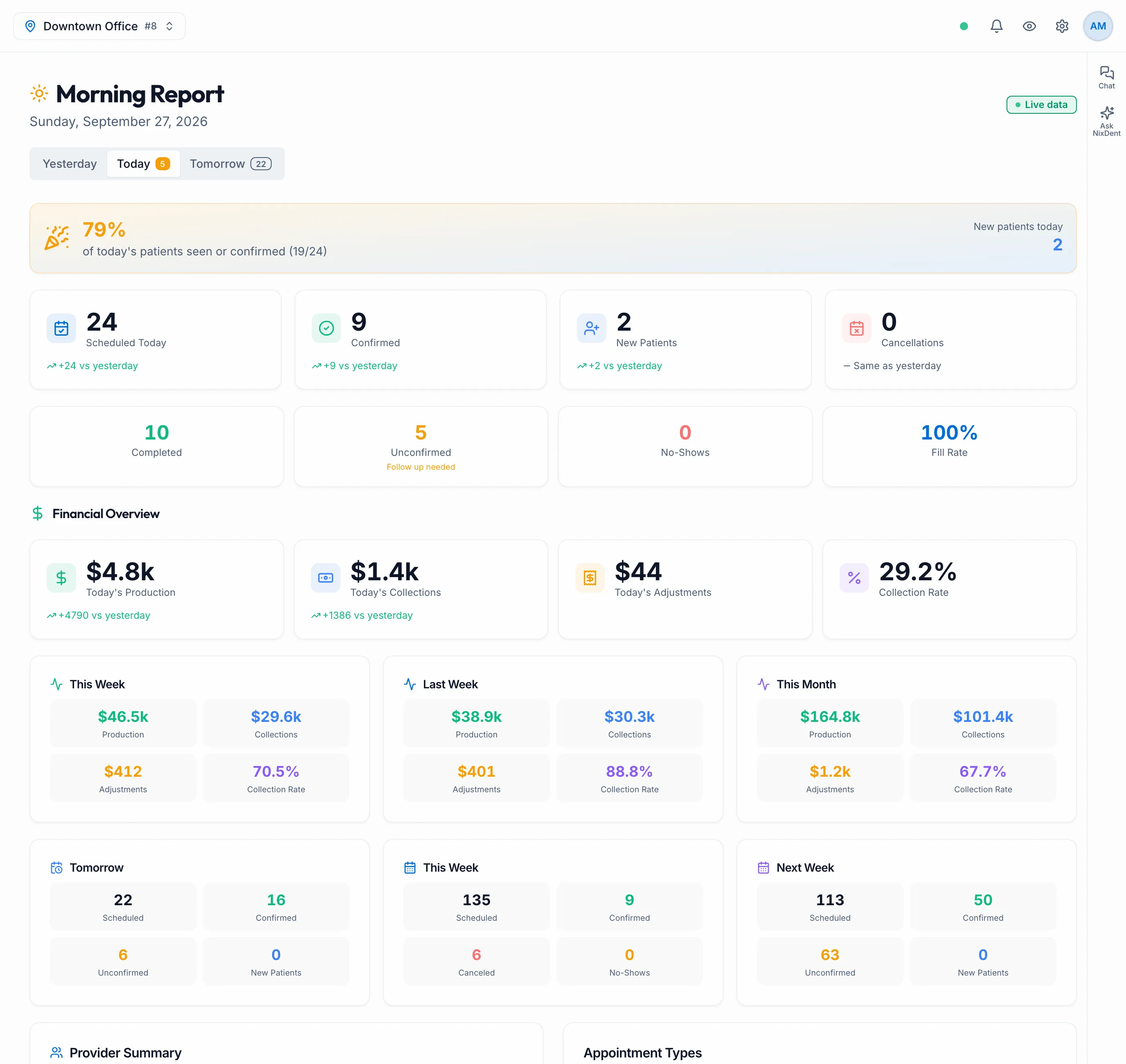
The page has three tabs: Yesterday, Today and Tomorrow. It opens on Today. A number on the Today tab is how many of today’s appointments are still unconfirmed. A number on Tomorrow is how many are booked.
A green Live data badge at the top right means your practice is connected to Open Dental. Counts can be a little behind Open Dental.
From top to bottom:
- How much of today is seen or confirmed, as a percentage with the count (for example 14/20), and today’s new patients beside it.
- Scheduled Today, Confirmed, New Patients and Cancellations, then Completed, Unconfirmed, No-Shows and Fill Rate. Follow up needed under Unconfirmed is your cue to start calling.
- Tomorrow, This Week and Next Week at a glance. Each shows Scheduled, Confirmed, Unconfirmed and New Patients, and This Week also shows Canceled and No-Shows.
- Provider Summary and Appointment Types for today.
- Patient Schedule: every appointment, grouped by provider, with the time, patient, type and status.
What the numbers mean
Section titled “What the numbers mean”Each appointment on the day counts in exactly one box, checked in this order: Canceled, then No-Show, then Completed (checked out), then Confirmed (confirmed in Open Dental). Anything left is Unconfirmed. So a confirmed appointment that has been checked out counts as Completed, not Confirmed. Scheduled is every appointment on the day, including canceled ones. New Patients counts each patient once.
Fill Rate is the share of the day’s appointments that weren’t canceled: scheduled minus canceled, divided by scheduled. It shows 0% when nothing is scheduled.
In Patient Schedule, a completed appointment shows a Done badge.
Look at another day, or print it
Section titled “Look at another day, or print it”In Patient Schedule, use the arrows (Previous day and Next day) to step a day back or forward. Click the date to jump back to today.
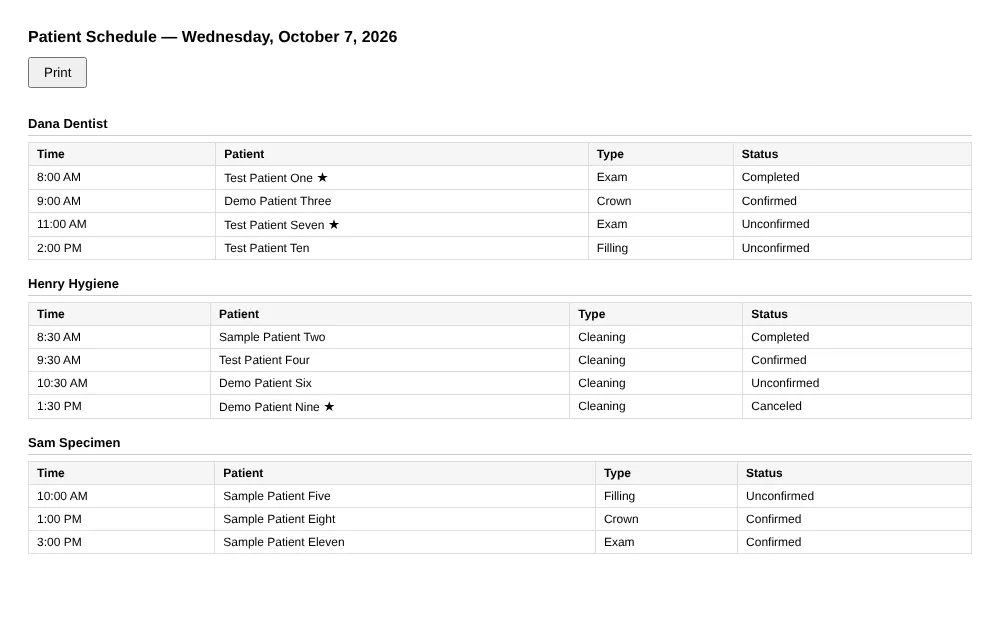
Click Print Schedule to open the day you’re looking at in a new window, grouped by provider with Time, Patient, Type and Status, and start the print dialog. A star beside a name marks a new patient. If nothing happens, allow pop-ups for NixDent. The printout shows patient names, so keep it somewhere private.
Yesterday
Section titled “Yesterday”What happened yesterday: Scheduled, Completed, New Patients, Canceled and No-Shows, and yesterday’s full schedule.
Tomorrow
Section titled “Tomorrow”Tomorrow’s Scheduled, Confirmed, Unconfirmed and New Patients, and tomorrow’s full schedule. Confirm before end of day appears when there are unconfirmed appointments.
Practice reports
Section titled “Practice reports”For trends over a longer period, Owners, Office Managers and Billing can go to Front Desk → Reports. See Practice Reports. If you don’t see Reports in the Front Desk menu, your role doesn’t include it. Ask your office manager.
“No Practice Connected”
Section titled ““No Practice Connected””The huddle needs your practice connected to Open Dental. If the connection is down, the page shows a No Practice Connected card, and the top bar shows Practice offline. Click Practice offline to open a support request. If there has never been a connection, the page says so too.