

Practice details
Who can do this: Owners and Office Managers can change these. Everyone else can look but not change anything.
Go to Settings → Practice → Practice details. This is the page Settings opens on.
Organization
Section titled “Organization”| Field | What it is |
|---|---|
| Organization Name | Your practice’s name. Click Edit, change it, click Save. |
| Plan | Badges for the NixDent products your practice has. NixDent changes these. See Your plan and NixNotes seats. |
| Status | Shows Active when your account is in good standing. |
| Allow staff chat across offices | When off, staff can only start staff chats with people who share one of their offices. Chats already open are unaffected. |
Why the name matters: the AI receptionist greets callers with “Thank you for calling” followed by this name, unless you write your own greeting. Use the name patients know.
Practice Setup (one block per office)
Section titled “Practice Setup (one block per office)”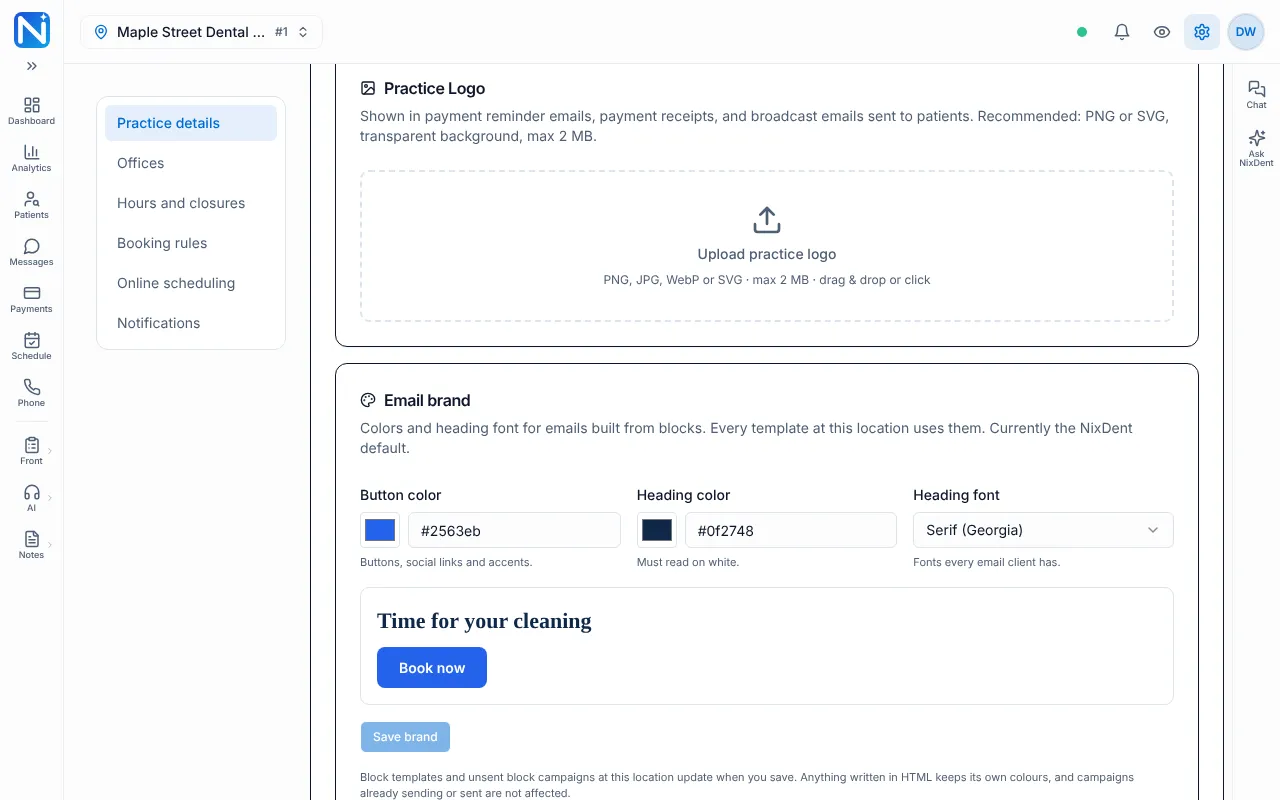
For each office you see four items. Fill them in carefully. Texting can’t be switched on until the required ones are complete, and the information has to match your official business records.
- Practice Logo. Upload a PNG, JPG, WebP or SVG up to 2 MB. A transparent PNG or SVG looks best. It appears on payment reminder emails, receipts and broadcast emails.
- Email brand. Pick a Button color, Heading color and Heading font. NixDent warns you if a color is too light to read on a white email. Click Save brand. Reset to default returns to the NixDent look. Emails written in HTML keep their own colors, and emails already sent are not changed.
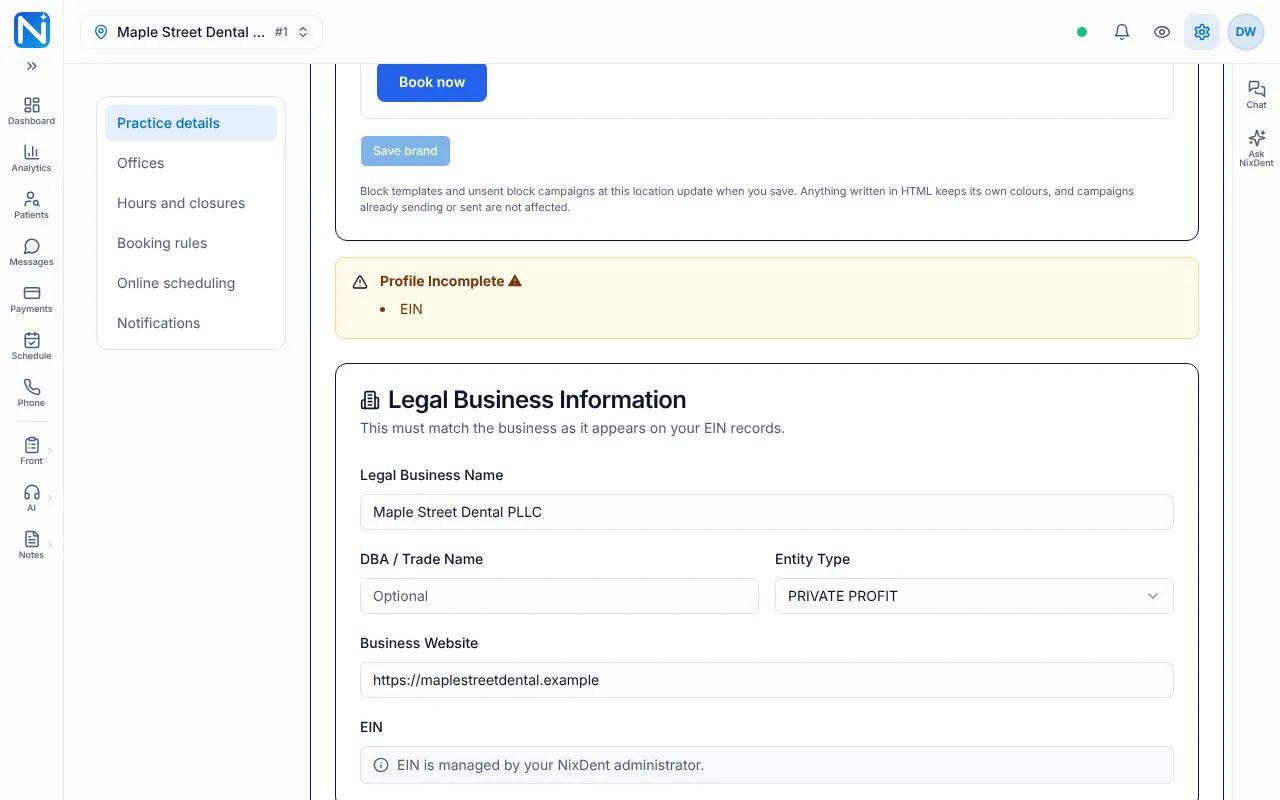
- Legal Business Information: Legal Business Name (must match your tax records), DBA / Trade Name (optional), Entity Type, Business Website. NixDent enters the EIN for you.
- Practice Address (street, suite, city, state, zip) and Primary Contact Person (First Name, Last Name, Contact Email, Practice Phone). The contact is the real person carriers may reach for verification.
Click Save Practice Profile.
A banner above Legal Business Information tells you where you stand. SMS Ready means all required fields are filled. Profile Incomplete lists what is missing. Entity Type offers PRIVATE PROFIT, SOLE PROPRIETOR, PUBLIC PROFIT, NON PROFIT and GOVERNMENT. State (full name) wants the whole state name, such as Illinois.
SMS Messaging
Section titled “SMS Messaging”Under SMS Messaging each office shows a Verification status and, once the page is live, the patient opt-in page. See Phone numbers, porting and texting registration.
A practice with no office yet does not see the Practice Setup or SMS Messaging blocks. They appear once NixDent adds an office.
What patients read on a treatment plan
Section titled “What patients read on a treatment plan”Further down the page, What patients read on a treatment plan holds one plain sentence under each procedure code. Search for a code or phrase, edit the sentence in your own words, and click Save on that row. A reset button on a row puts back the standard wording. Codes without a sentence just show the clinical description. Clearing a sentence hides it for that code.
Common problems
Section titled “Common problems”I can’t edit anything. You see a note: “You can view these settings. Only the practice owner or office manager can change them.” Ask one of them.
Save Practice Profile shows an error. The form needs a valid email, a street address and the other required fields. Fix the red messages under the boxes.
The banner still says Profile Incomplete after I saved. It also lists items only NixDent can finish, such as the EIN. Use Request or contact support.