

Work your call leads
Who can do this: Anyone on your team.
Available if your plan includes Outbound Calls, once NixDent has switched on outbound calling for the office.
Go to Outreach → Leads, and pick the office at the top left.
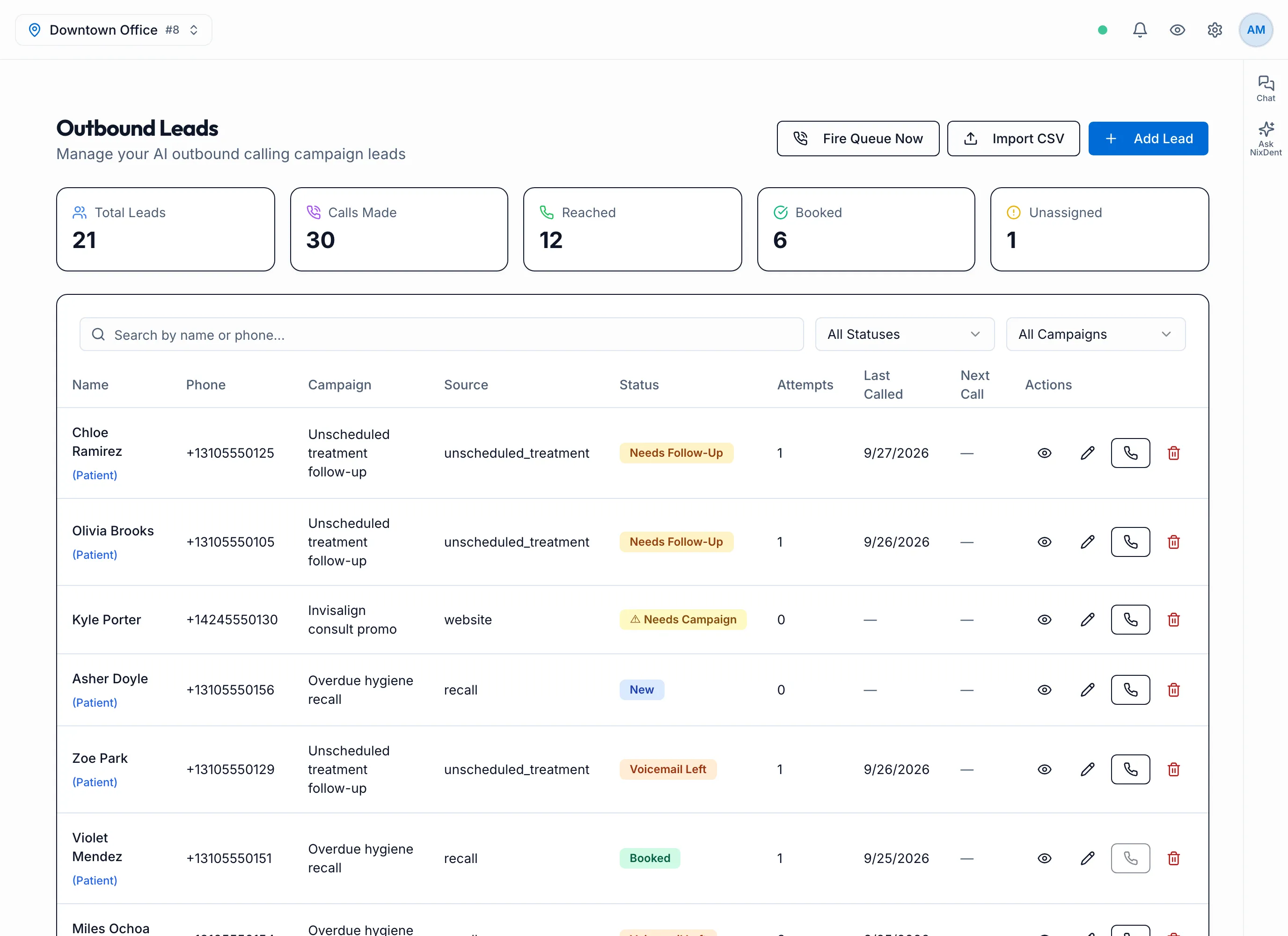
A lead is one person for the AI to call. The cards at the top count Total Leads, Calls Made, Reached, Booked and Unassigned. Search by name or phone, or filter by status and campaign.
Where leads come from
Section titled “Where leads come from”- Add Lead: one person, typed in.
- Import CSV: a list.
- The Recall List, Unscheduled Treatment and Broken Appointments pages, when staff send patients to AI calling.
- Your marketing forms, if NixDent has connected them for your office.
A new lead with a campaign is called straight away if it’s inside your calling hours, or at the start of the next calling window.
Add one lead
Section titled “Add one lead”- Click Add Lead.
- Enter First Name and Phone Number. Last Name and Email (optional) are optional.
- Pick a Campaign. Choose No campaign (unassigned) to hold the lead without calling.
- Click Add Lead.
Import a list
Section titled “Import a list”- Click Import CSV, then Choose CSV File.
- The file needs a header row with
firstNameandphonecolumns.lastName,emailandsourceare optional. - Check the preview, then pick Assign to Campaign (optional).
- Click Import N Leads (the button shows how many rows it found).
Phone numbers already on this office’s lead list are skipped, and the message tells you how many.
The Source column on the Leads list and the lead page can show a short code, such as recall_task, unscheduled_task, manual, import or broken_appointment. These aren’t typos. They tell you where the lead came from.
Lead statuses
Section titled “Lead statuses”| Status | Means |
|---|---|
| Needs Campaign | No campaign yet, so it won’t be called. Shown as Unassigned in the status filter. |
| New | Waiting for its next call. |
| Calling | On a call now. |
| Voicemail Left | The AI left a voicemail and will try again. |
| Needs Follow-Up | Someone answered but didn’t book, or booking didn’t go through. The office should call back. |
| Booked | The patient booked. |
| Not Interested | The patient said no or asked not to be called. |
| Unresponsive | The AI ran out of attempts. |
| DNC | Do not contact. The patient is marked do-not-contact or opted out of automation on their patient card. |
A 💤 next to a name means the lead is snoozed.
Work a lead
Section titled “Work a lead”Click a row to open the lead. The lead page shows Source, Campaign, Status, Call Attempts, Existing Patient, and Insurance (only when the AI collected it). Calls appear under Call History, with Listen to recording and transcripts. Notes can be typed and saved, and they also log each call attempt.
To see every call in one list, see Review the outbound call log.
| Button | What it does |
|---|---|
| Call Now | Queues a call right away. Not available for Booked, Not Interested or DNC leads. |
| Mark Not Interested | Stops calling. |
| Resume AI Calling | For Needs Follow-Up, Unresponsive or Voicemail Left leads: puts them back in the queue. Attempts already made still count. |
| Reset & Restart Campaign | For Unresponsive leads: starts the attempt count again from zero. |
| Assign | For leads with no campaign: pick one and click Assign to start calling. |
| Snooze Calls | Pause calls for 1 day, 3 days, 1 week, or until a date you pick. Resume Now ends it early. |
To change a lead’s name, phone, campaign or status by hand, click the pencil in the list, then Save Changes.
A patient marked do-not-contact, or opted out of automation, on their patient card is never called. Call Now will tell you so. Change it on the patient card first if they’ve asked to be contacted again.
Delete a lead
Section titled “Delete a lead”Click the bin icon on the row, or Delete Lead on the lead’s page, then confirm. This removes the lead and all its call history for good.