

Automatic patient messages
Who can do this: Anyone on your team who can open Settings. Available if your plan includes Patient Communication.
Go to Settings → Patients and AI → Automations, and pick the office at the top left. The page is called Patient messages.
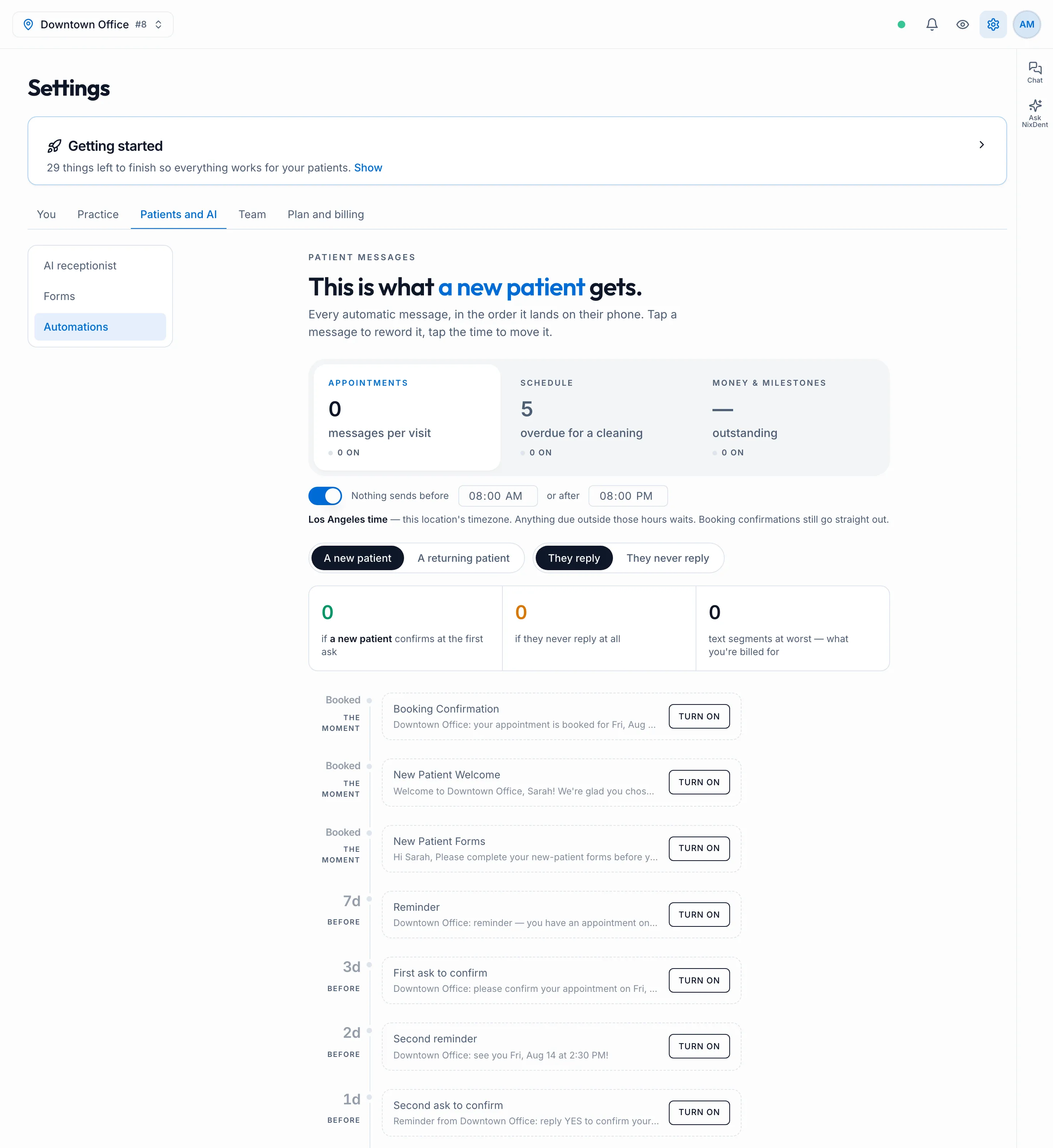
Every message starts off. Nothing goes to patients until you turn it on. Changes save as you make them; there’s no Save button.
Automatic messages are ordinary text messages. Never use them for health details. For those, use a secure message.
The three tabs
Section titled “The three tabs”| Tab | What’s in it |
|---|---|
| Appointments | Everything tied to one appointment, in the order it reaches the patient’s phone |
| Schedule | Cancellation notices and overdue-cleaning (hygiene recall) nudges |
| Money & milestones | Payment requests, birthdays, and reaching out to patients you haven’t seen in a while |
Each tab shows how many of its messages are on.
What each message does
Section titled “What each message does”| Message | Sends when | Stops |
|---|---|---|
| Booking Confirmation | Within a couple of minutes of any appointment being booked, online or in Open Dental | After one message |
| New Patient Welcome | A brand-new patient books their first visit | After one message |
| New Patient Forms | A new patient books. Sends the form bundle you choose. | After the forms are sent |
| Save the Date | A returning patient books | After one message |
| Confirmation Requests (up to 3) | Before the visit, on the days you choose. Asks the patient to reply YES. | As soon as they confirm, or the appointment is canceled |
| Appointment Reminders (up to 4) | Before the visit, on the days you choose. No reply needed. | When the visit passes or is canceled |
| Review Request | After the visit is completed in Open Dental: Right away, 2 hours or Next day. Needs at least one review link (see below) | After one message |
| Cancellation Notice | Within a couple of minutes of an appointment being canceled, online or in Open Dental | After one message |
| Hygiene Recall (up to 3 nudges) | A patient’s cleaning is overdue by the number of days you set | As soon as they book or come in, or you remove them |
| Payment Request (up to 3) | A patient has a balance in the age groups you choose. Includes a link to pay on their phone. | As soon as the balance is paid |
| Happy Birthday | On the patient’s birthday, at the time you set | After one message |
| Patient Reactivation (up to 2) | A patient hasn’t been seen in a long time and has nothing booked. Patients already getting hygiene recall nudges are left out. | As soon as they book |
When a patient replies YES to a confirmation request, they’re marked Confirmed and the later requests are canceled. If they never reply, they stay unconfirmed in Open Dental.
Turn a message on and set it up
Section titled “Turn a message on and set it up”- Click the message to open it. You can edit it while it’s off.
- Under When, pick how many days before the visit and the time of day. Messages sent the moment something is booked or canceled can’t be moved.
- Under Send by, choose SMS or Email.
- Under What it says, write the message. Placeholders fill in for each patient:
{{first_name}},{{practice_name}},{{location_name}},{{practice_phone}},{{appt_date}},{{appt_time}},{{form_link}},{{review_link}},{{balance}}and{{pay_link}}. The count under the box shows how many texts a long message will take. - Click Turn on.
On the Appointments tab, use A new patient / A returning patient and They reply / They never reply to see exactly what each kind of patient would get, and how many messages that adds up to.
Quiet hours
Section titled “Quiet hours”Quiet hours are on by default: nothing sends before 8:00 AM or after 8:00 PM, in the office’s time zone. Change the times with the switch and boxes near the top of the page.
Reminders, confirmation requests, recall nudges, review requests and the Money & milestones messages wait until quiet hours end. Booking confirmations, welcomes, save-the-dates, new patient forms and cancellation notices always go straight out, because the patient just did something and is waiting to hear back.
Weekly limit
Section titled “Weekly limit”On the Money & milestones tab, Never send one patient more than … of these a week caps how many recall, reactivation and payment messages one patient gets. It starts at 3. Appointment messages are never held back by it, but they do count toward it. 0 means no limit.
Hygiene recall: start small
Section titled “Hygiene recall: start small”On the Schedule tab:
- Start contacting after … days overdue sets when the first nudge goes out. It starts at 30 days.
- Who gets contacted is Going forward only at first. Include everyone already overdue also contacts your whole backlog of overdue patients. The page shows how many patients that would be before you choose it.
Payment requests
Section titled “Payment requests”On Money & milestones, choose which balance ages to chase: 1–30 days, 31–60 days, 61–90 days and 90+ days. 1–30 days is off at first, because those balances are usually still with insurance. Ages come from Open Dental’s own aging, so they match your office’s AR report.
- Show the list shows exactly who would be contacted and how much they owe.
- Click Exclude next to anyone you’d rather call yourself, such as patients on a payment plan or in a dispute. Manage under the list lets you search for and un-exclude patients.
If the tab says balance figures aren’t available for this office, payment requests won’t send there. Contact NixDent.
Check what was sent
Section titled “Check what was sent”Recent Activity at the bottom lists every automatic message: sent, failed, and skipped (with the reason). Failed sends retry on their own. Filter by All, Sent, Failed, Skipped, Scheduled or Responded.
A message is skipped, with the reason shown, when:
- the patient opted out of SMS, opted out of automated messages, or opted out of non-essential emails (see Communication preferences and do not contact and Texting rules and patient opt-outs);
- the patient is blacklisted (do not contact);
- the person is a non-patient (a family member or subscriber), so outreach isn’t sent;
- there is no phone on file, or no email on file;
- the office has no SMS-enabled number;
- there is no review link, for a Review Request;
- the message body is empty.
The Review Request message is skipped with “no review link” until the office has at least one link under Settings → Practice → Offices → Review Request Settings. See Ask patients for reviews.