

Send a broadcast
Who can do this: Owners, Office Managers and Front Desk. Everyone else can see campaigns and templates, but can’t create, change or send them.
Go to Outreach → Broadcasts, and pick the office at the top left.
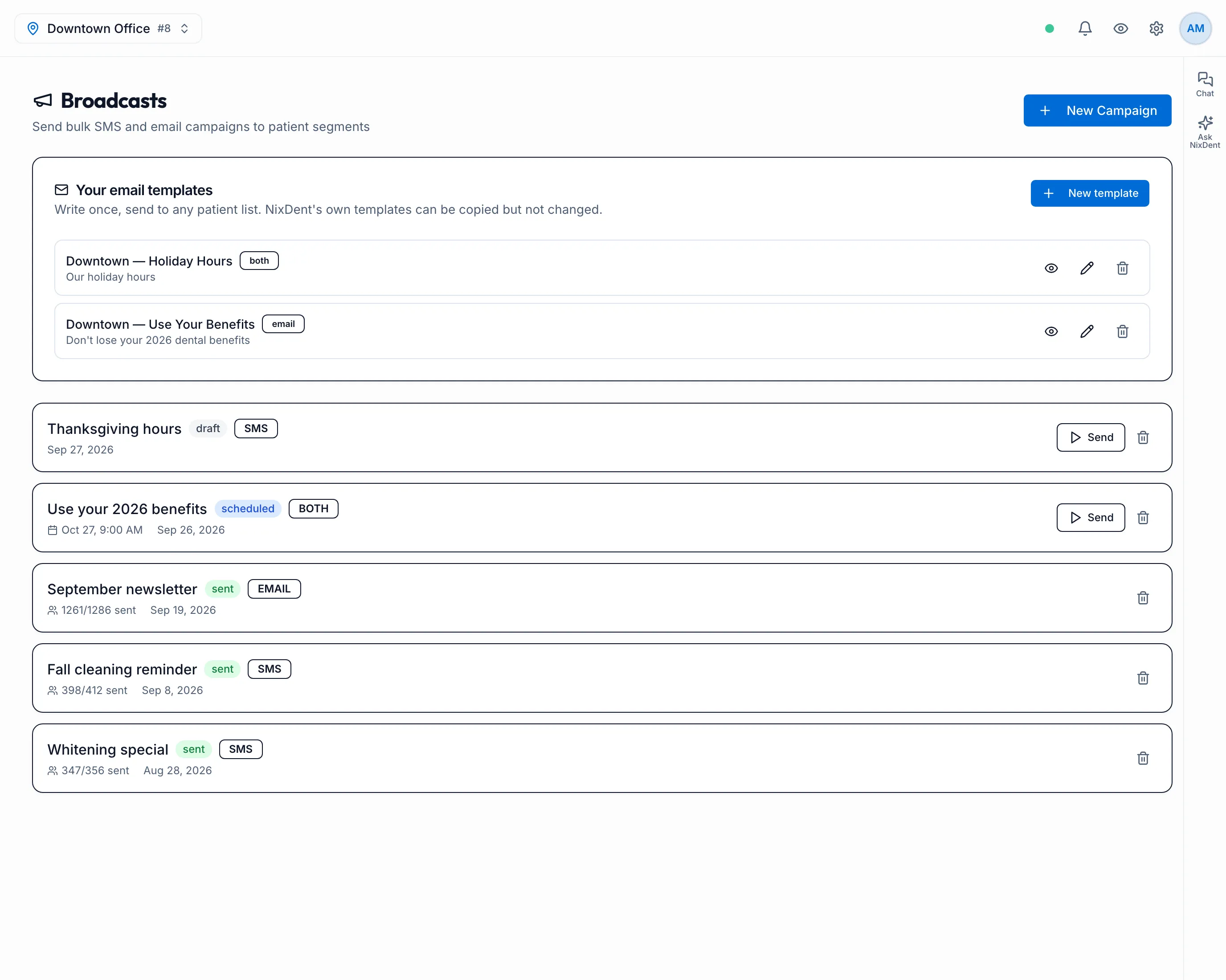
Before you send
Section titled “Before you send”- To send to a rule-based group, build a segment first.
- Texts go from your office’s texting number. Emails go out under your office’s name, with your logo, address and an unsubscribe link added automatically.
Send a campaign
Section titled “Send a campaign”Click New Campaign. The window walks you through six steps: Template, Name & Channel, Audience, Message, Schedule, Review. Use Next and Back to move between them.
- Template. Pick a template to start from, or click Start from scratch. Some templates also offer Use as editable blocks, which opens them in the email designer.
- Name & Channel. Enter a Campaign Name. Choose SMS, Email or SMS + Email. Leave Campaign Type on One-time send (for birthday messages, choose Recurring — Birthday). You pick when it goes out at the Schedule step.
- Audience. Choose one:
- Saved Segment: pick a segment. It goes to everyone the segment matches when it sends, the same people the count on the Segments page shows. To see the list or leave people out, click Review the names first: everyone is ticked; untick anyone you’d rather skip.
- Manual Selection: search by name or phone and tick patients, or use Select All Matching.
- Website Chat: everyone who left their details in your website chat. These are enquiries, not patients, so insurance figures aren’t available for them.
- Message.
- For texts, write the SMS Message. The counter shows how many texts it will take.
- For email, enter the Email Subject, then click Design the email (or Edit the design). Build the email, then click Done to come back.
- Schedule. Choose Send Now, or Schedule and set the Send Date & Time.
- Review. Check the name, channel, audience, message and send time, and look over the email preview. Then click Launch Campaign.
Send Now starts sending as soon as you click Launch Campaign. There’s no second confirmation.
Personalizing the message
Section titled “Personalizing the message”Type these into the text or email and each patient gets their own:
{{first_name}},{{last_name}},{{practice_name}},{{practice_phone}}- Insurance figures, after a benefits pull:
{{insurance_remaining}},{{benefit_year_end}},{{annual_max}},{{insurance_used}}
A patient with no insurance figure on file is skipped rather than sent a message with a blank in it.
{{membership_link}} also works in broadcasts. It fills in your membership signup link when membership is live. It isn’t in the editor’s insert menu, so type it in. If membership isn’t live, each patient is skipped rather than sent a message with a blank link.
Birthday messages
Section titled “Birthday messages”Choose Recurring — Birthday as the Campaign Type, write the message, leave Schedule on Send Now, and click Launch Campaign.
- Every day, each patient whose birthday it is gets the message once, between 9 am and 8 pm your office’s time.
- It goes to every active patient with a birthday that day. The audience you pick doesn’t change who gets it.
- Each day’s messages appear in the list as their own campaign, called Birthday Messages with the date.
- To stop birthday messages, delete the birthday campaign. Days already sent stay in the list.
Who never gets a broadcast
Section titled “Who never gets a broadcast”- Patients marked do-not-contact, or opted out of automation, on their patient card. This applies even if you tick them by hand.
- Patients who have opted out of texts don’t get the text. Patients who opted out of email don’t get the email. A patient who replied STOP to your office’s texts is also skipped. See Texting rules and patient opt-outs.
- Patients with no phone number are skipped for text. Patients with no valid email are skipped for email. The recipient list shows the reason.
- A patient who clicks the unsubscribe link in an email is opted out of email from then on.
Send to patients picked on the Patients page
Section titled “Send to patients picked on the Patients page”On Patients, tick the patients you want. Click Send Broadcast to N patients in the bar at the bottom. The campaign window opens with them already selected.
Follow a campaign
Section titled “Follow a campaign”Each campaign in the list shows its status, channel, and how many were sent out of the total.
| Status | Means |
|---|---|
| draft | Saved but not sent. Click Send to send it. A birthday campaign stays draft and sends itself each day. |
| scheduled | Waiting for its send time. Send sends it now instead. |
| sending | Going out now. Click Pause to stop the rest. |
| sent | Finished, and at least one message went out. |
| paused | Stopped part-way. |
| failed | Nothing went out, for example because nobody in the audience could be reached. |
Click the bin icon to delete a campaign. It takes effect right away, so check the campaign name first.
Email list check and daily limit
Section titled “Email list check and daily limit”When an email campaign reaches the last step, Review, a List check box appears under the summary. It tells you:
- how many of the people have an email address (“7 of 7 have an email address.”);
- who will be skipped, and why: bounced or marked us as spam before, rated invalid or risky by the address check, malformed, or opted out;
- how many patients haven’t been seen in 3 or more years (the box shows the exact number), and that they are left out, because old addresses bounce most;
- roughly how many will be emailed (“About 6 will be emailed.”), and over how many days when the daily limit spreads a large list.
To include patients not seen in that long, tick Include the N patients not seen in 3+ years, then tick I confirm these email addresses are current and these patients agreed to receive email from us. Your name is recorded with the campaign.
Under the campaign list, a line reads “Campaign email limit for this office: N a day (M sent today)”. Larger campaigns carry on automatically the next morning. A campaign pauses itself if too many addresses bounce.
Pause, resume and see who got it
Section titled “Pause, resume and see who got it”- Resume: a campaign that stopped with people still waiting shows Resume (N left). It may have stopped because of bounces, an email service pause, or the daily limit. The campaign card shows the reason.
- Recipients: opens the list for that campaign with what happened to each email, a filter by result, a search box (“Search name or email”) and a download (Download all (CSV)). Bounced and spam-marked addresses are never emailed again and show blocked.
- Campaign cards show opened and clicked counts. Apple Mail can count an email as opened without the person reading it. The counts only include emails sent with tracking.
Email templates
Section titled “Email templates”Your email templates holds your practice’s own templates.
- Click New template to write one. Use the eye icon to preview and the pencil to edit.
- Deleting a template doesn’t affect campaigns already sent.
- Open NixDent templates you can copy to see the built-in ones. Click Copy (or Copy as blocks) to make your own editable version. The built-in ones can’t be changed.