

Send a secure message
A secure message lets you send something clinical to a patient without the words travelling in a text message. The patient gets a short text with a link, confirms who they are, and reads the message on a private NixDent page.
Who can do this: Owners, Office Managers and Front Desk (the people who text patients).
When to use it
Section titled “When to use it”Use a secure message for anything that mentions a diagnosis, treatment, medication, test result or a patient’s condition. For ordinary things like “see you Tuesday at 2”, use a normal text. Secure mode is off by default because every secure message costs the patient an extra tap and their date of birth.
Send one
Section titled “Send one”- Open Messages and open the conversation, or start a new text.
- Write your message.
- Switch on Send securely (contains health information). The note under the box reads: “The patient gets a link and verifies their date of birth to read it. The text itself is never sent over SMS.”
- Send it. In a conversation, click the send arrow beside the box. In the New message window, the send button changes from Send SMS to Send securely.
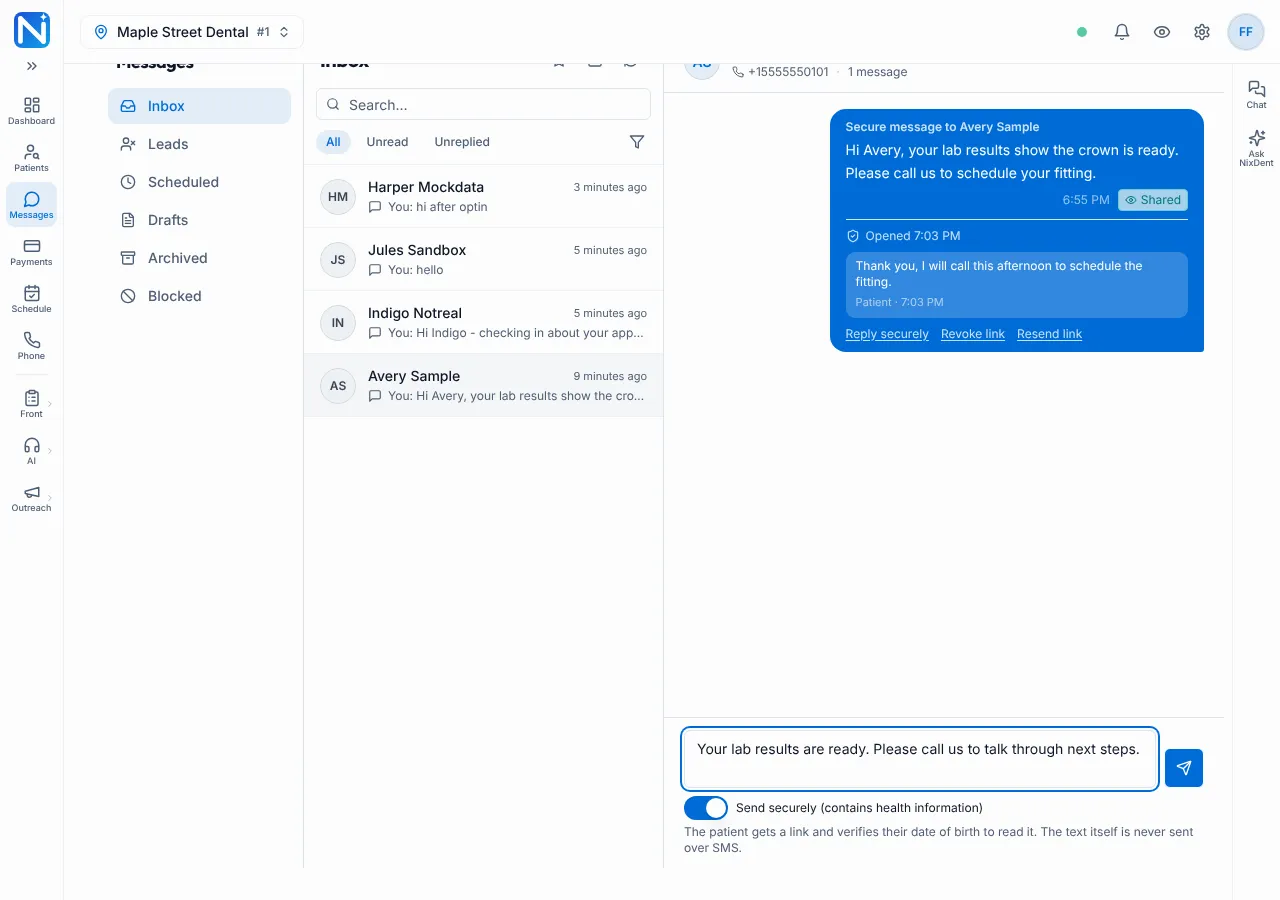
The patient receives a text that says only your office name and a short link:
{Office name}: you have a new secure message. Read it here: (short link)
No name, no health details.
What the patient sees
Section titled “What the patient sees”- They tap the link and see a page with your office name.
- They enter their date of birth (or their last name, only if NixDent has no date of birth on file).
- They may be asked one more question to confirm it’s them, such as picking their street address from a short list, then they click Verify.
- The message opens. Below it is a Reply securely box and a Send reply button. The page says “Your reply stays on this secure page - it is not sent as a text message.” After they send, it shows “Sent to the office.”
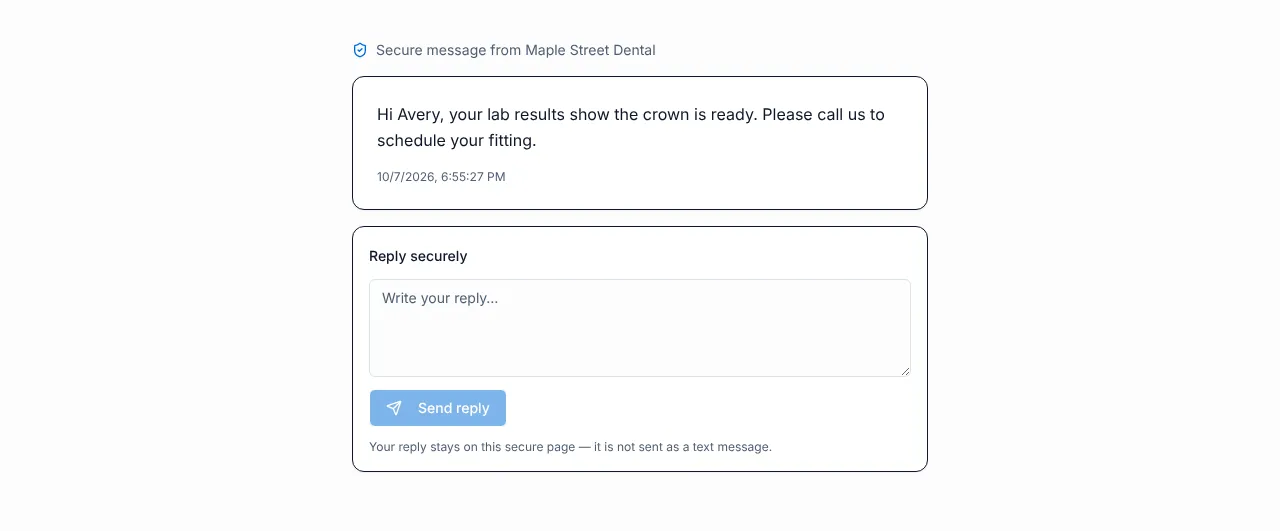
If the patient answers wrongly too many times, the link locks. Click Resend link to unlock it. If a link is no longer available (revoked, expired or not found) the page says “This link is no longer available” and tells the patient to call the office.
See whether it was read, and reply
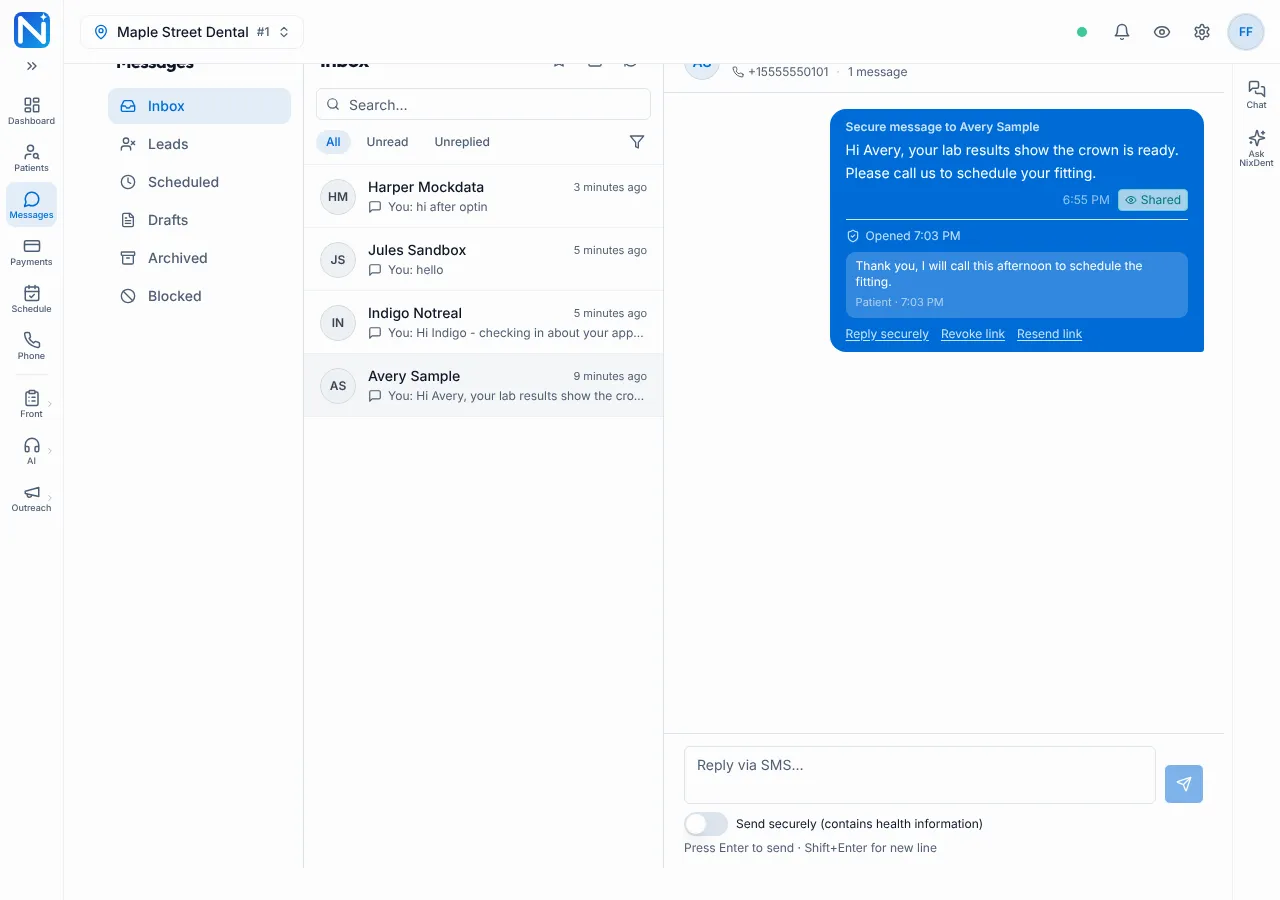
Section titled “See whether it was read, and reply”In the conversation, a secure message shows a line under it:
- Sent securely · not opened yet, or Opened with the time (for example “Opened 7:03 PM”). It counts as Opened once the patient has opened the message after confirming who they are.
- Secure link expired, once the link has expired.
Under it you can:
- Reply securely: type a reply and click Send securely. The patient gets a new text telling them there is a new secure message. The reply goes into the same secure thread, not a new link.
- Resend link: send the same message again with a fresh link. This also unlocks a patient who got the answers wrong. If the link expired the button reads Send a new link.
- Revoke link: the link stops working straight away. Use this if you sent it to the wrong person.
A patient’s reply stays on the secure page. It isn’t sent as a text. You see it in the conversation under the message, marked Patient, and you get a notification: “A patient replied to a secure message.”
Things that are not secure messages
Section titled “Things that are not secure messages”Automatic messages (reminders, confirmations, payment requests, review requests, recalls) are ordinary texts. Don’t use them to carry clinical detail.
Common problems
Section titled “Common problems”The text didn’t send because the patient replied STOP. Secure messages follow the same rule as every text. See Texting rules and patient opt-outs.
The patient says the link doesn’t work. Click Resend link. It texts a new short link and starts again.
The patient doesn’t know their date of birth is the password. Tell them: “You’ll be asked for your date of birth to open it.”